
Your WordPress website is one of your most valuable business assets, making security a top priority. From malware infections and brute-force attacks to vulnerable plugins and outdated software, cyber threats can put your website, customer data, and search rankings at risk.
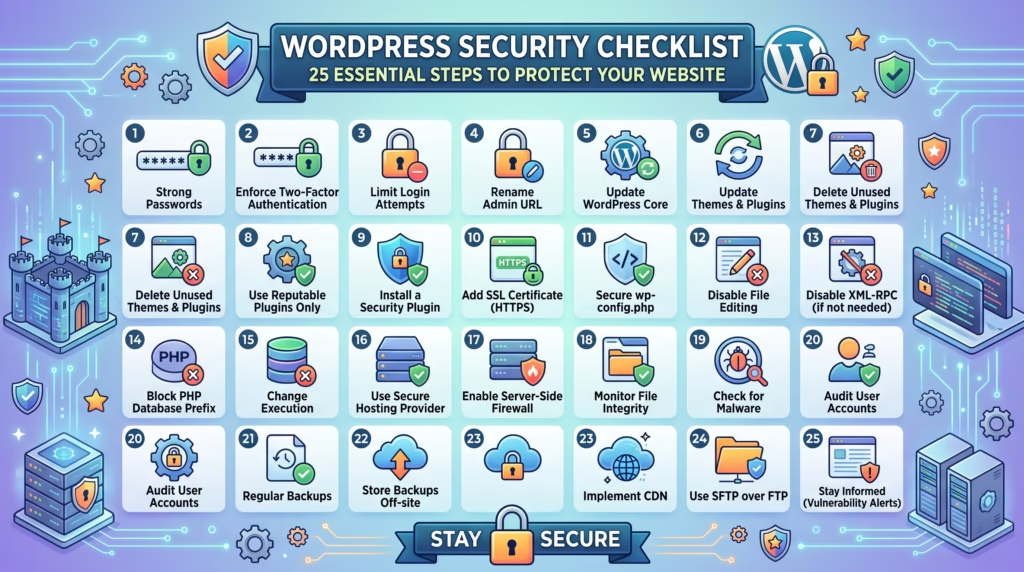
Following a comprehensive WordPress security checklist helps you strengthen your website’s defenses, reduce vulnerabilities, and keep your business running smoothly. In this guide, we’ll walk through 25 essential security steps every WordPress website owner should implement to protect their site from modern cyber threats.
Why WordPress Security Matters More Than Ever
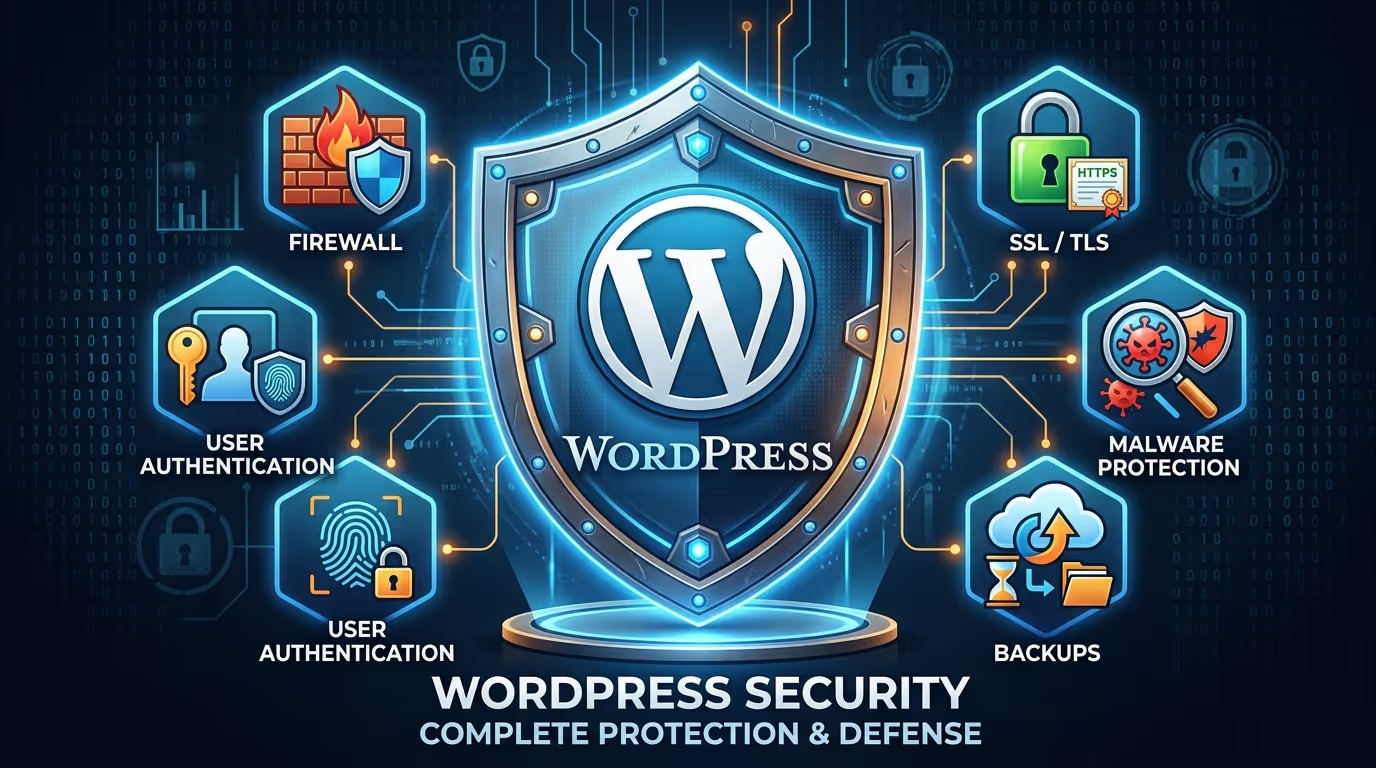
WordPress powers millions of websites worldwide, making it one of the most popular content management systems—and one of the biggest targets for hackers. Cybercriminals constantly search for outdated software, weak passwords, and vulnerable plugins they can exploit.
A hacked website can result in lost customer trust, stolen data, poor search rankings, website downtime, and costly repairs. Following a reliable WordPress security checklist helps you stay ahead of these threats by protecting your website before problems occur.
What Is a WordPress Security Checklist?
A WordPress security checklist is a collection of proven security best practices designed to keep your website protected from malware, unauthorized access, spam, and other cyber threats.
The checklist includes routine maintenance tasks such as updating WordPress, securing login pages, performing backups, installing security plugins, and monitoring vulnerabilities. Whether you manage a personal blog, business website, or WooCommerce store, following these steps significantly reduces your security risks.
The 25 Essential WordPress Security Checklist Items
Implement these essential security measures to build multiple layers of protection around your WordPress website.
1. Keep WordPress Core Updated
Always install the latest WordPress core updates. They include important security patches that protect your website from newly discovered vulnerabilities.
2. Update Themes Regularly
Keep active themes updated and delete themes you no longer use to reduce potential security risks.
3. Update Plugins Frequently
Outdated plugins are one of the most common causes of WordPress hacks. Install updates promptly to close known security vulnerabilities.
4. Use Strong Passwords
Create unique passwords using uppercase letters, lowercase letters, numbers, and special characters for every administrator account.
5. Enable Two-Factor Authentication (2FA)
Two-factor authentication adds an additional verification step during login, making unauthorized access much more difficult.
6. Choose Secure WordPress Hosting
A quality hosting provider offers features like malware scanning, firewalls, automatic backups, DDoS protection, and server monitoring.
7. Install a Trusted Security Plugin
Security plugins monitor threats, scan for malware, block suspicious traffic, and help harden your website against attacks.
8. Use SSL (HTTPS)
An SSL certificate encrypts data between your website and visitors while increasing trust and supporting better SEO.
9. Schedule Automatic Backups
Automatic backups ensure you can quickly restore your website if it becomes compromised or experiences unexpected issues.
10. Limit Login Attempts
Restrict repeated login attempts to protect your website against brute-force password attacks.
11. Change the Default Login URL
Customizing your WordPress login URL makes it harder for attackers to locate your login page.
12. Disable File Editing in WordPress
Turn off the built-in theme and plugin editor to prevent attackers from modifying files through the WordPress dashboard.
13. Remove Unused Themes and Plugins
Unused software can introduce unnecessary vulnerabilities. Delete anything you no longer need.
14. Use the Principle of Least Privilege for User Roles
Only assign users the permissions required for their responsibilities to minimize security risks.
15. Protect the wp-config.php File
Secure the wp-config.php file because it stores sensitive configuration settings and database credentials.
16. Secure Your Database
Use strong database passwords, unique table prefixes, and regular maintenance to improve database security.
17. Scan for Malware Regularly
Perform scheduled malware scans to detect malicious code before it causes serious damage.
18. Enable a Web Application Firewall (WAF)
A Web Application Firewall filters malicious traffic and blocks many common cyberattacks before they reach your website.
19. Disable XML-RPC if Not Needed
If your website doesn’t require XML-RPC functionality, disabling it helps reduce potential attack vectors.
20. Secure the wp-admin Directory
Add extra protection to your WordPress admin area using password protection, IP restrictions, or security rules.
21. Monitor Website Activity Logs
Activity logs allow you to identify suspicious behavior and investigate potential security incidents more effectively.
22. Use Secure File Permissions
Proper file and folder permissions help prevent unauthorized users from modifying critical website files.
23. Prevent Spam Comments
Use anti-spam tools to block unwanted comments containing malicious links and harmful content.
24. Monitor Security Vulnerabilities
Keep informed about newly discovered vulnerabilities affecting WordPress core, plugins, and themes so you can respond quickly.
25. Perform Regular Security Audits
Routine security audits help uncover hidden weaknesses and ensure your website follows current security best practices.
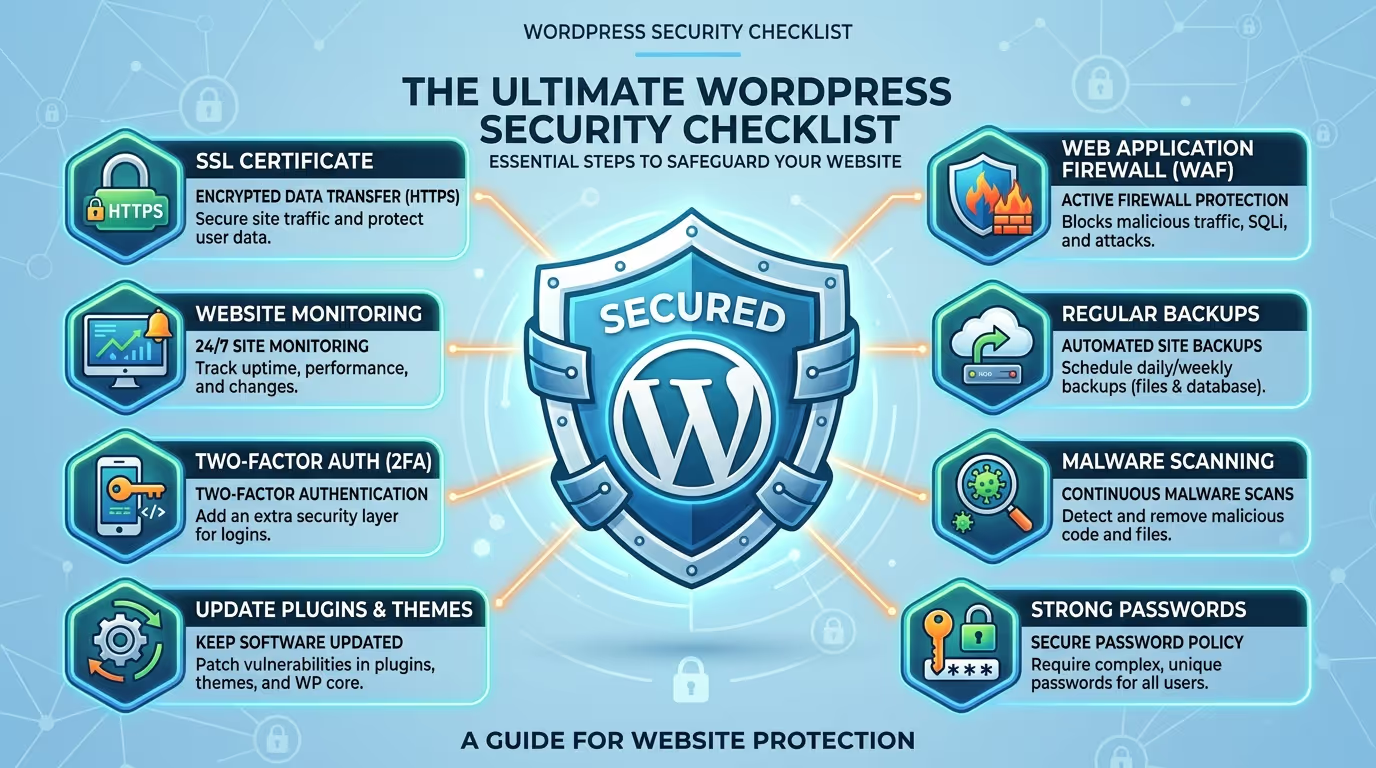
Quick WordPress Security Checklist Table
| Security Task | Recommended Frequency |
|---|---|
| Update WordPress Core | As Updates Are Released |
| Update Plugins & Themes | Weekly |
| Scan for Malware | Weekly |
| Create Website Backups | Daily or Weekly |
| Review User Accounts | Monthly |
| Monitor Security Logs | Weekly |
| Check for Vulnerabilities | Weekly |
| Remove Unused Plugins & Themes | Monthly |
| Review File Permissions | Monthly |
| Perform Full Security Audit | Quarterly |
Protecting your website requires more than occasional updates. At TecHippo, our Monthly Website Management Plans, WordPress Bug Fixing & Support, and SEO & Growth Optimization services provide ongoing security monitoring, software updates, malware protection, backups, and proactive maintenance to keep your WordPress website secure and performing at its best..Get in touch with TecHippo today for a free consultation and let’s find the best WordPress theme for your SEO goals.
Common WordPress Security Mistakes to Avoid
Even with a solid security strategy, small mistakes can leave your website vulnerable to cyberattacks. Avoiding these common errors is an important part of following a WordPress security checklist.
Common mistakes include:
- Ignoring WordPress, theme, and plugin updates.
- Using weak or reused passwords.
- Installing plugins from untrusted sources.
- Skipping regular website backups.
- Giving administrator access to too many users.
- Not using SSL (HTTPS).
- Ignoring malware scans.
- Leaving inactive plugins and themes installed.
- Not enabling two-factor authentication (2FA).
- Failing to monitor security vulnerabilities.
By avoiding these mistakes, you greatly reduce the chances of your website being compromised.
Best WordPress Security Plugins Compared
Security plugins provide an additional layer of protection by detecting threats, blocking malicious traffic, scanning for malware, and helping secure your website against attacks.
Wordfence Security
Wordfence is one of the most popular WordPress security plugins, offering a powerful firewall, malware scanner, brute-force protection, login security, and real-time threat intelligence. It’s an excellent choice for businesses that want comprehensive website protection.
Sucuri Security
Sucuri provides website monitoring, malware detection, blacklist monitoring, and a cloud-based Web Application Firewall (WAF). Its firewall blocks malicious traffic before it reaches your website, helping improve both security and performance.
Solid Security (formerly iThemes Security)
Solid Security focuses on preventing attacks through features like two-factor authentication, login protection, file change detection, password enforcement, and user activity monitoring. It’s ideal for strengthening your website against common WordPress vulnerabilities.
All In One WP Security & Firewall
This beginner-friendly plugin offers firewall protection, login security, spam prevention, file integrity monitoring, and database security—all through an easy-to-use interface. It’s a great option for users looking for a free security solution.
MalCare Security
MalCare specializes in automatic malware scanning and one-click malware removal. It also includes a built-in firewall and login protection while using cloud-based scanning to minimize server resource usage.
How to Know If Your WordPress Website Has Been Hacked
Hackers often leave warning signs that indicate your website may have been compromised.
Watch for these symptoms:
- Sudden drops in website traffic.
- Unexpected redirects to unknown websites.
- New administrator accounts you didn’t create.
- Slow website performance.
- Google Safe Browsing warnings.
- Spam content appearing on your website.
- Suspicious files or modified code.
- Your hosting provider temporarily suspending your website.
Identifying these warning signs early allows you to respond before more damage occurs.
What to Do If Your Website Gets Hacked
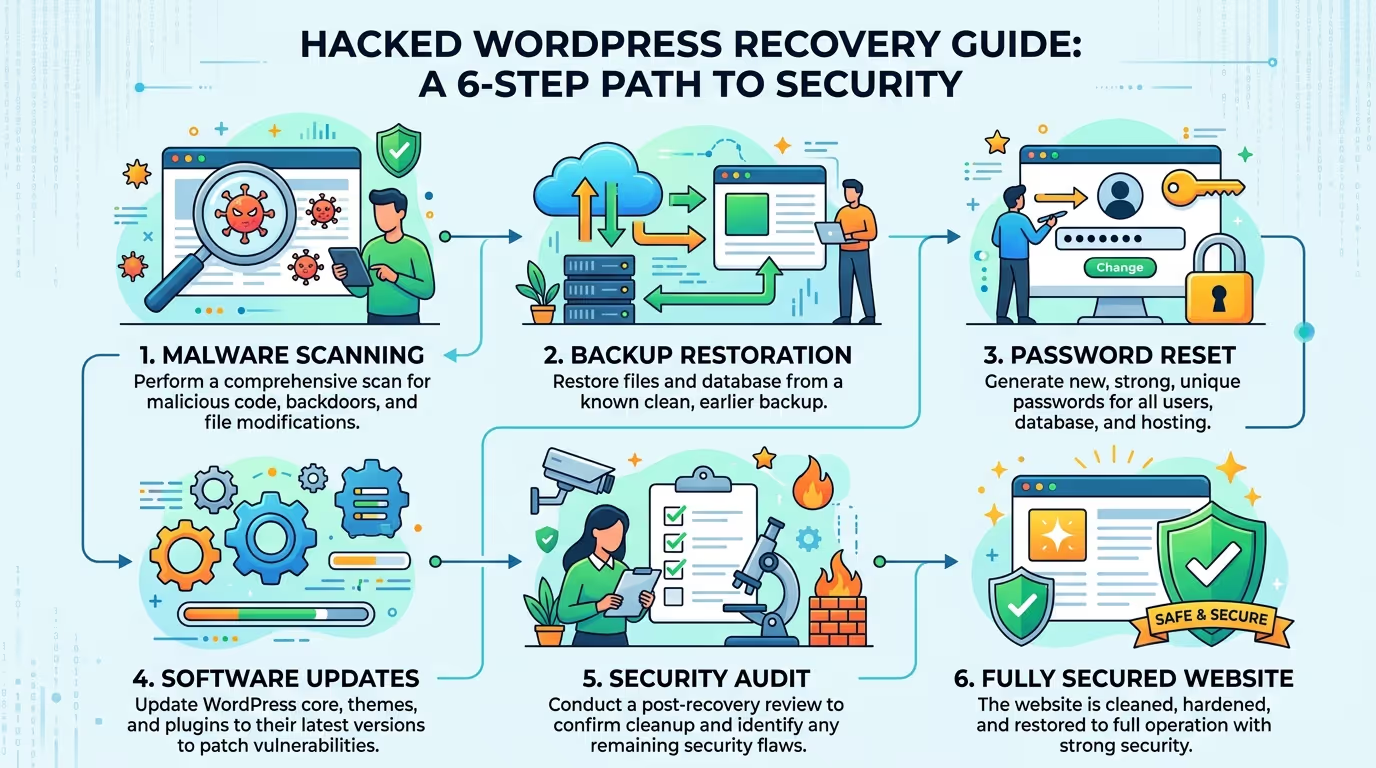
If your website has been hacked, acting quickly is essential to minimize downtime and prevent further damage.
Follow these steps:
- Put your website into maintenance mode.
- Scan your website for malware.
- Restore the latest clean backup.
- Reset all administrator passwords.
- Update WordPress, plugins, and themes.
- Remove malicious files and unauthorized user accounts.
- Change your hosting and database credentials.
- Contact your hosting provider if additional assistance is required.
- Request a Google Security Review if your website has been blacklisted.
- Perform a complete security audit before relaunching your website.
Protecting a WordPress website requires continuous monitoring and maintenance. With TecHippo’s Monthly Website Management Plans, WordPress Bug Fixing & Support, and SEO & Growth Optimization services, you’ll benefit from regular updates, malware protection, automated backups, and proactive security management that keeps your website protected around the clock..Get in touch with TecHippo today for a free consultation and let’s find the best WordPress theme for your SEO goals.
How WordPress Security Affects SEO and Website Performance
Website security plays a direct role in your SEO success. A hacked or malware-infected website can lose search rankings, receive security warnings from Google, and discourage visitors from trusting your business.
A secure website helps:
- Protect your search rankings.
- Improve visitor trust.
- Reduce downtime.
- Maintain fast loading speeds.
- Prevent malware infections.
- Support better user experience.
- Improve long-term website reliability.
Strong security and good SEO work together to create a better experience for both users and search engines.
WordPress Security Best Practices for Business Websites
Business websites often store customer information, making security even more critical.
Follow these best practices:
- Keep WordPress, themes, and plugins updated.
- Use secure managed WordPress hosting.
- Enable two-factor authentication.
- Schedule automatic backups.
- Limit administrator access.
- Install a trusted security plugin.
- Monitor activity logs regularly.
- Perform scheduled malware scans.
- Conduct regular security audits.
Consistently following these best practices helps protect your website, customer data, and online reputation.
How Often Should You Perform a WordPress Security Check?
Security is an ongoing process rather than a one-time task.
A recommended maintenance schedule includes:
- Daily: Monitor uptime and automated backups.
- Weekly: Update WordPress, plugins, and themes, and run malware scans.
- Monthly: Review user accounts, security logs, and file permissions.
- Quarterly: Perform a complete website security audit and remove unused software.
Following a regular schedule ensures your WordPress security checklist remains effective against evolving cyber threats.
Why Ongoing Website Security Maintenance Is Essential
Cyber threats continue to evolve, making ongoing maintenance essential for every WordPress website.
Regular security maintenance helps you:
- Stay protected against new vulnerabilities.
- Prevent malware infections.
- Reduce the risk of data breaches.
- Improve website stability.
- Maintain fast website performance.
- Protect customer information.
- Preserve SEO rankings.
Proactive maintenance is far more effective—and less expensive—than recovering from a successful cyberattack.
Don’t wait until your website is hacked to take security seriously. TecHippo’s Monthly Website Management Plans, WordPress Bug Fixing & Support, and SEO & Growth Optimization services provide ongoing protection, performance monitoring, regular updates, and expert maintenance to keep your WordPress website secure, fast, and ready for long-term growth..Get in touch with TecHippo today for a free consultation and let’s find the best WordPress theme for your SEO goals.
Conclusion
Following a complete WordPress security checklist is one of the smartest investments you can make for your website. By keeping WordPress updated, using trusted security tools, creating regular backups, and monitoring for threats, you can significantly reduce the risk of cyberattacks while protecting your visitors and business.
Website security isn’t a one-time setup—it’s an ongoing commitment. With regular maintenance and proactive monitoring, your WordPress website will remain secure, perform reliably, and continue supporting your business growth for years to come.


 Reach us on WhatsApp