
If your WordPress website slow to load issue is costing you visitors, rankings, or conversions, you’re not alone. This is one of the most common problems WordPress site owners face—and it’s rarely caused by just one thing.
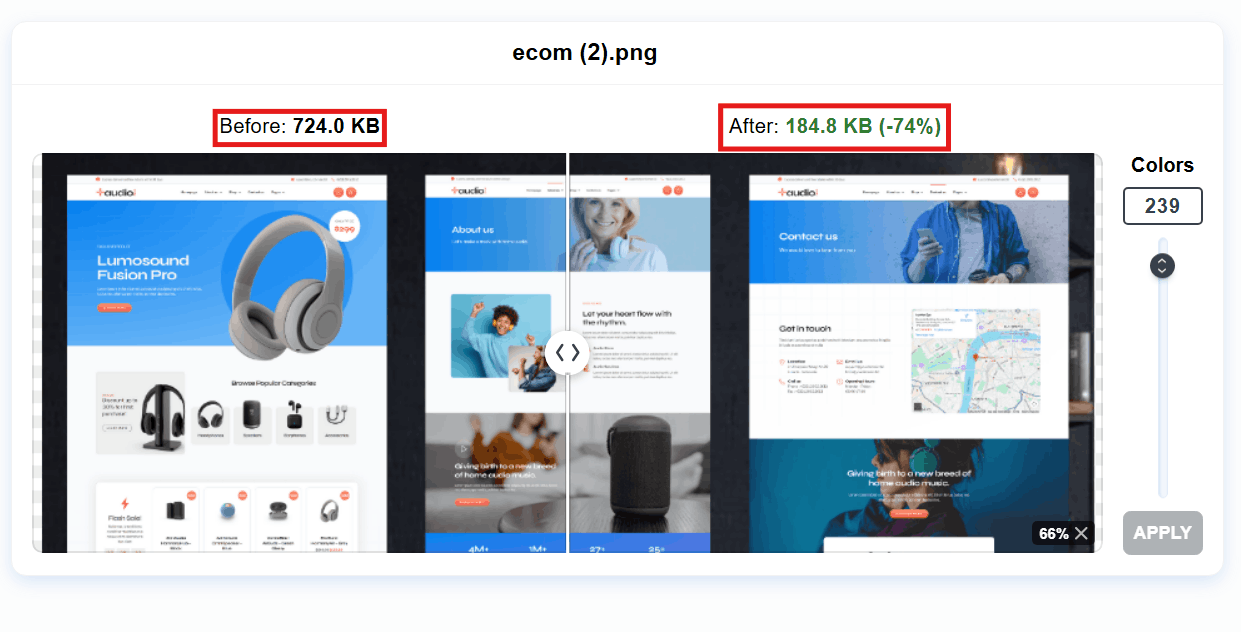
A slow-loading WordPress website usually comes from a combination of hosting limitations, theme and plugin choices, unoptimized assets, and missing performance fundamentals. The good news is that once you understand why your WordPress website is slow to load, fixing it becomes much more predictable.
This guide breaks down the real causes behind slow WordPress websites and explains what’s actually happening under the hood—before jumping into fixes.
Is Your WordPress Website Slow to Load? Here’s the Real Problem
When people notice their WordPress website slow to load, they often assume something is “broken.” In reality, slowness is almost always systemic, not random.
WordPress performance is influenced by both frontend and backend factors. Frontend issues affect what users see—images, scripts, layout rendering—while backend issues involve servers, databases, and PHP processing. A problem on either side can slow the entire site.
More importantly, a WordPress website slow to load is rarely caused by a single mistake. It’s usually the result of multiple small inefficiencies stacking together—each adding milliseconds until pages feel sluggish.
Speed directly impacts:
- How long users stay on your site
- Whether they interact or leave
- How search engines evaluate your pages
Understanding this big picture is critical before trying random “speed hacks.”
Why a WordPress Website Slow to Load Hurts SEO and Conversions
A WordPress website slow to load doesn’t just frustrate users—it actively works against your SEO and revenue.
Google uses Core Web Vitals as ranking signals. Metrics like Largest Contentful Paint (LCP) and Interaction to Next Paint (INP) are directly tied to loading speed and responsiveness. If your pages are slow, your rankings suffer—especially on mobile.
From a user behavior perspective, slow sites increase:
- Bounce rates
- Session abandonment
- Lost trust
With mobile-first indexing, Google evaluates your site primarily from a mobile performance standpoint. That means even a site that feels “okay” on desktop can perform poorly in search results if mobile loading is slow.
In short, a WordPress website slow to load hurts visibility and conversions at the same time.
Common Reasons a WordPress Website Is Slow to Load
Before fixing anything, you need to identify the real causes. Below are the most common reasons a WordPress website slow to load problem exists.
Cheap or Overloaded Web Hosting
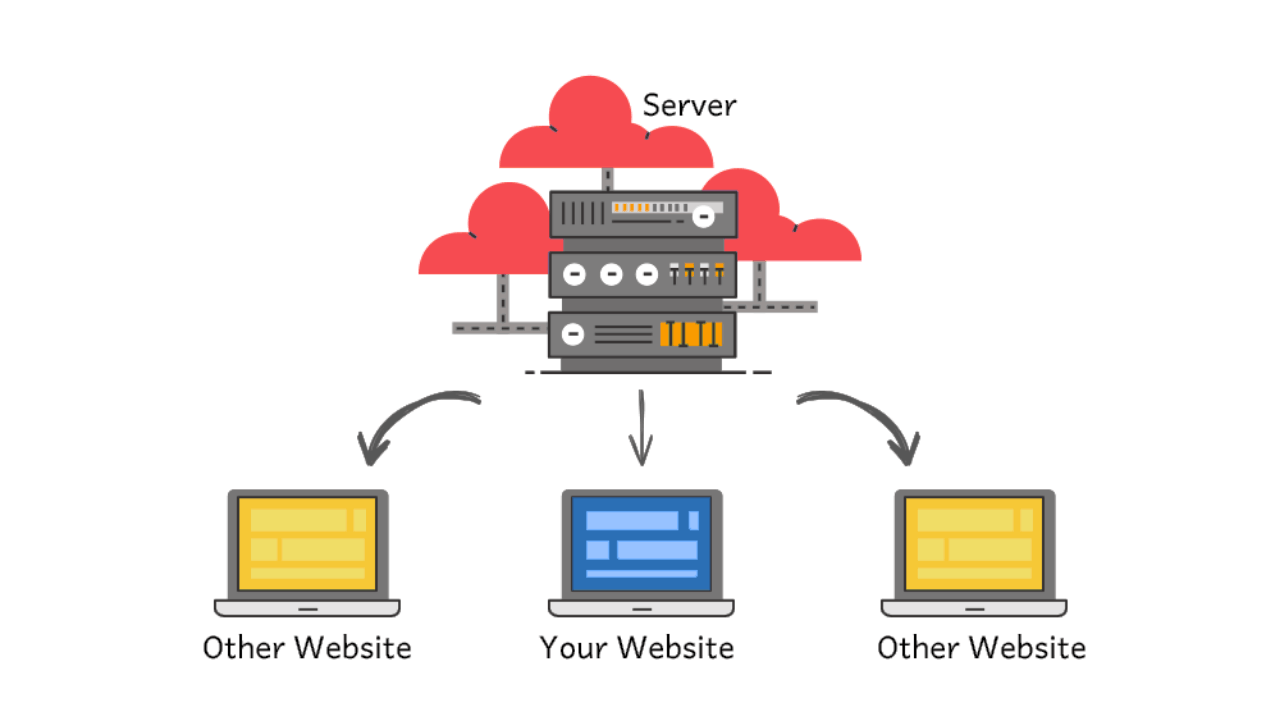
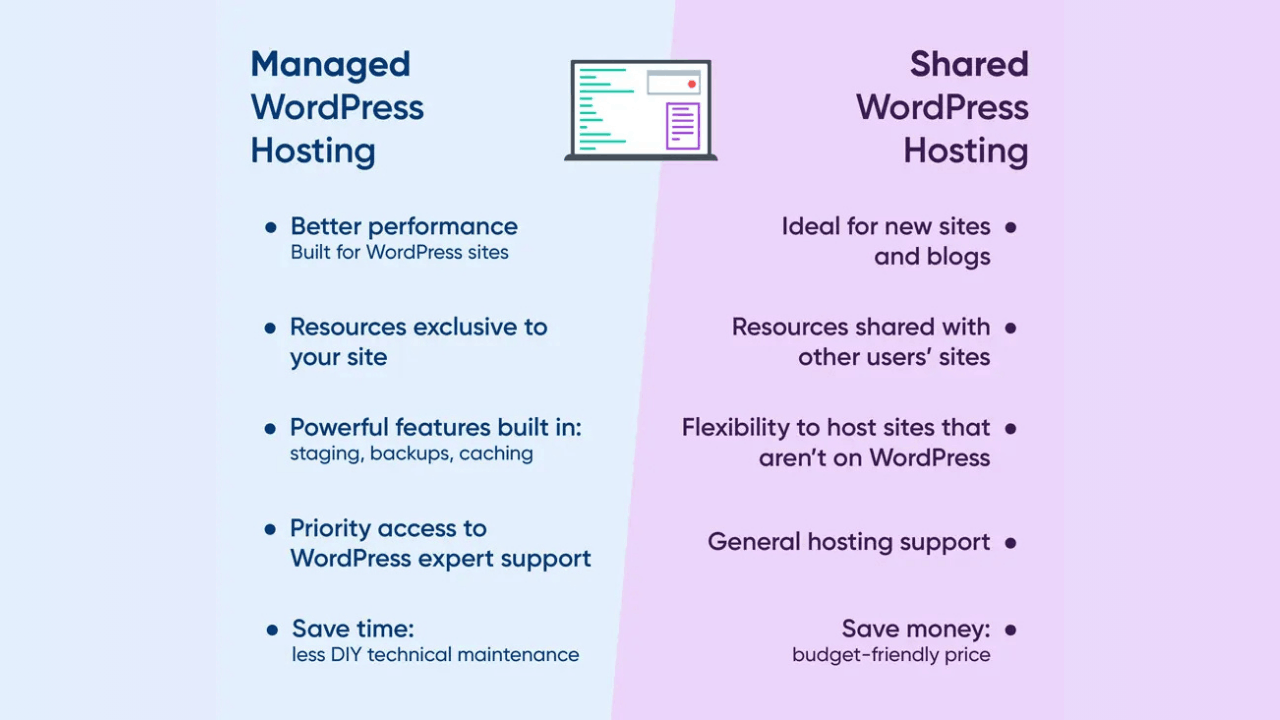
Hosting is the foundation of WordPress performance. On cheap shared hosting, hundreds—or even thousands—of websites compete for the same server resources.
This leads to:
- Slow server response times (high TTFB)
- Inconsistent performance during traffic spikes
- Delays before WordPress even starts loading
No amount of optimization can fully compensate for underpowered or overloaded hosting.
Heavy Themes and Page Builders
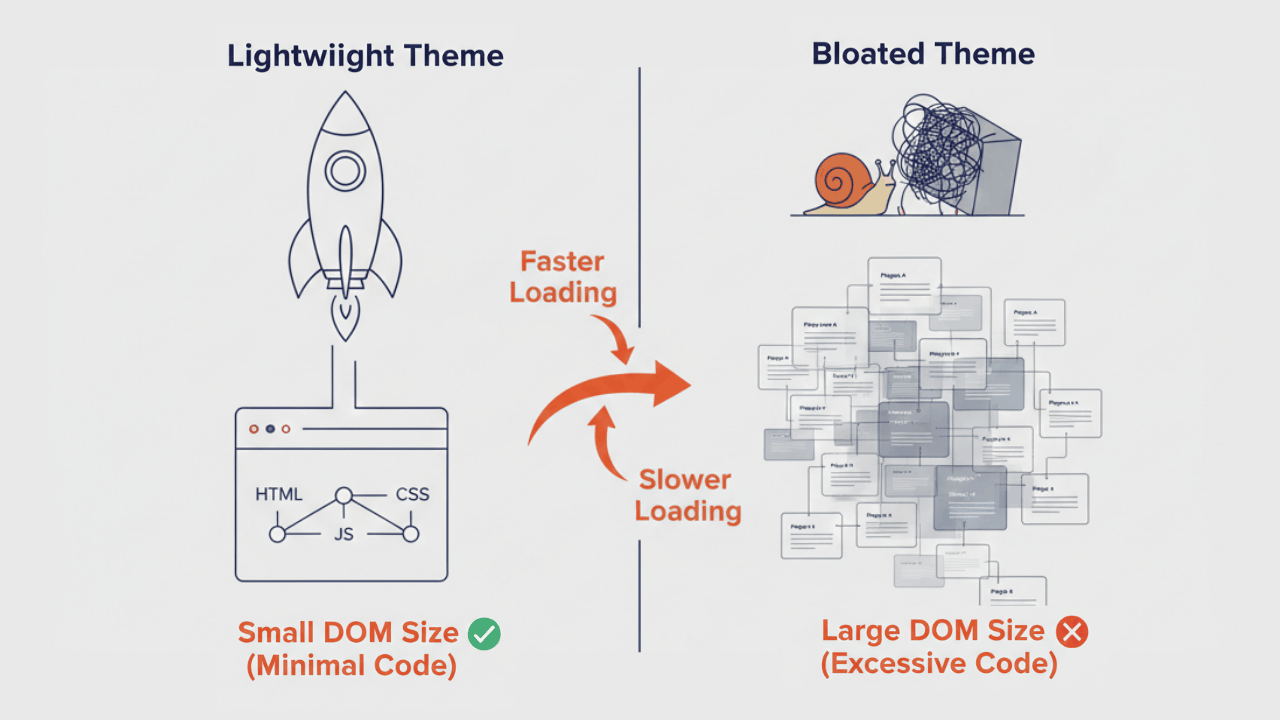
Many WordPress themes look great but are poorly coded. Heavy themes often load:
- Excessive CSS and JavaScript
- Large DOM structures
- Assets on every page—even when not needed
Page builders can make this worse by adding unnecessary wrappers and scripts. The result is longer rendering times and a WordPress website slow to load even on good hosting.
Too Many Plugins or Poor Plugin Quality
Plugins extend WordPress, but every plugin adds overhead. A WordPress website slow to load often has:
- Too many active plugins
- Plugins doing the same job
- Plugins that are outdated or poorly maintained
Bad plugins can introduce slow database queries, render-blocking scripts, or conflicts that drag performance down.
Large Images and Unoptimized Media
Images are one of the biggest reasons a WordPress website slow to load—especially on mobile.
Common issues include:
- Uploading full-size images and scaling them down with CSS
- No compression
- Using outdated formats instead of WebP
Large media files increase page weight and delay visible content loading.
No Caching or Incorrect Caching Setup
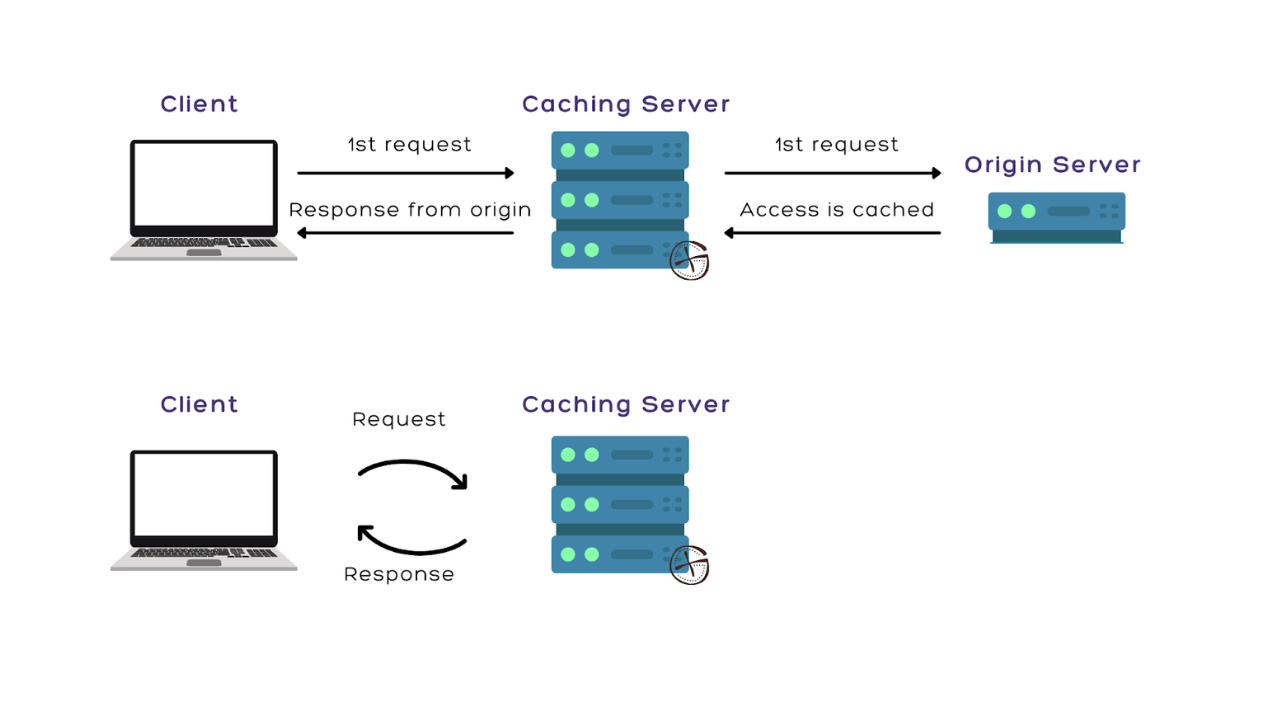
Without caching, WordPress rebuilds each page from scratch for every visitor. This involves PHP execution and database queries on every request.
Proper caching:
- Stores pre-built pages
- Reduces server load
- Speeds up repeat visits
A missing or misconfigured cache is a guaranteed reason a WordPress website slow to load.
No CDN or Poor CDN Configuration
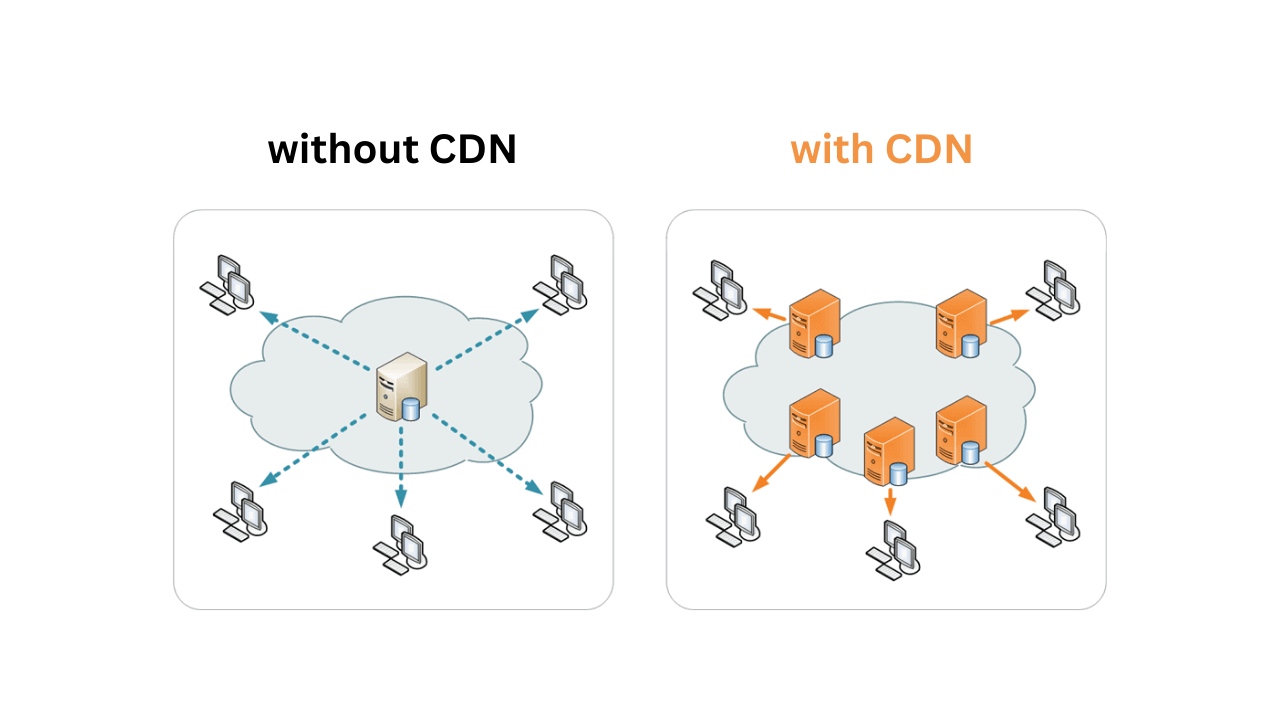
If your visitors are spread across different regions, distance matters. Without a CDN, static files are served from one physical server location.
This causes:
- Higher latency for international users
- Slower asset delivery
A poorly configured CDN can be just as bad as not using one at all.
How to Check Why Your WordPress Website Is Slow to Load
Before fixing anything, you need to identify what’s actually slowing the site down. Guessing leads to broken layouts, lost functionality, and wasted time. This section is about clarity.
Speed Testing Tools You Should Use
Use more than one tool. Each one highlights a different layer of the performance problem.
Google PageSpeed Insights
- Focuses on Core Web Vitals and real user data
- Best for understanding SEO impact
- Shows what Google actually evaluates
GTmetrix
- Strong for frontend diagnostics
- Reveals page size, request count, and asset load order
- Excellent for spotting heavy themes, scripts, and images
WebPageTest
- Most technical and accurate
- Breaks down server response time and backend delays
- Ideal if hosting or server configuration is suspected
Metrics That Actually Matter
Ignore overall scores. These metrics explain why a WordPress website is slow to load.
Largest Contentful Paint (LCP)
- Measures how fast the main content appears
- Often slowed by:
- Large hero images
- Poor hosting
- Missing caching
Cumulative Layout Shift (CLS)
- Measures visual stability
- High CLS is caused by:
- Images without dimensions
- Fonts or ads loading late
INP / Time to First Byte (TTFB)
- INP measures interaction delay
- TTFB measures server response time
- High values usually indicate:
- Weak hosting
- No server-side caching
- Backend inefficiencies
If TTFB is slow, frontend tweaks alone won’t fix the issue.

Step-by-Step Fixes for a WordPress Website Slow to Load
Apply fixes in sequence. Random optimization causes conflicts.
Upgrade Hosting for Performance Stability
Sometimes WordPress isn’t the problem — the server is.
When upgrading is unavoidable:
- TTFB stays high across all tests
- Traffic spikes cause slowdowns or errors
- WordPress admin feels sluggish
Signs hosting is the bottleneck:
- “Reduce server response time” warnings
- Minimal improvement from caching plugins
- CPU or memory limits reached frequently
Bad hosting caps performance no matter how optimized the site is.
Optimize Images Properly
Images are the most common reason a WordPress website is slow to load.
Proper image optimization includes:
- Compressing images without visible quality loss
- Uploading images at correct display size
- Enabling lazy loading for below-the-fold media
- Using modern formats like WebP
Uploading oversized images and scaling them down visually is a major performance mistake.
Implement Caching the Right Way
Caching prevents WordPress from rebuilding pages on every visit.
Core caching layers:
- Page caching – serves static HTML
- Object caching – reduces database queries
- Browser caching – speeds up repeat visits
Misconfigured caching can break logins, carts, and dynamic elements.
Minify CSS, JavaScript, and HTML
Minification reduces file size but must be handled carefully.
Best practices:
- Remove render-blocking CSS cautiously
- Defer non-critical JavaScript
- Combine files only when safe
Aggressive minification often causes broken layouts or missing features.
Remove or Replace Problem Plugins
More plugins don’t automatically mean slower performance. Bad plugins do.
Audit plugins by:
- Last update date
- Performance impact
- Feature overlap with other plugins
One poorly coded plugin can slow the entire site more than ten well-built ones.
Use a CDN for Global Speed
A CDN reduces geographic latency by serving assets closer to visitors.
A CDN helps when:
- Visitors come from multiple regions
- The site serves many images, scripts, or fonts
Common CDN mistakes:
- Static assets not cached
- DNS misconfiguration
- Conflicts with caching plugins
A CDN must be configured correctly to help.
Advanced Optimization for Persistent Speed Issues
This section applies to growing or revenue-focused sites.
Database Cleanup and Optimization
Databases accumulate unnecessary data over time.
Cleanup targets include:
- Old post revisions
- Expired transients
- Orphaned metadata
Smaller databases improve query speed and overall performance.
Server-Level Performance Tuning
These optimizations have high impact but higher risk.
Includes:
- Upgrading PHP versions
- Increasing memory limits
- Enabling Redis or Memcached
This is where professional involvement often prevents costly mistakes.
Theme and Code-Level Optimization
Themes often load unnecessary assets site-wide.
Advanced fixes:
- Removing unused CSS and JS
- Conditional loading of scripts
- Disabling bloated theme features
These changes are powerful but require precision.
When Fixing a WordPress Website Slow to Load Becomes Risky
Speed improvements should never compromise stability.
Breaking Design or Functionality
Common issues include:
- Sliders not loading
- Forms failing
- Checkout or cart errors
Usually caused by aggressive caching or JS deferral.
SEO Damage from Incorrect Optimization
Poor optimization can:
- Block critical resources
- Hide content from search engines
- Reduce rankings instead of improving them
This is why performance work should align with SEO & Growth Optimization, not fight it.
Time Cost vs ROI for Business Sites
DIY optimization works for small sites.
For business websites, the real question is return on investment.
If fixing a WordPress website slow to load issue:
- Takes weeks
- Risks revenue
- Distracts from growth
That’s where Monthly Website Management Plans become a safer, scalable solution.
Common Mistakes People Make When Speeding Up WordPress
Trying to speed up WordPress without a plan often makes things worse. These mistakes are the reason many sites break, lose rankings, or see zero improvement.
Installing Multiple Caching Plugins
More caching plugins do not mean more speed.
What actually happens:
- Cache conflicts overwrite each other
- Logged-in users see broken layouts
- Dynamic features (forms, carts, dashboards) fail
WordPress should use one properly configured caching system, not three fighting each other.
Blindly Following Tool Recommendations
Speed tools give generic advice, not context-aware solutions.
Common mistakes:
- Deferring critical JavaScript without understanding dependencies
- Removing CSS needed for above-the-fold content
- Chasing “100 scores” instead of real-world performance
Tools diagnose symptoms — they don’t understand your site’s business logic.
Ignoring Mobile Performance
Most traffic is mobile-first. Many site owners still optimize only for desktop.
Consequences:
- High mobile bounce rate
- Poor Core Web Vitals
- Lost rankings due to mobile-first indexing
If your mobile site is slow, your WordPress website is slow — period.
Optimizing Without Backups
This is reckless.
Speed optimization often involves:
- Database changes
- File modifications
- Plugin removals
Without a backup:
- One mistake can take the site offline
- Recovery may require a full rebuild
This is why performance work is often paired with Monthly Website Management Plans for safety and rollback protection.
FAQs About a WordPress Website Slow to Load
Why is my WordPress website slow to load even with good hosting?
Good hosting helps, but it’s only one piece of the puzzle.
Common causes:
Heavy themes or page builders
Unoptimized images
Poor plugin choices
No caching or CDN
Hosting provides capacity — your site still controls how efficiently it uses it.
Does a WordPress website slow to load affect Google rankings?
Yes — directly.
Google uses:
Core Web Vitals
Mobile performance
User engagement signals
A slow site increases bounce rate and reduces crawl efficiency. This is why speed is tightly linked with SEO & Growth Optimization, not just technical tuning.
How fast should a WordPress website load?
Realistic targets:
Under 2 seconds on mobile
LCP under 2.5 seconds
TTFB under 600ms
Anything slower starts hurting user trust and conversions.
Can plugins make a WordPress website slow to load?
Absolutely.
Problems arise from:
Poorly coded plugins
Plugins loading assets site-wide
Overlapping functionality
It’s not about plugin count — it’s about plugin quality and purpose.
Is caching enough to fix a slow WordPress website?
No.
Caching helps, but it doesn’t fix:
Heavy images
Bloated themes
Slow hosting
Database inefficiencies
Caching is a layer, not a cure-all. True fixes come from Website Speed Optimization, not shortcuts.
When should I hire a professional for speed optimization?
You should stop DIY and get help when:
The site generates revenue or leads
Speed issues persist after basic fixes
SEO rankings are at risk
Time spent troubleshooting outweighs ROI
Professional optimization prevents costly mistakes and delivers stable, long-term gains.
Final Thoughts on Fixing a WordPress Website Slow to Load
Speed optimization isn’t about hacks, magic plugins, or chasing perfect scores.
It’s about:
- Understanding what’s actually slowing the site down
- Fixing issues in the correct order
- Balancing performance, stability, and SEO
A fast WordPress site is built through systematic optimization, not trial and error.
For businesses and growing websites, pairing performance work with Website Speed Optimization, supported by Monthly Website Management Plans and aligned with SEO & Growth Optimization, ensures your site stays fast, stable, and competitive long after the first improvements.

 Reach us on WhatsApp