
Updating a WordPress site can be stressful. One wrong plugin update, a half-loaded theme change, or a delayed script can expose visitors to broken layouts and error messages. WordPress website maintenance mode solves this problem by temporarily hiding your live site while you work behind the scenes.
Instead of showing incomplete pages, maintenance mode displays a professional message that tells visitors your site is being improved. This keeps your brand image intact and avoids unnecessary confusion during updates. In this guide, you’ll learn what maintenance mode is, when you should use it, and how to enable it using methods that range from beginner-friendly to advanced.
For businesses that update their sites frequently, long-term solutions like monthly WordPress website management plans can help reduce downtime, prevent update issues, and keep maintenance predictable rather than reactive.
What Is WordPress Website Maintenance Mode?
WordPress website maintenance mode is a temporary state that blocks public access to your site while updates or changes are in progress. Visitors see a custom maintenance message instead of your normal pages, while logged-in administrators can continue working on the site without restrictions.
This approach protects users from seeing broken designs, missing content, or malfunctioning features during updates. At the same time, it clearly communicates that the downtime is intentional and temporary, not the result of a technical failure.
When configured properly, maintenance mode also signals search engines that your site will return shortly, helping you avoid unnecessary SEO issues.
Why You Should Use Maintenance Mode on a WordPress Website
Maintenance mode plays a critical role in maintaining professionalism, protecting data, and preserving search visibility during site changes.
Protect Visitors from Broken Pages
Unfinished updates often result in layout issues, missing styles, or pages that don’t load correctly. When visitors encounter these problems, trust in your website drops instantly. Maintenance mode prevents this by hiding incomplete work and presenting a clear, intentional message that reassures users improvements are underway.
Prevent Data Loss During Updates
Without maintenance mode, visitors can still interact with your site during updates. This can lead to lost comments, failed contact form submissions, or interrupted WooCommerce orders. Maintenance mode blocks these interactions, ensuring no user data or transactions are lost while critical changes are being applied.
SEO Benefits of Proper Maintenance Mode
Using maintenance mode correctly helps protect your SEO. When your site returns a 503 Service Temporarily Unavailable status, search engines understand the downtime is temporary. This prevents deindexing and ranking drops that can occur if search engines interpret update-related errors as permanent site failures.
When Should You Enable WordPress Website Maintenance Mode?
Maintenance mode isn’t necessary for every small edit. Quick text changes or image updates can usually be made live. However, certain situations make enabling maintenance mode essential.
Major WordPress Core, Plugin, or Theme Updates
Large updates can trigger conflicts, fatal errors, or partially loaded pages. Enabling maintenance mode during major core, plugin, or theme updates ensures visitors never see these issues while files are being replaced or databases are being updated.
Website Redesigns or Layout Changes
Theme switches and layout restructuring can temporarily break navigation, styling, or page layouts. Maintenance mode is especially important during a full WordPress website redesign, where visual and structural changes need to remain hidden until everything is polished and ready for launch.
Performance or Security Work
Performance tuning, database optimization, cache configuration, malware cleanup, or security hardening can affect site stability. Maintenance mode allows this work to happen safely without exposing visitors to slow load times or potential security risks. Ongoing WordPress bug fixing and support can also reduce the need for repeated downtime by addressing issues before they escalate.
How to Put a WordPress Website in Maintenance Mode
There’s no single method that works for everyone. The best way to enable WordPress website maintenance mode depends on your technical skill level and the type of work you’re doing.
In the next sections, you’ll learn four different ways to put a WordPress site into maintenance mode, starting with simple plugin-based solutions and progressing to advanced, code-level methods for developers and power users.
Method 1 – Using a WordPress Maintenance Mode Plugin (Beginner-Friendly)
For most WordPress users, plugins are the easiest and safest way to enable maintenance mode. They require no coding, work with almost any theme, and can be turned on or off with a single click. This makes plugin-based maintenance mode ideal for beginners or site owners who want a fast, low-risk solution during updates.
Maintenance mode plugins also allow you to customize the message visitors see, add branding elements like logos or background images, and ensure your site behaves correctly for both users and search engines while updates are in progress.
Recommended WordPress Maintenance Mode Plugins
Several well-established plugins make it easy to put a WordPress site into maintenance mode:
Maintenance
A lightweight, free plugin that offers basic customization options such as custom messages, background colors, and access control for logged-in users.
LightStart (WP Maintenance Mode)
Formerly known as WP Maintenance Mode, this plugin provides more design flexibility, countdown timers, and simple integrations for tracking visitor activity during maintenance.
SeedProd
A premium option focused on design and conversions, offering professionally designed templates and advanced customization for businesses that want a polished maintenance page.
Step-by-Step Setup with the Maintenance Plugin
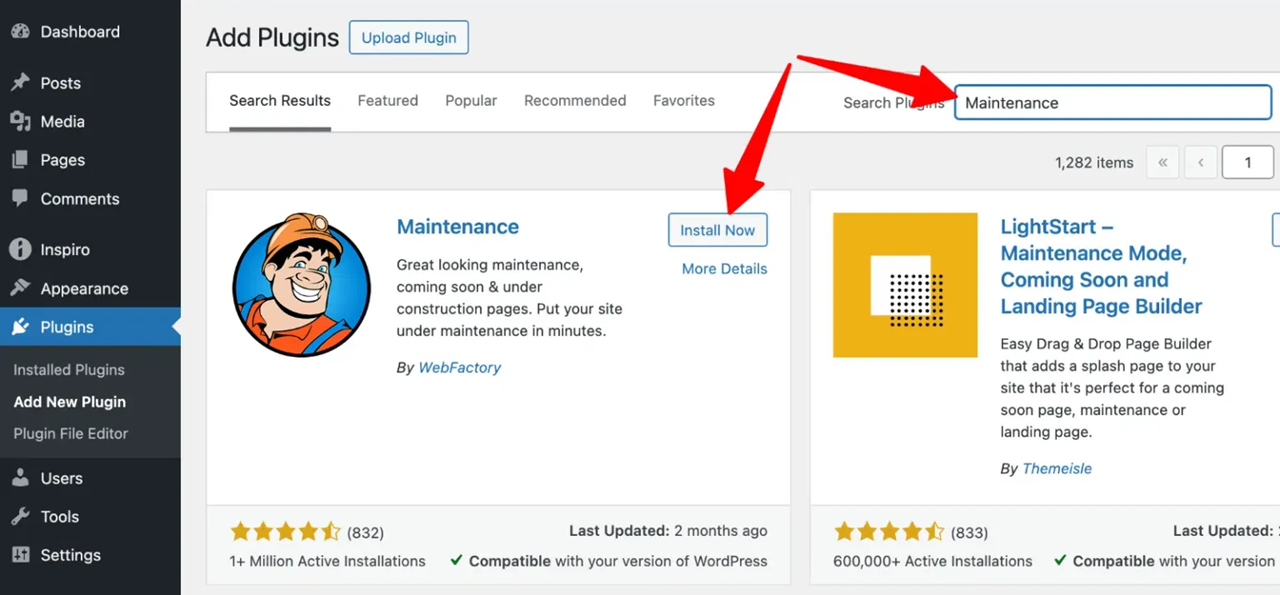
1. Install and activate the Maintenance plugin from the WordPress Plugin Repository.
Navigate to Plugins > Add New Plugin in your WordPress dashboard.
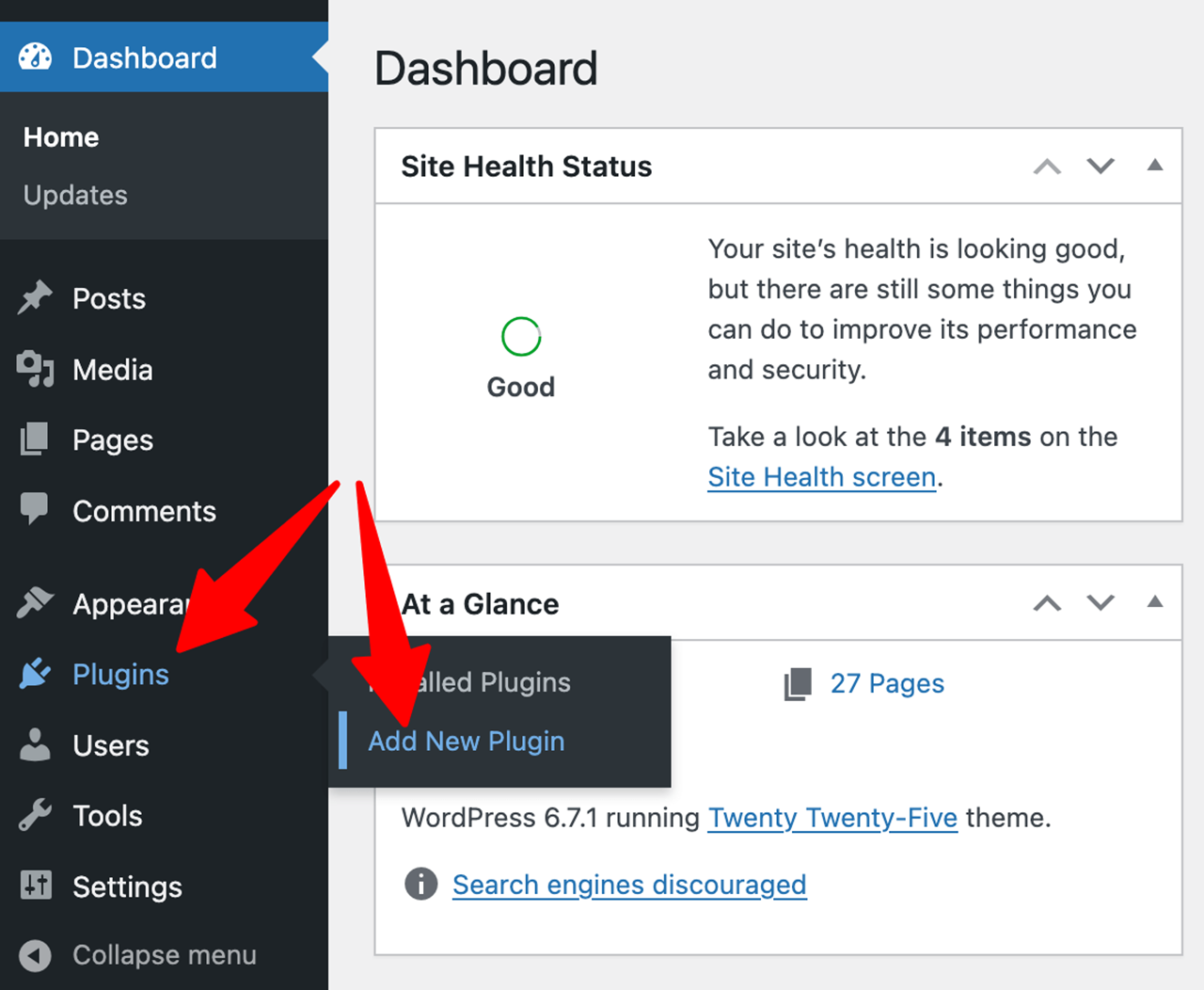
Search for “Maintenance,” and click Install Now followed by Activate.
2. Access the settings by going to Maintenance in your WordPress dashboard.
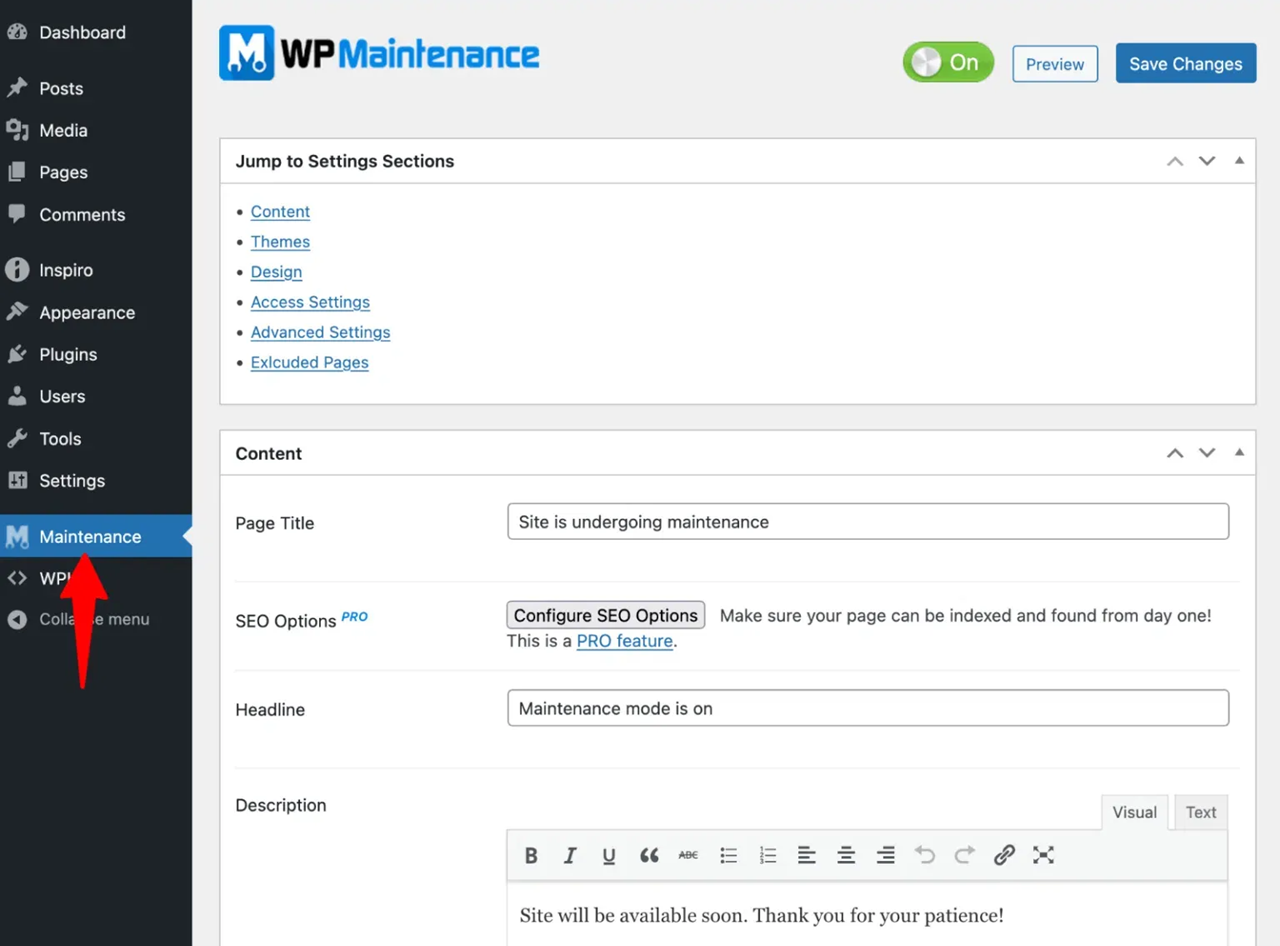
Design your maintenance page by customizing these elements:
- Title and message (explain why your site is under maintenance)
- Background image or color scheme to match your brand
- Logo display options
- Font styles and text colors
3. Configure essential settings:
- Enable the 503 Service Temporarily Unavailable status code to inform search engines your site is temporarily down
- Exclude specific user roles so team members can still access the site
- Set up Google Analytics tracking to monitor traffic during maintenance
- Create a countdown timer if you know when the work will be completed
5. Save your changes and activate maintenance mode by toggling the “Maintenance Mode” switch to “On.”
6. Test your maintenance page by opening your site in an incognito window or a different browser where you’re not logged in. This lets you see exactly what visitors will experience.
The plugin creates a temporary barrier between your site and visitors, displaying your custom message instead of your regular content. Meanwhile, logged-in administrators can still view and work on the site normally.
Should you need to adjust your maintenance page, simply return to the plugin settings and update your design or message. When your maintenance work is complete, just toggle the switch back to “Off” to make your site publicly accessible again.
Method 2 – Using WPCode for Maintenance Mode
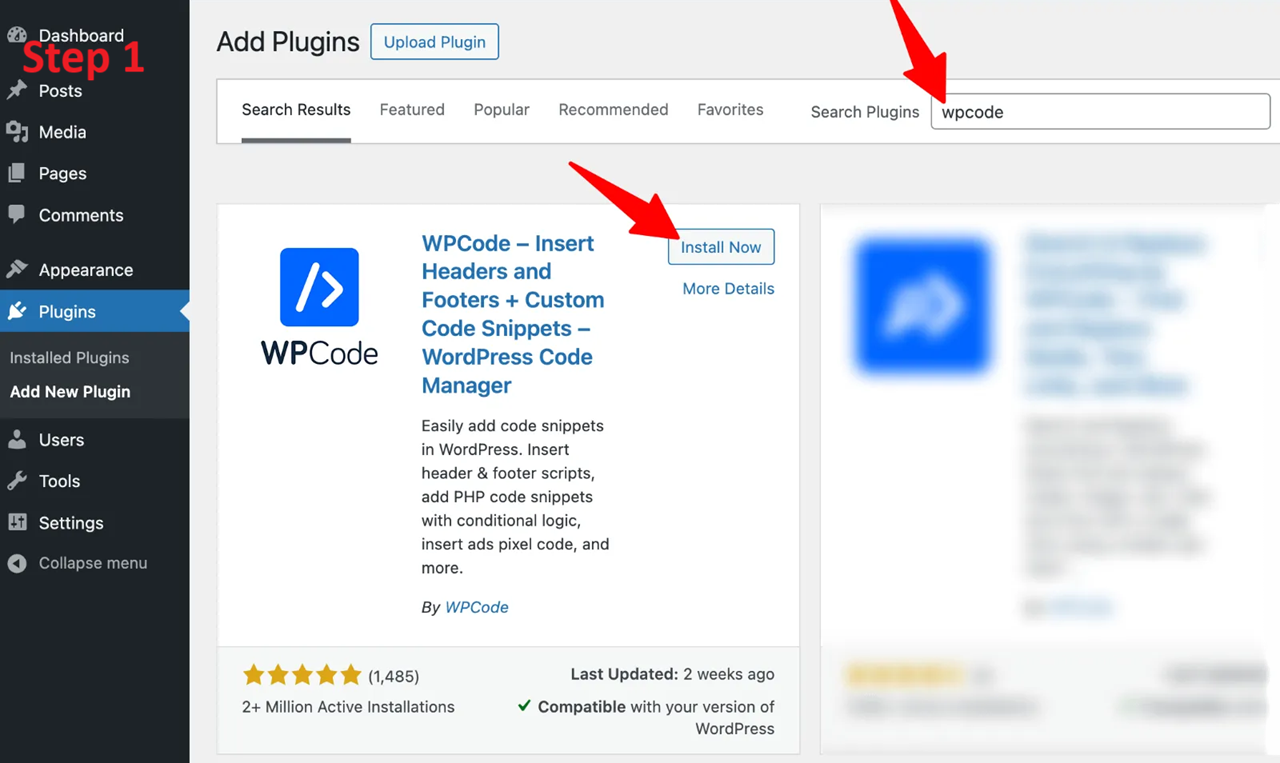
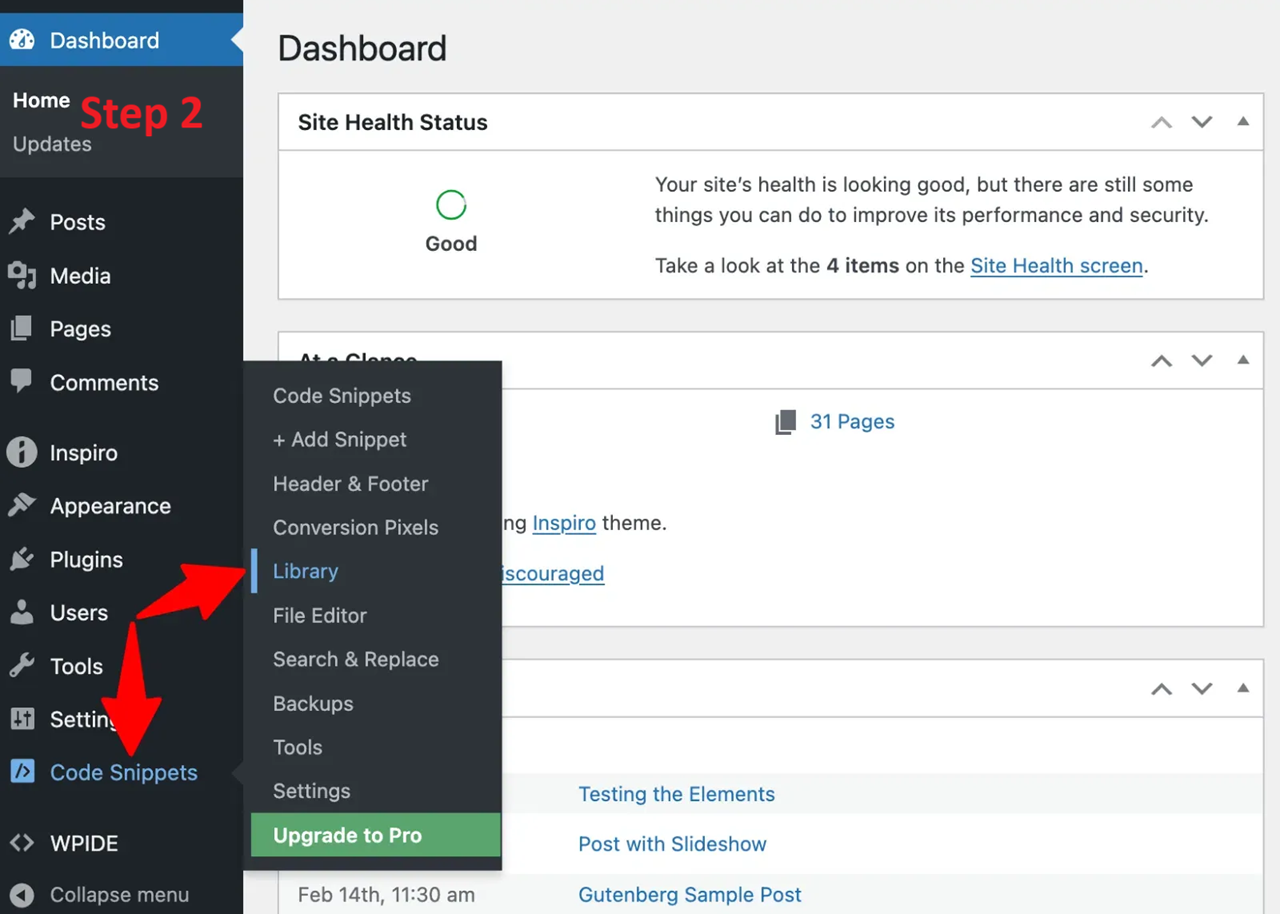
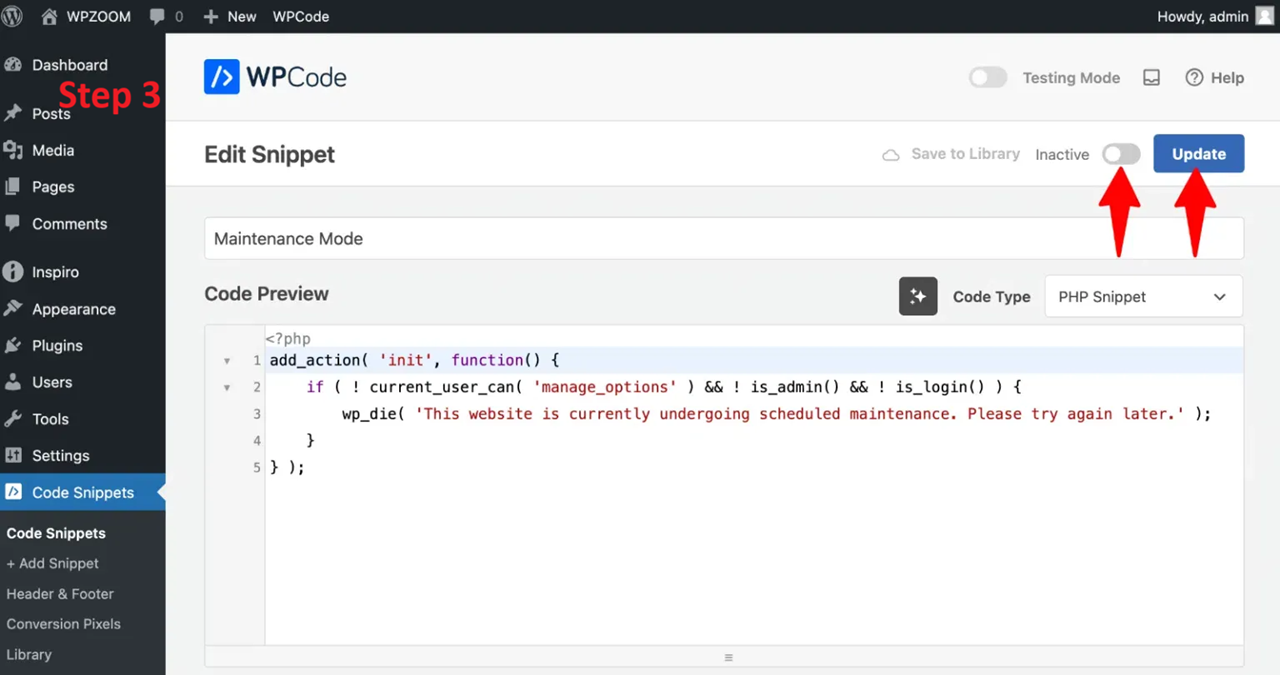
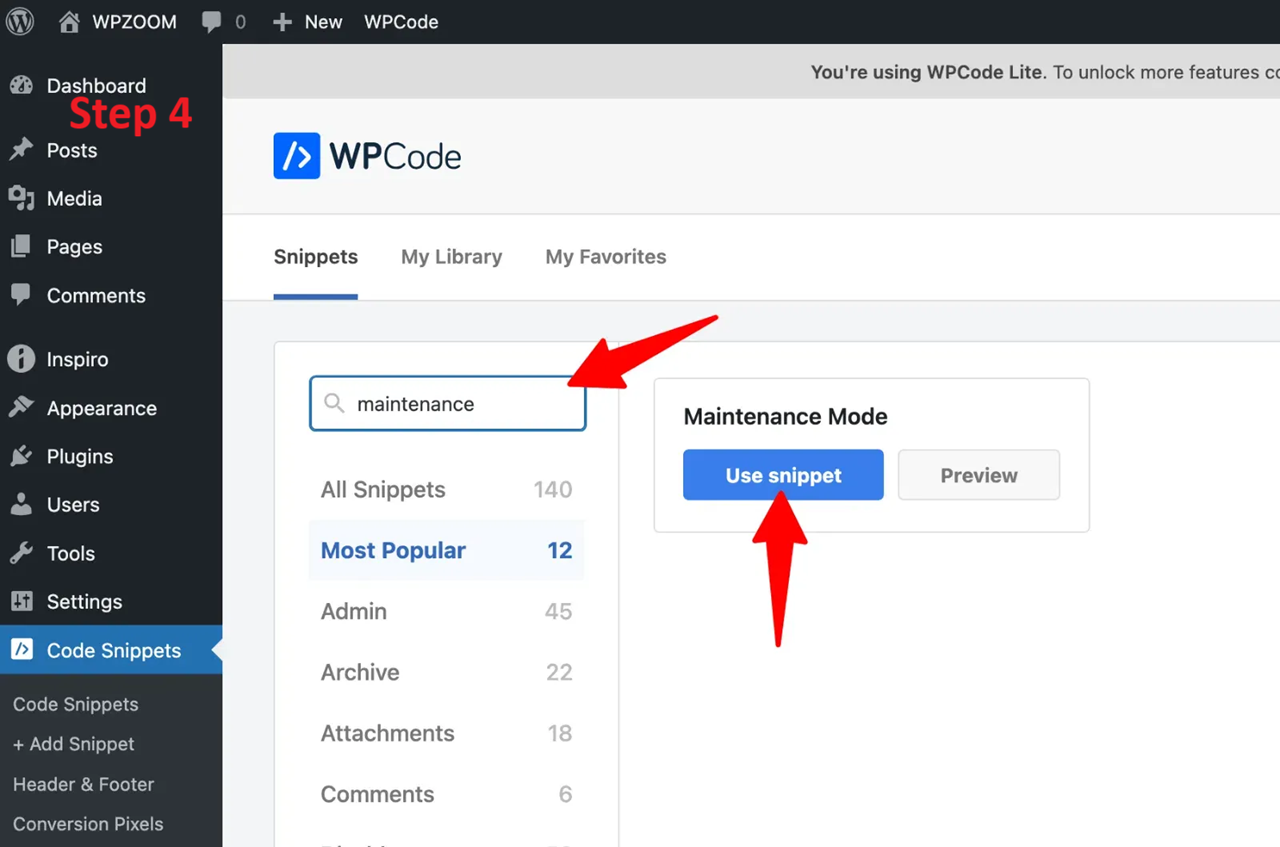
WPCode offers a flexible alternative for users who prefer working with code snippets but don’t want to edit theme files directly. This approach allows you to enable maintenance mode by activating a prebuilt snippet that handles visitor access while keeping administrators logged in.
Because the snippet runs independently of your theme, it reduces the risk of breaking your site during updates and makes it easy to turn maintenance mode on or off with a single toggle.
When WPCode Is a Better Choice Than Plugins
WPCode is ideal when you want a lightweight solution without installing a dedicated maintenance plugin. It works well for short maintenance tasks, quick updates, or situations where you’re trying to minimize the number of active plugins on your site.
This method also appeals to developers and advanced users who want more control over the maintenance message without committing to a full-featured plugin.
Method 3 – Enable Maintenance Mode via functions.php (Advanced)
For advanced users, maintenance mode can be enabled by adding custom PHP code directly to the theme’s functions.php file. This method provides complete control over how maintenance mode behaves and how the message is displayed.
While this approach is powerful, it also comes with risks. A small syntax error can cause your site to become inaccessible, which is why this method should only be used by users comfortable working with PHP and WordPress theme files.
⚠️ Warning: Always create a full backup before editing theme files. One incorrect line of code can break your site and require manual recovery.
For businesses that want updates handled safely and consistently, relying on ongoing WordPress website management plans can remove the risk of manual errors while keeping the site updated and secure.
Method 4 – Using .htaccess for WordPress Maintenance Mode
The .htaccess method enables maintenance mode at the server level, redirecting visitors to a static maintenance page before WordPress even loads. This approach is especially useful when making server configuration changes or working with complex site setups.
Because it operates outside of WordPress, this method is highly reliable and ensures visitors never see partial page loads or PHP errors during maintenance.
When This Method Makes Sense
Server-level maintenance mode is best suited for WordPress multisite networks, major hosting changes, or situations where WordPress itself may not load correctly. It’s also a strong option for extended downtime when deep technical work is required and absolute control over site access is necessary.
Troubleshooting: WordPress Site Stuck in Maintenance Mode
Getting stuck in maintenance mode is one of the most stressful WordPress issues users face. You disable maintenance mode, but the site still shows the same message—or worse, won’t load at all. The good news is this problem is common and usually fixable with a few targeted steps.
Remove the .maintenance File
When WordPress runs updates, it creates a temporary .maintenance file in the root directory. If an update is interrupted due to a timeout, browser crash, or server issue, this file may not be deleted automatically.
To fix this, connect to your site using FTP or your hosting file manager, locate the WordPress root folder, and delete the .maintenance file. Once removed, refresh your site to confirm normal access has been restored.
Clear Cache and CDN
Caching can make it appear as if your site is still in maintenance mode even after it’s been disabled. Clear your WordPress cache plugin, purge any hosting-level cache, and refresh your browser or test the site in an incognito window.
If you use a CDN, cached maintenance pages may still be served to visitors. Purging the CDN cache ensures users see the live site instead of an outdated maintenance screen.
Plugin or Theme Conflicts
Sometimes maintenance mode persists because of a plugin or theme conflict. If you can’t access the dashboard, use FTP to rename the plugins folder, which temporarily disables all plugins. If the site loads normally, you can reactivate plugins one by one to identify the issue.
Theme conflicts can cause similar problems. Switching temporarily to a default WordPress theme helps isolate whether custom theme code is responsible. When these issues become recurring or difficult to diagnose, professional WordPress bug fixing and support can resolve the root cause without risking further downtime.
Maintenance Mode Best Practices (Don’t Skip This)
Using maintenance mode incorrectly can cause SEO problems or frustrate visitors. Following a few best practices ensures your site stays professional and search-friendly during downtime.
| Best Practice | Why It Matters |
|---|---|
| Use a 503 status code | Signals to search engines that downtime is temporary, protecting rankings |
| Add an estimated completion time | Reassures visitors and reduces bounce rates |
| Schedule updates during low-traffic periods | Minimizes disruption and lost conversions |
A well-planned maintenance window keeps both users and search engines confident in your site
Plugin vs Professional WordPress Maintenance
Maintenance mode works best when updates are planned and controlled. While many site owners handle updates themselves, ongoing professional maintenance reduces risk and saves time.
| Factor | DIY Maintenance | Techippo Managed Maintenance |
|---|---|---|
| Update safety | Manual, higher risk of errors | Tested updates with rollback protection |
| Downtime management | Reactive | Planned and minimized |
| Troubleshooting | Time-consuming | Handled by experts |
| Long-term stability | Inconsistent | Proactively maintained |
For businesses that rely on their website for leads or sales, managed WordPress website management plans provide peace of mind by handling updates, fixes, and maintenance professionally.
Frequently Asked Questions About WordPress Website Maintenance Mode
These are common questions users search for when dealing with maintenance mode issues.
Will visitors see my real website during maintenance mode?
No. When maintenance mode is active, visitors see a maintenance message instead of your live site. Logged-in administrators can usually access the site normally.
Is maintenance mode safe for search engine rankings?
Yes, as long as it uses a proper 503 response. This tells search engines the downtime is temporary and helps preserve your SEO visibility.
Can I still work on my site while maintenance mode is enabled?
Yes. Most maintenance mode methods allow administrators to stay logged in and continue working without interruption.
What’s the fastest way to enable maintenance mode in WordPress?
Using a dedicated maintenance mode plugin is the fastest and safest option for most users, especially during routine updates.
Final Thoughts: Keep Your WordPress Site Professional During Updates
WordPress website maintenance mode is a simple but powerful tool that protects your site’s reputation during updates, redesigns, and technical work. Whether you use a plugin, a code-based solution, or server-level rules, the goal is the same: keep visitors from seeing problems while you improve your site.
If maintenance mode feels like something you’re constantly dealing with—or if issues keep popping up during updates—it may be time to move beyond DIY fixes. Long-term WordPress website management plans combined with reliable bug fixing and support ensure your site stays secure, stable, and professional without unnecessary downtime.


 Reach us on WhatsApp