
Seeing a WordPress 403 Forbidden error can feel alarming, especially when your site suddenly becomes inaccessible or your admin area refuses to load. The good news is that this error is usually fixable, and in most cases, it has nothing to do with hacking or permanent damage.
This guide is focused on solutions, not theory. We’ll walk through what the error actually means, why it happens, and how to fix it safely—step by step—without panic or guesswork.
What Is the WordPress 403 Forbidden Error?
A 403 Forbidden error means your web server understands the request you’re making, but it refuses to allow access. In simple terms, the server is saying: “I know what you’re asking for, but you don’t have permission to see it.”
This is why the message often appears as:
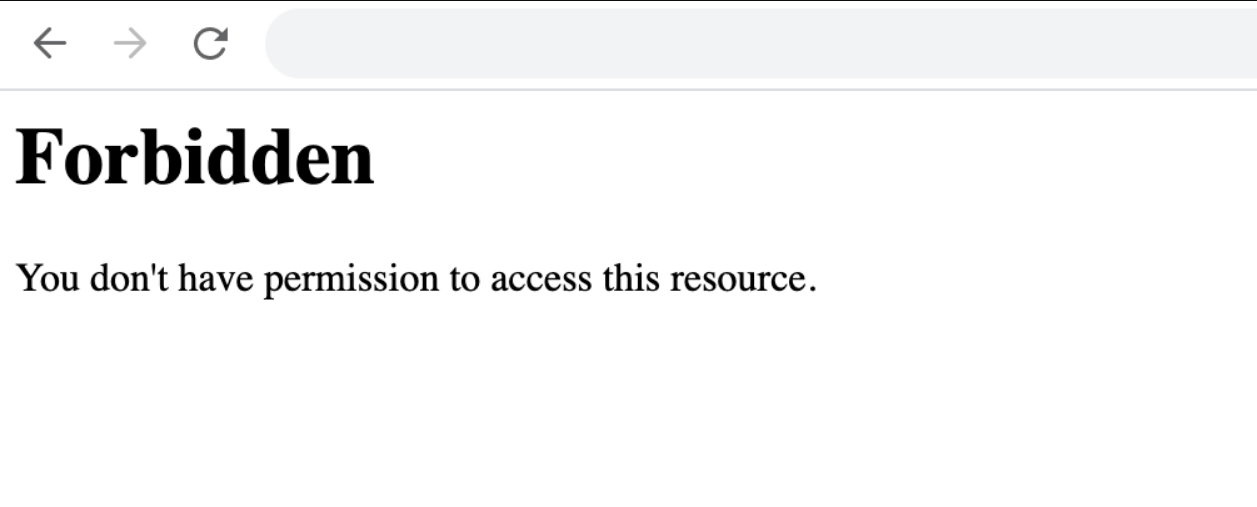
403 Forbidden – You don’t have permission to access this resource.
In WordPress, this usually points to a permissions or access rule problem, not a broken website or hacked server.
You might see the WordPress 403 error in different situations. Sometimes it only appears when trying to access wp-admin or the login page. In other cases, it shows up during login, or worse, across the entire site, blocking both visitors and administrators.
The key thing to understand is this: in most cases, a 403 error is caused by misconfigured settings, not malicious activity. That’s why it can often be resolved quickly once you know where to look.
Why WordPress Shows a 403 Forbidden Error
WordPress relies heavily on server rules to decide who can access what. When those rules break or conflict, the server responds by blocking access entirely.
One common cause is security or firewall plugins. These plugins are designed to protect your site, but if they’re misconfigured, they can mistakenly block legitimate users—including you. This often happens after updates or rule changes.
Another frequent trigger is a corrupted .htaccess file. This file controls important access and rewrite rules. If it becomes damaged or contains incorrect instructions, the server may deny access to pages that should be publicly available.
Incorrect file or folder permissions are another major culprit. Every WordPress file and directory has permission settings that define who can read or execute them. If these permissions are too strict—or accidentally changed—the server will block requests and return a 403 error.
Sometimes the issue doesn’t originate from WordPress itself. CDN services or caching layers can interfere with access rules, especially if IP blocking, rate limiting, or firewall features are enabled incorrectly.
Finally, there are cases where the restriction comes directly from the hosting server configuration. Resource limits, security modules, or hosting-level firewalls can deny access even when WordPress is set up correctly.
At its core, the reason is always the same: WordPress depends on permissions and access rules, and when those rules don’t line up, the server blocks the request.
Before You Fix the WordPress 403 Error (Important)
Before making any changes, it’s critical to back up your WordPress website completely—both files and the database. Fixing a 403 error often involves editing or deleting files, and one wrong move can break your site further.
Blindly changing permissions, deleting files, or disabling plugins without a backup can lead to issues like white screens, missing pages, or even data loss. Recovery from those mistakes often takes longer than the original fix.
If you’re unsure about accessing files, changing permissions, or troubleshooting server-level issues, this is the point where it’s smarter to pause and get help rather than experimenting. Ongoing protection through Monthly Website Management Plans exists for exactly this reason—preventing small technical issues from turning into major downtime.
Once you have a backup in place, you can move forward confidently with the actual fixes.
How to Fix WordPress 403 Forbidden Error (Proven Methods)
The key to fixing a WordPress 403 Forbidden error is to work methodically, not randomly. Start with Method 1 and move forward step by step. As soon as the error disappears, stop. Applying multiple fixes at once makes it harder to identify the real cause and can create new problems.
Method 1 — Temporarily Disable All WordPress Plugins
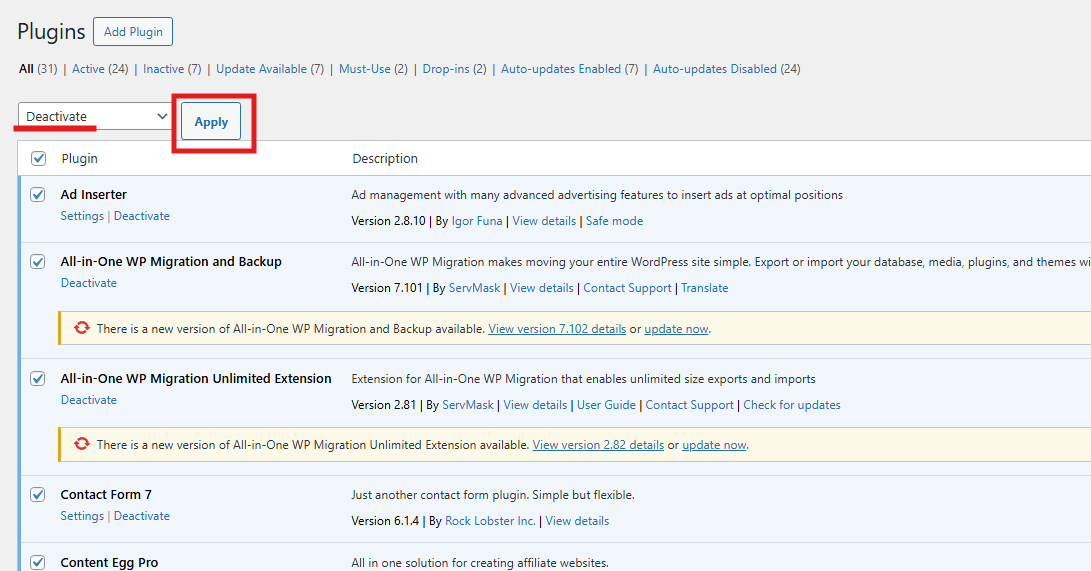
Plugins are the most common cause of a WordPress 403 error, especially security, firewall, or access-control plugins. When a plugin blocks an IP address, folder, or request by mistake, the server responds with a 403.
If you still have access to the WordPress dashboard, go to the Plugins section and deactivate all plugins at once. Then check your site.
If you’re locked out of wp-admin, you can disable plugins via FTP or your hosting File Manager. Locate the wp-content folder and rename the plugins directory to something like plugins-disabled. WordPress will automatically deactivate all plugins when it can’t find that folder.
Once the site loads normally, the cause is confirmed. Rename the folder back to plugins, then reactivate plugins one by one, refreshing the site after each activation. When the 403 error returns, you’ve found the problematic plugin.
At that point, it’s best to remove or replace the plugin rather than force it to work. Unstable or poorly configured plugins often cause repeat issues, which is why regular audits during WordPress Website Maintenance help prevent these lockouts entirely.
Method 2 — Regenerate the .htaccess File
The .htaccess file controls critical access rules for your WordPress site. If it becomes corrupted, the server may block access even though your site is otherwise fine.
This fix is safe and commonly resolves the WordPress 403 error.
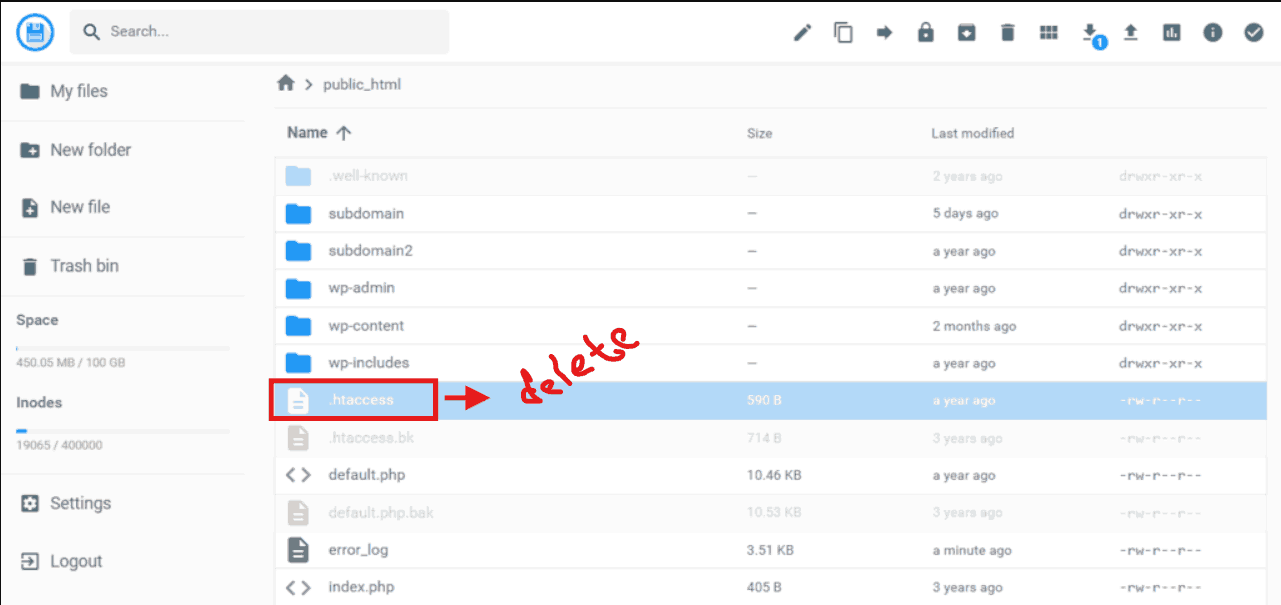
First, connect to your website using FTP or your hosting File Manager. In the root directory—where you see folders like wp-admin and files like wp-config.php—locate the .htaccess file. If you don’t see it, make sure hidden files are visible.
Download a copy of the file to your computer as a backup, then delete the .htaccess file from the server. Your site may still load temporarily, but without rewrite rules.
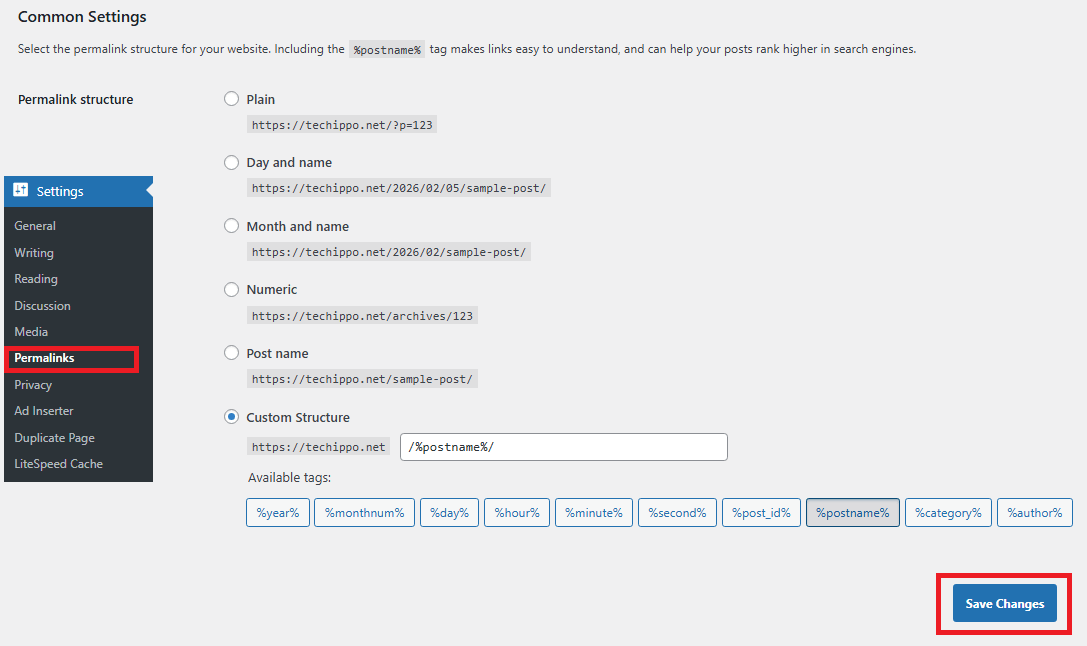
Next, log in to WordPress and go to Settings → Permalinks. Without changing anything, click Save Changes. WordPress will automatically generate a fresh, clean .htaccess file with correct rules.
Check your site again. If the 403 error is gone, the issue was a corrupted access rule.
Method 3 — Fix Incorrect File and Folder Permissions
If plugins and .htaccess are not the issue, incorrect permissions are the most likely cause of the WordPress 403 error.
Every file and folder on your server has permission settings that control who can read, write, or execute them. When these permissions are too restrictive—or set incorrectly—the server treats requests as unauthorized and blocks access.
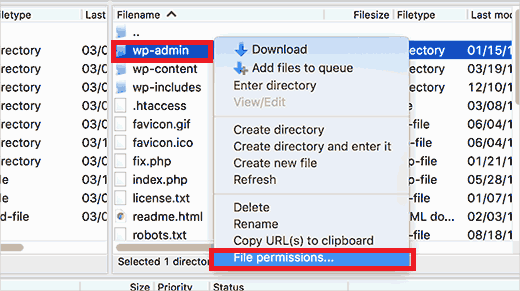
Using FTP or File Manager, navigate to your WordPress root directory. Folder permissions should typically be set to 744 or 755, while files should use 644 or 640. These values allow WordPress to function while keeping the site secure.
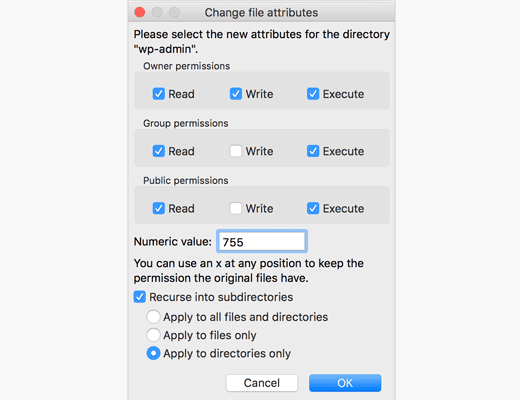
Changing permissions blindly can be risky. Incorrect settings can break your site or expose it to security issues. If you’re unsure or the permissions appear inconsistent across many files, it’s safer to ask your hosting provider to correct them.
This is also a situation where Emergency WordPress Support often saves hours of trial and error. Permission issues can be subtle, and one incorrect setting can keep triggering the 403 error even after everything else looks right.
Once permissions are corrected, reload your site to confirm the fix before moving on.
Method 4 — Clear Cache and Cookies
Even after the root cause is fixed, you might still see a WordPress 403 error because your browser or site is serving a cached response. In simple terms, you’re seeing an old “blocked” version of the site, not the current one.
Start by clearing your browser cache and cookies, then reload the site in a private or incognito window. If you’re using a caching plugin or your host provides server-level caching, clear that cache as well. Some hosting dashboards cache aggressively, and a stale response can keep showing a 403 even when access is restored.
This step is quick, safe, and often overlooked—yet it resolves more cases than people expect.
Method 5 — Temporarily Disable CDN
A CDN sits between your visitors and your server. While it improves speed and security, it can also block requests if a rule is misconfigured or an IP is mistakenly flagged.
To test whether your CDN is causing the WordPress 403 error, temporarily disable it from your CDN dashboard. Once disabled, load your site directly from the origin server.
If the error disappears, the problem is confirmed. Re-enable the CDN and review firewall rules, country restrictions, or rate-limiting settings. In many cases, contacting CDN support is the fastest way to resolve the issue cleanly without weakening security.
Method 6 — Scan for Malware
Malware can quietly modify file permissions, inject access rules, or trigger security blocks that result in a WordPress 403 error. Sometimes the server is blocking access as a defensive response rather than the error being the actual problem.
Run a scan using a reputable WordPress security tool and look for altered files, injected code, or suspicious access rules. If malware is found, clean the infected files first before retrying updates or permission fixes.
Ignoring malware-related 403 errors often leads to repeat lockouts, even after the site appears “fixed.”
Method 7 — Contact Hosting Support or a WordPress Expert
If none of the previous methods resolve the issue, the cause is likely at the server level. Hosting providers have access to error logs, firewall rules, and permission settings that users can’t see from WordPress or FTP.
At this stage, reaching out to hosting support is the logical next step. If the site is business-critical and downtime is costing traffic or revenue, Emergency WordPress Support is often the fastest path to resolution. Instead of guessing, the issue is diagnosed directly at the source.
What to Do After Fixing the WordPress 403 Error
Once the WordPress 403 error is resolved, don’t rush back to business as usual. Carefully re-run any failed plugin, theme, or core updates—one at a time. Confirm that both the frontend and the admin dashboard are accessible and functioning properly.
Keep an eye on the site over the next few days. Recurring permission errors, sudden plugin lockouts, or repeated cache issues are signs that something deeper may still be misconfigured. Ongoing monitoring is what prevents a one-time fix from turning into a recurring problem, which is where Monthly Website Management Plans quietly earn their value.
How to Prevent WordPress 403 Errors in the Future
Preventing WordPress 403 errors isn’t about hacks or shortcuts—it’s about discipline.
Update plugins and themes one at a time so failures are easy to trace. Avoid stacking multiple security or firewall plugins that overlap in functionality. For major updates or configuration changes, use a staging environment instead of experimenting on a live site. And always keep reliable backups active so recovery is fast if something goes wrong.
Most 403 errors aren’t random. They’re the result of rushed updates, conflicting tools, or unmanaged access rules. A controlled, methodical approach keeps your site accessible and stable long term.
FAQs About WordPress 403 Forbidden Error
Why does my WordPress site show a 403 error?
A WordPress 403 error appears when the server refuses access to a page or resource. This usually happens due to incorrect permissions, a misconfigured security plugin, a broken .htaccess file, or server-level rules—not because the site is hacked in most cases.
Is a WordPress 403 error bad for SEO?
Yes, if it lasts. Short-term 403 errors usually don’t cause damage, but prolonged blocking can prevent search engines from crawling your site, leading to ranking drops and indexing issues.
Can plugins cause a 403 Forbidden error?
Absolutely. Security, firewall, and cache plugins are common triggers. A bad update or conflicting rule can block legitimate access, including wp-admin or login pages.
Do I always need FTP access to fix it?
Not always. If you can still access the WordPress dashboard, some fixes can be done there. However, when wp-admin itself shows a 403 error, FTP or hosting file access becomes essential.
Will this error come back after updates?
It can if the underlying cause isn’t addressed. Bulk updates, incompatible plugins, or repeated permission changes often trigger the same issue again.
Final Thoughts on Fixing WordPress 403 Errors
The WordPress 403 Forbidden error is frustrating, but it’s also one of the most common access issues site owners face. In most cases, the fix is straightforward once you approach it methodically instead of guessing.
The real risk isn’t the error itself—it’s making blind changes without backups or understanding what triggered the block in the first place. Taking a structured approach, testing one fix at a time, and monitoring the site afterward is what keeps the problem from returning.
If you’d rather not deal with access issues when traffic or revenue is on the line, these options help keep things under control:
- Emergency WordPress Support — fast resolution when your site is locked or inaccessible
- WordPress Website Maintenance — ongoing updates, security checks, and error prevention
- Monthly Website Management Plans — hands-off stability with proactive monitoring and fixes
Handled correctly, a WordPress 403 error is a speed bump—not a disaster.

 Reach us on WhatsApp