
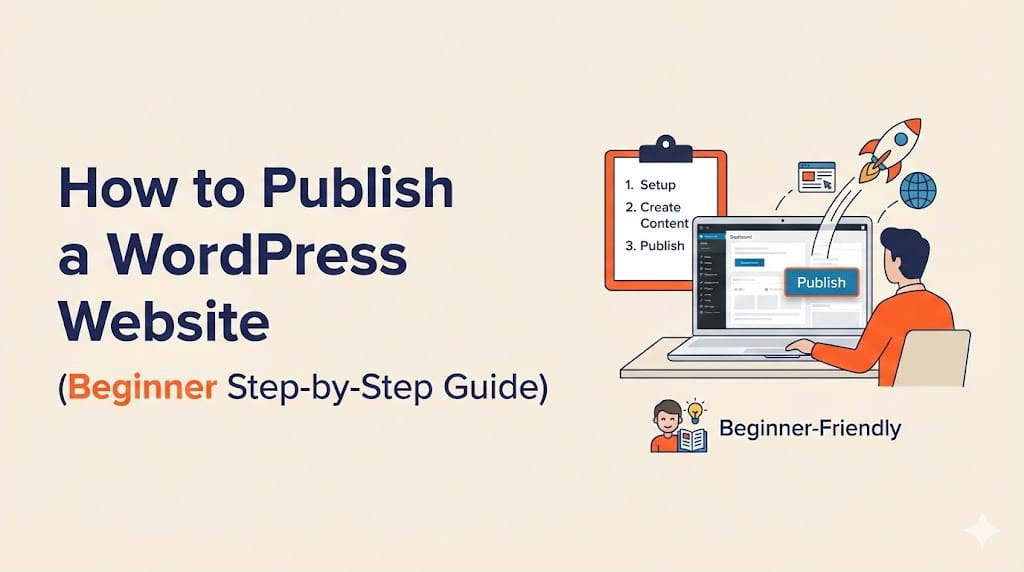
Many beginners build a site on their computer or install WordPress on a temporary link and then get stuck. They’ve designed the pages, added content, and customized everything — but they still don’t know how to publish a wordpress website so the world can actually see it.
Publishing simply means making your website accessible on the internet. Instead of only being visible on your local device or a private test link, your site becomes live under your domain name so anyone can visit it.
If you’re wondering how to publish a wordpress website, don’t worry. It’s much easier than it sounds. You don’t need advanced technical skills or coding knowledge. You just need the right setup.
In this guide, you’ll learn exactly how to publish a wordpress website, including what hosting is, why you need a domain, and the final steps required to go live properly.
What Does It Mean to Publish a WordPress Website?
To publish a website means to make it publicly available on the internet.
When people search for how to publish a wordpress website, they usually have one of these situations:
- They built a local website on their computer using tools like XAMPP or Local WP.
- They created a staging website provided by a hosting company for testing.
- They installed WordPress but their site isn’t publicly accessible yet.
Here’s the difference in simple terms:
- Local website – Exists only on your computer. No one else can access it.
- Staging website – A private test version hosted online but hidden from visitors.
- Live website – Publicly accessible to anyone via your domain name.
To move from local or staging to live, you need two essential things:
- Web hosting
- A domain name
Without both, you cannot fully complete how to publish a wordpress website properly.
Step 1: Get Web Hosting (Why You Need It)
Before you can understand how to publish a wordpress website, you need to understand hosting.
Web hosting is the service that stores your website’s files on a server. A server is simply a powerful computer that runs 24/7 and delivers your website to visitors when they type your domain name into their browser.
Think of it like this:
- Your website files = your content
- The server = the land where your website lives
- Hosting company = the provider that rents you that space
Without hosting, your WordPress site has nowhere to live online. That means no one can access it — even if it looks perfect on your screen.
Hosting is the foundation of how to publish a wordpress website properly. Once your hosting is active, your site can go live and be accessed globally.
For beginners, choose a hosting provider that offers:
- Affordable plans
- Easy WordPress installation
- Beginner-friendly dashboard
- 1-click WordPress setup
The top 10 best web hosting services right now
- Hostinger: Fast Web Hosting Provider with Premium Features
- InMotion Hosting: Best for VPS and Dedicated Servers
- Kinsta: Small Business Hosting with Free Website Builder
- WP Engine: Best WordPress Hosting
- Cloudways Hosting: Best for Unlimited Bandwidth
- Bluehost: Reliable web host with good reviews
- Namecheap Hosting: Good Web Host with Free Site Migration
- GreenGeeks: Best Shared Web Hosting
- DreamHost: Best Cloud Hosting


Once your hosting is active, you’ve completed the most important step in learning how to publish a wordpress website. Next, you’ll need a domain name so people can actually find your site.
Step 2: Buy a Domain Name
Now that you have hosting, the next step in learning how to publish a wordpress website is getting a domain name.
What Is a Domain?
A domain is your website’s address on the internet.
For example:yourwebsite.com
Instead of typing an IP address like 192.168.0.1, people type your domain name. That’s how visitors find your website easily.
Why Domain + Hosting Work Together
Think of it this way:
- Hosting = where your website files are stored
- Domain = the address people use to visit those files
Without a domain, users would not know how to reach your hosting server. Without hosting, your domain would lead nowhere.
If you’re serious about understanding how to publish a wordpress website, you must connect both properly.
You can register your domain directly with your hosting provider or use a separate registrar.
How to choose the Best Domain Registrar
Domain registrars manage domain registrations for all types of websites. It is critical to choose the best domain name to avoid being picked by other registrars and the best domain registrar. This article shows how to select the most reliable domain registry and compares its price and other characteristics.
Best Domain Registrar
| Webhoster | Details | Starting Price | Renewal | Offer links |
|---|---|---|---|---|
 | Namecheap | $6.98 | – Renewal $13.98 – Free WHOIS Privacy | Get Offer |
 | Domain.com | $9.99 | – Renewal $13.99 | Get Offer |
 | Crazydomains | $9.0 | – Renewal $14.40 | Get Offer |
 | Hostinger | $9.99 | – Renewal $13.99 – Free WHOIS Privacy | Get Offer |
 | BlueHost | $12.99 | – Renewal $13.99 – Domain lock | Get Offer |
 | Hostgator | $12.95 | – Renewal $19.99 | Get Offer |
 | DreamHost | $8.99 | – Renewal $17.99 – Free WHOIS Privacy | Get Offer |
Many hosting providers (including Hostinger) offer:
- Free domain with selected hosting plans
- Easy DNS management
- Simple domain connection process
Once your domain is secured, you’re one big step closer to completing how to publish a wordpress website successfully.
Step 3: Install WordPress on Your Hosting
After buying hosting and a domain, the next step in how to publish a wordpress website is installing WordPress.
1-Click WordPress Installation (Recommended)
Most modern hosting providers offer a 1-click WordPress installer inside the control panel.
The process usually looks like this:
- Log into your hosting dashboard
- Click “Install WordPress”
- Enter your domain name
- Set admin username and password
- Click Install
That’s it.
Within a few minutes, your WordPress site will be live on your domain.
This is the easiest way to move forward when learning how to publish a wordpress website because it requires zero technical knowledge.
Manual Installation (Briefly)
There is also a manual installation method where you:
- Download WordPress from wordpress.org
- Upload files to your server
- Create a database
- Configure wp-config.php
But honestly, beginners should stick with the 1-click method.
Once WordPress is installed, you’re almost done with how to publish a wordpress website — now it’s time to connect everything properly.
Step 4: Connect Your Domain to Hosting
If you purchased your domain and hosting from the same company, this step may already be done automatically.
If not, you’ll need to update your nameservers.
What Are Nameservers?
Nameservers connect your domain to your hosting server.
Your hosting provider will give you something like:
- ns1.hostingprovider.com
- ns2.hostingprovider.com
You simply:
- Log into your domain registrar
- Find DNS or Nameserver settings
- Replace existing nameservers with your hosting nameservers
- Save changes
What Is DNS Propagation?
After updating nameservers, changes can take a few minutes to 24 hours to fully update worldwide.
This is normal.
If you’re following this guide on how to publish a wordpress website, don’t panic if your site doesn’t load instantly. DNS just needs time to update globally.
Once propagation finishes, your domain will point to your hosting — which is essential to complete how to publish a wordpress website correctly.
Step 5: Make Your Website Live (Final Publishing Step)
This is the final step in how to publish a wordpress website.
Even after installing WordPress, your site might still not be publicly visible because of one of these common reasons:
1. Remove “Coming Soon” Mode
Some themes and hosting providers enable a “Coming Soon” or maintenance page by default.
Check:
- Your theme settings
- Any maintenance plugin
- Hosting dashboard settings
Disable it to allow visitors to see your site.
2. Check Search Engine Visibility Settings
Go to:
WordPress Dashboard → Settings → Reading
Make sure this option is unchecked:
“Discourage search engines from indexing this site”
If this box is checked, your website may not appear in search engines even though it’s live.
Understanding this setting is critical when learning how to publish a wordpress website properly.
3. Test Your Website
Open your website in:
- Incognito mode
- A different device
- Mobile phone
Make sure:
- Pages load correctly
- Images appear properly
- Navigation works
- No broken links exist
At this point, you have successfully completed how to publish a wordpress website from start to finish.
Your website is now live, accessible, and ready for visitors.
If you followed each step carefully, you now fully understand how to publish a wordpress website the right way — without confusion or unnecessary technical stress.
Common Mistakes When Publishing a WordPress Website
Many beginners think they followed all the steps, yet their site still isn’t visible. When learning how to publish a wordpress website, small mistakes can delay everything.
One common issue is forgetting to properly connect the domain to the hosting account. If the nameservers are not updated correctly, the website simply won’t load. Another frequent problem is leaving the site in maintenance or “Coming Soon” mode, which blocks visitors even though WordPress is installed.
Incorrect DNS settings can also prevent your domain from pointing to the right server. Sometimes the hosting plan isn’t fully activated yet, especially if payment verification is pending. And finally, many beginners forget to enable SSL, which can cause security warnings in the browser.
If you’re trying to figure out how to publish a wordpress website and something isn’t working, it’s usually one of these issues.
How Long Does It Take to Publish a WordPress Website?
The technical setup itself is fast.
If you already have hosting and a domain, learning how to publish a wordpress website typically takes 30–60 minutes. Installing WordPress with a 1-click installer only takes a few minutes.
However, DNS changes can take up to 24 hours to fully propagate worldwide. In many cases, it updates much sooner — sometimes within an hour — but it depends on your hosting provider and domain registrar.
So while the actual process of how to publish a wordpress website is quick, full global visibility might take a little patience.
Do You Need Professional Help?
Let’s be honest — not everyone wants to deal with technical setup.
If you’d rather skip DNS settings, WordPress installation, and server configuration, you can simply use our:
WordPress Website Setup Service
Or if you want a smoother experience from the start, check our:
Managed WordPress Hosting Recommendation
We handle:
- Hosting setup
- Domain connection
- WordPress installation
- Secure configuration (SSL, visibility settings, performance basics)
- Full go-live process
If you’re unsure about how to publish a wordpress website, we can take care of everything so you don’t have to stress over technical details.
Final Thoughts on How to Publish a WordPress Website
Publishing a site isn’t complicated once you understand the structure.
Hosting stores your files.
A domain gives your website an address.
WordPress runs your content.
DNS connects everything together.
That’s it.
Now you clearly understand how to publish a wordpress website from start to finish. It’s a simple process when broken into steps, and anyone can do it — even without technical experience.
If you’re ready to move forward:
👉 Start Your WordPress Hosting Here
👉 Secure Your Domain Today
Follow the steps, take action, and you’ll have your site live faster than you think. Now you truly know how to publish a wordpress website the right way.

 Reach us on WhatsApp