
Opening your site and seeing nothing but a blank white page is one of the most stressful WordPress problems you can face. No error message. No warning. Just… nothing.
This issue can take your entire website offline for visitors and sometimes even lock admins out of the dashboard. The good news? In most cases, the WordPress website white screen is fixable if you approach it calmly and methodically.
This guide walks you through what the white screen issue actually is, why it happens, and what you should check before attempting any fixes.
What Is the WordPress Website White Screen Issue
The WordPress website white screen issue happens when your site loads a completely blank page instead of content. There are no visible errors, menus, or layout elements — just a white screen.
Plain-Language Definition
Simply put, WordPress encounters a fatal problem while loading your site and fails silently. Instead of showing an error, it stops rendering the page altogether.
How It Appears to Users vs Admins
- Visitors usually see a full white screen with no message.
- Admins may see:
- A white screen on the frontend but access to
/wp-admin - Or a white screen everywhere, including the dashboard
- A white screen on the frontend but access to
A quick way to check is visiting:yourdomain.com/wp-admin
If the dashboard loads, the issue is often plugin- or theme-related.
Why It’s Called the White Screen of Death
Because it:
- Appears suddenly
- Provides no clues
- Completely blocks access
That combination makes it feel catastrophic — especially for business websites.
Is It Common and Fixable?
Yes to both.
This is one of the most common WordPress errors, and in most cases, it can be resolved without reinstalling WordPress or losing data.
What Causes a WordPress Website White Screen
The white screen isn’t random. It usually comes from WordPress hitting a breaking point during execution.
PHP Errors
A single PHP error in a plugin, theme, or custom code can stop WordPress from loading properly.
Memory Exhaustion
If WordPress runs out of allocated memory, it may fail silently instead of displaying an error.
Plugin Conflicts
A bad plugin update or a conflict between two plugins is one of the most frequent causes of a white screen.
Theme Issues
Broken theme files, incompatible updates, or poorly written theme code can crash the site instantly.
Failed Updates
Interrupted WordPress, plugin, or theme updates can leave the site stuck in an incomplete state.
File Permission Problems
Incorrect file or folder permissions can prevent WordPress from reading essential files.
Before You Start Fixing the White Screen
Before jumping into solutions, take a moment to assess the situation properly. This step alone can save hours of frustration.
Check If /wp-admin Is Accessible
Try logging into the admin panel:
- If it works → the issue is likely isolated to plugins or themes
- If it doesn’t → the problem may be deeper (memory, permissions, or core files)
This single check helps narrow down the root cause quickly.
Why Backups Matter
Some fixes involve editing files or disabling components. Without a backup:
- A small mistake can make things worse
- Recovery becomes much harder
If you don’t already have a recent backup, this is where many site owners pause and bring in professional WordPress bug fixing & support to avoid accidental data loss.
When to Stop and Avoid Making Things Worse
You should stop DIY troubleshooting if:
- You’re unsure what a file does
- The site is business-critical
- Multiple fixes haven’t worked
- You’re editing live code without confidence
At that point, structured troubleshooting is safer than trial-and-error changes.
How to Fix WordPress Website White Screen (Step-by-Step)
Fixing a WordPress website white screen should always be done methodically. Jumping between random fixes often makes the issue worse. The steps below move from the most common and safest fixes to more advanced solutions.
Step 1 – Disable All WordPress Plugins
Plugin conflicts are one of the most common causes of a WordPress website white screen, especially after updates.
Admin Method (If Dashboard Is Accessible)
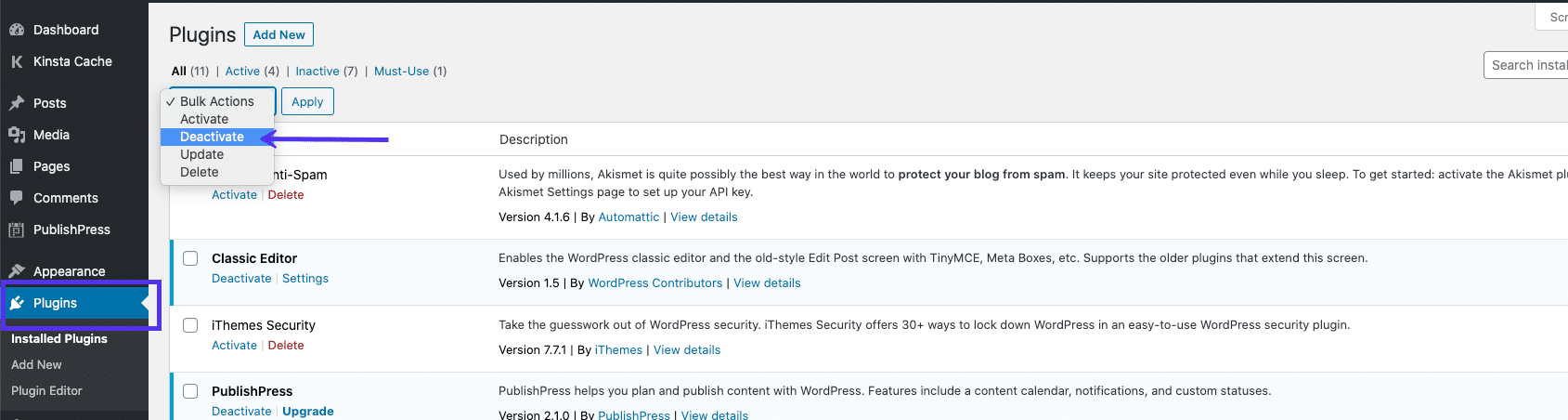
If you can access /wp-admin:
- Go to Plugins
- Select all plugins
- Choose Deactivate from Bulk Actions
- Apply changes
If the white screen disappears, one of the plugins is causing the issue.
To identify the faulty plugin:
- Reactivate plugins one by one
- Reload the site after each activation
- The plugin that breaks the site is the culprit
FTP Method (If Dashboard Is Not Accessible)
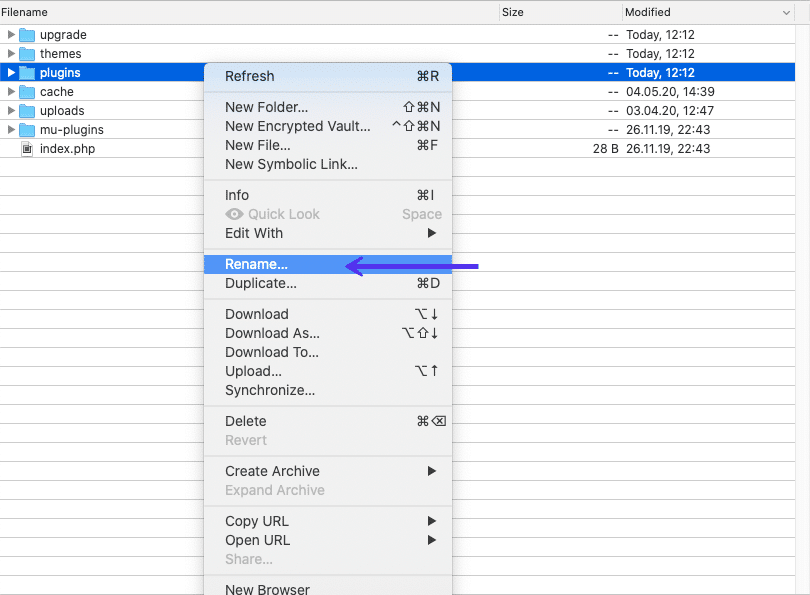
If the admin area is also showing a white screen:
- Connect to your site via FTP
- Navigate to
wp-content - Rename the
pluginsfolder (for example,plugins_old) - Reload your website
This disables all plugins at once. If the site loads, rename the folder back to plugins and test each plugin individually by renaming its folder.
Step 2 – Switch to a Default WordPress Theme
If plugins aren’t the issue, the active theme may be responsible for the WordPress website white screen.
Dashboard Method
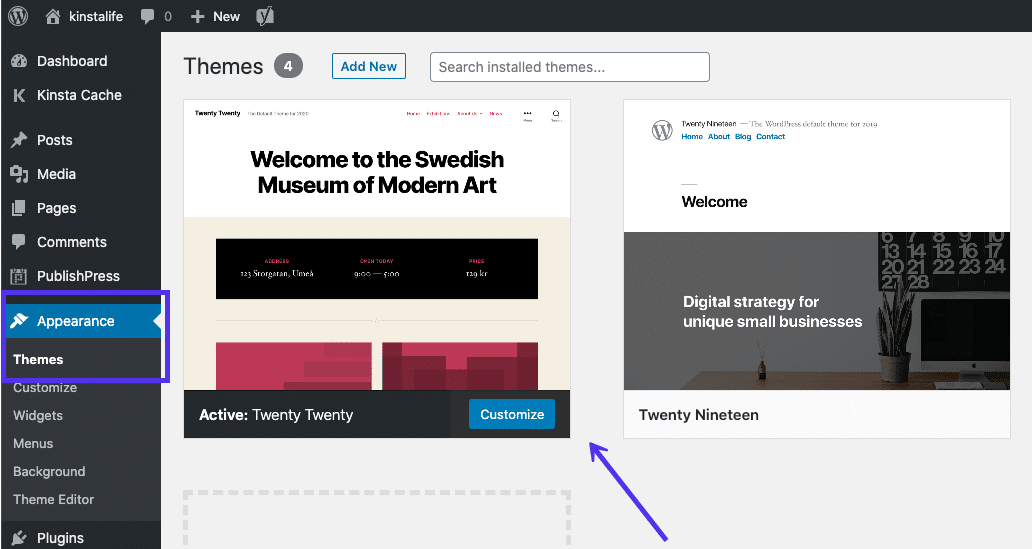
If the admin area works:
- Go to Appearance → Themes
- Activate a default theme such as Twenty Twenty
- Reload the website
If the site works, the issue lies with your original theme.
FTP Method
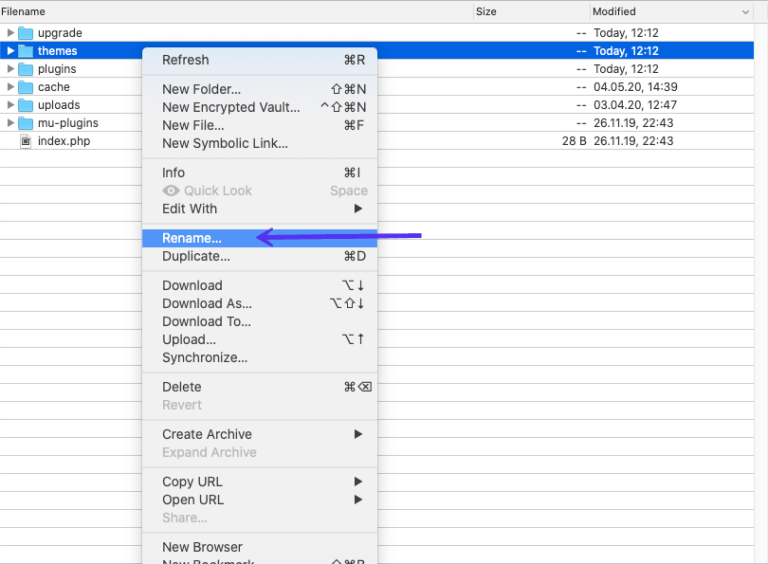
If the dashboard is inaccessible:
- Connect via FTP
- Navigate to
wp-content/themes - Rename the active theme folder
WordPress will automatically fall back to a default theme if one exists. If not, uploading a default theme manually will trigger the switch.
When Themes Are the Real Issue
Theme-related white screens often occur after:
- Theme updates
- Custom code edits
- Compatibility issues with plugins or PHP versions
Step 3 – Clear Browser and Website Cache
Sometimes the WordPress website white screen is caused by cached errors rather than active problems.
Browser Cache
Clear your browser cache and reload the site to rule out local issues.
Plugin Cache
If you use a caching plugin:
- Open the plugin settings
- Clear or delete all cache
- Reload the site
Hosting-Level Cache
Many hosts apply server-side caching. Clearing the hosting cache ensures you’re seeing the latest version of the site and not a stored error page.
Step 4 – Enable WordPress Debug Mode
Debug mode helps reveal hidden errors that cause the WordPress website white screen.
Why Debugging Helps
The white screen often hides PHP errors. Debug mode forces WordPress to display them.
How to Enable Debug Mode
Edit wp-config.php and locate:
define( 'WP_DEBUG', false );
Change it to:
define( 'WP_DEBUG', true );
Reload the site to view error messages.
Where Errors Appear
Errors typically identify:
- The file causing the issue
- The plugin or theme involved
- The exact line number
Safety Note
Debug mode exposes technical details. Always disable it once troubleshooting is complete.
Step 5 – Increase the WordPress Memory Limit
Memory exhaustion is a known cause of the WordPress website white screen.
Why Memory Limits Matter
If WordPress runs out of memory while loading plugins or themes, it may fail silently.
wp-config.php Method
Add this line to wp-config.php:
define('WP_MEMORY_LIMIT', '64M');
.htaccess or php.ini Mention
If needed, memory limits can also be increased via:
.htaccessphp.ini
Hosting environments vary, so not all methods work everywhere.
Step 6 – Check File Permissions
Incorrect permissions can prevent WordPress from accessing required files.
Correct Permission Values
- Files:
644or664 - Folders:
755or775 wp-config.php:600,660, or644
Why Permissions Break Sites
Overly restrictive or insecure permissions can stop WordPress from executing PHP files properly.
When to Ask Hosting Support
If you’re unsure, hosting support can verify and reset permissions safely.
Step 7 – Fix Failed WordPress Auto Updates
Incomplete updates can trigger the WordPress website white screen.
The .maintenance File
After failed updates:
- A
.maintenancefile may remain in the root directory - WordPress stays stuck in maintenance mode
Deleting this file often restores the site.
Why Failed Updates Cause White Screens
If files are partially updated, WordPress may load incompatible components.
Step 8 – Fix Syntax Errors or Restore a Backup
Small code mistakes can crash the entire site instantly.
Why Syntax Errors Are Dangerous
A single misplaced character in PHP can cause a fatal error and trigger a white screen.
Reverting Changes via FTP
- Connect via FTP
- Undo recent file edits manually
- Remove or correct faulty code
Importance of Backups
Backups allow instant restoration when the cause isn’t obvious. Without backups, recovery becomes guesswork.
Step 9 – Increase PHP Text Processing Limits
Rarely, long pages or posts can cause processing failures.
When This Happens
This usually affects:
- Very long posts
- Content-heavy pages
Adjusting Limits
Add the following to wp-config.php:
ini_set('pcre.recursion_limit',20000000);
ini_set('pcre.backtrack_limit',10000000);
Reload the site after saving.
Why WordPress Website White Screen Keeps Coming Back
Recurring white screen issues usually point to deeper problems.
Common causes include:
- Poor update practices
- Too many plugins doing overlapping tasks
- No staging environment for testing
- Lack of ongoing maintenance
When DIY Fixes Aren’t Enough
There’s a point where troubleshooting becomes risky instead of helpful.
Signs You Should Stop Troubleshooting
- Multiple fixes haven’t worked
- You’re editing live files blindly
- The site generates revenue
- Downtime is costing money
Risk of Data Loss or Downtime
Repeated trial-and-error fixes increase the chance of:
- Permanent data loss
- SEO damage
- Extended downtime
This is where WordPress bug fixing & support services make sense — not as a shortcut, but as damage control.
How Techippo Fixes WordPress White Screen Issues Safely
When a WordPress website white screen appears, random fixes can make the situation worse. At Techippo, the approach is structured, careful, and stability-focused.
Structured Diagnosis
Every white screen issue is traced logically. Plugins, themes, updates, memory limits, and permissions are checked in a controlled order so the real cause is identified instead of guessed.
No Trial-and-Error on Live Sites
Live websites are not testing grounds. Changes are made carefully to avoid turning a recoverable issue into extended downtime or data loss.
Backup-First Approach
Before touching files, settings, or updates, backups are secured. This ensures the site can always be restored if something unexpected happens.
Long-Term Stability Focus
Fixing the white screen is only part of the solution. The goal is to reduce repeat crashes by addressing update practices, plugin load, and underlying configuration issues that cause the problem to return.
Frequently Asked Questions About WordPress Website White Screen
Can a single plugin cause a full white screen?
Yes. A single plugin with faulty code, a bad update, or compatibility issues can trigger a complete WordPress website white screen, even if everything else is working correctly.
Is the WordPress white screen a hosting issue?
Not always. While server limits and configurations can contribute, most white screen issues are caused by PHP errors, memory exhaustion, plugins, themes, or failed updates rather than the host itself.
Does the white screen mean my site is hacked?
A white screen does not automatically mean your site is hacked. In most cases, it’s related to code errors or configuration problems. However, unresolved issues should always be investigated carefully.
How long does it take to fix a white screen issue?
Simple cases can be resolved quickly, especially when caused by plugins or themes. More complex cases involving updates, permissions, or corrupted files take longer, depending on diagnosis and backups available.
Final Thoughts: Fixing the WordPress Website White Screen Without Panic
A WordPress website white screen looks scary, but it’s usually fixable. The key is staying calm and working through the problem step by step.
DIY fixes work well when:
- You have backups
- You understand the risk
- The site is not business-critical
Professional help makes more sense when:
- Downtime affects revenue
- Multiple fixes fail
- You want long-term stability, not just a quick patch
Whether you fix it yourself or get support, the goal is the same: restore the site safely and prevent the issue from coming back. A structured approach always beats panic-driven troubleshooting.



 Reach us on WhatsApp