
People usually want to password protect wordpress website access because they want control. That control might be over who can view a staging site, who can access private content, or who can reach the admin area while changes are in progress.
Common situations include locking down a development site, restricting unfinished pages, securing wp-admin, or hardening security after suspicious login activity. None of this automatically means something is wrong. Choosing to password protect wordpress website access is a proactive step, not a panic response.
When done correctly, it reduces risk, limits exposure, and helps prevent avoidable access issues.
Why Password Protecting a WordPress Website Matters
WordPress sites are frequent targets for automated attacks. Bots scan the internet constantly, looking for login pages, weak credentials, and outdated software. This happens to large sites and small sites alike.
Login pages are attacked even on low-traffic websites. Bots don’t care how popular a site is—they only care whether access is possible. When you password protect wordpress website login points, you reduce brute-force attempts and block unauthorized access before WordPress even loads.
Outdated software combined with weak login protection is one of the most common causes of hacked WordPress sites. This is why relying only on hosting-level firewalls is rarely enough.
Security plugins add a second layer of protection inside WordPress itself. When you password protect wordpress website access using a proper plugin, you’re adding rules, monitoring, and controls that hosting firewalls alone don’t provide.
It’s important to understand that password protect wordpress website strategies work best as part of a larger security plan. They are one layer—not the entire solution.
Common Ways to Password Protect a WordPress Website
There are a few ways to password protect wordpress website access, but not all methods offer the same flexibility or reliability.
WordPress core includes limited options, such as password-protecting individual posts or pages. These options are useful for content control but not suitable for securing admin access or entire sites.
Hosting-level protection can restrict access before WordPress loads, but it often requires technical setup and can be difficult to manage without server knowledge.
Security plugins are the most flexible and reliable option for most users. They allow you to password protect wordpress website access directly from the dashboard while managing login rules, access control, and monitoring in one place.
For most site owners, plugins are the preferred approach.
Best WordPress Security Plugins for Password Protection
You don’t need multiple tools to password protect wordpress website access effectively. In fact, using too many security plugins often creates conflicts.
One well-chosen security plugin is usually enough. The focus should be on login protection, firewall rules, and access control without unnecessary complexity.
Below are commonly used options that help password protect wordpress website access in a stable and predictable way.
Sucuri Security
Best for: All-in-one protection with firewall
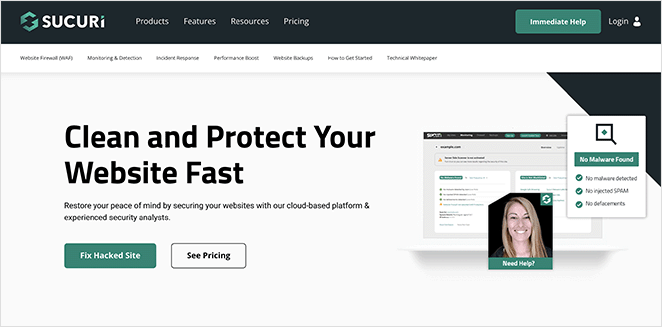
Sucuri Security is built for site owners who want to password protect wordpress website access with minimal hands-on management. Its Web Application Firewall (WAF) filters malicious traffic before it reaches WordPress, reducing login attacks and exploit attempts.
Key features include:
- Web Application Firewall (WAF)
- Malware scanning
- Activity monitoring and alerts
Pros:
- Blocks threats before they reach WordPress
- Includes professional malware cleanup
- Improves performance through CDN delivery
Cons:
- Firewall requires a paid plan
- Higher price point
When to choose it:
For business websites that want strong, hands-off protection when they password protect wordpress website access.
Wordfence Security

Best for: Deep scans and login-level protection
Wordfence is a popular choice for users who want visibility and control when they password protect wordpress website access. It combines scanning, firewall rules, and login security in one plugin.
Key features include:
- Built-in firewall
- Malware and exploit detection
- IP blocking and login security
Pros:
- Strong free version
- Detailed security reports
- Real-time threat blocking in premium plans
Cons:
- Can impact performance on low-resource hosting
- Interface may feel overwhelming for beginners
When to choose it:
If you want detailed insight into login and access threats while you password protect wordpress website access.
Solid Security Pro (Formerly iThemes Security)
Best for: Simple password and login protection
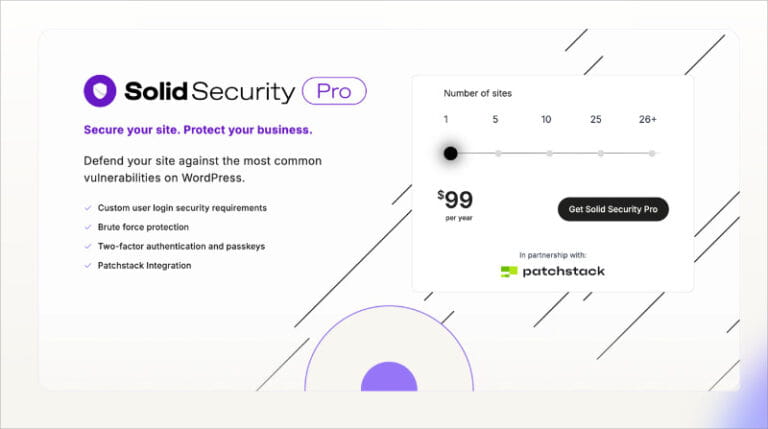
Solid Security Pro focuses on strengthening WordPress itself. It’s designed for users who want to password protect wordpress website access without complex firewall management.
Key features include:
- Limit login attempts
- Enforce strong passwords
- File integrity monitoring
Pros:
- Beginner-friendly setup
- Strong focus on wp-admin protection
- Clear security presets
Cons:
- No built-in firewall
- Relies on other tools for malware scanning
When to choose it:
If your primary goal is to password protect wordpress website logins and admin access with minimal configuration.
All-In-One WP Security & Firewall
Best for: Free password protection and basic security
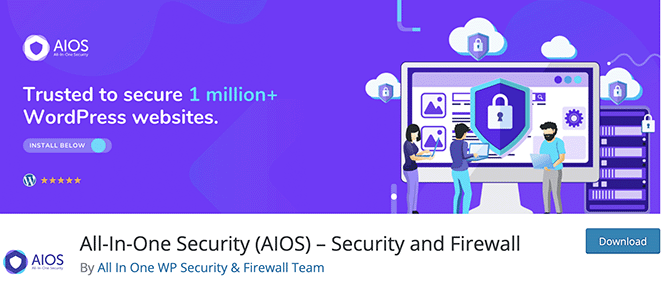
All-In-One WP Security is a free option for users who want to password protect wordpress website access without paid tools. It covers core protection features in a structured way.
Key features include:
- Login lockdown
- File monitoring
- Security scoring system
Pros:
- Completely free
- Easy-to-follow security levels
- Covers essential protection needs
Cons:
- Firewall is application-level
- Limited advanced controls
When to choose it:
A budget-friendly option for small or personal sites that need to password protect wordpress website access.
Google Authenticator (2FA)
Best for: Extra login security
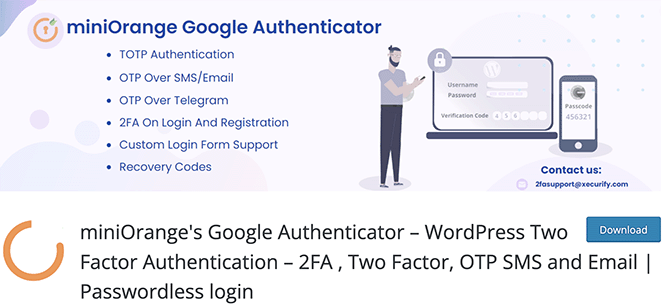
Google Authenticator adds two-factor authentication to WordPress logins. It doesn’t replace firewalls, but it strengthens login protection when you password protect wordpress website access.
Key features include:
- Two-factor authentication
- Works alongside other plugins
Pros:
- Free and lightweight
- Strong protection even if passwords leak
Cons:
- Only handles login security
- Requires another plugin for full protection
When to choose it:
As an additional layer on top of your main security plugin when you password protect wordpress website access.
Which Method Is Best to Password Protect a WordPress Website?
For most sites, the answer is simpler than people expect. The best approach is to use one primary security plugin to handle login protection, access rules, and basic firewall controls. If you want extra safety, you can add one optional 2FA plugin for login verification.
What you should avoid is stacking multiple security plugins or firewalls together. More plugins do not equal more security. Overlapping rules often conflict, cancel each other out, or block legitimate users by mistake. This is one of the most common reasons sites run into access errors or sudden lockouts.
Security works best when it’s clean and intentional. This is where WordPress Website Maintenance becomes valuable. Ongoing maintenance helps ensure your security setup stays properly configured, updated, and conflict-free as plugins and WordPress itself evolve.
Common Mistakes When Password Protecting WordPress
Many access issues come from small mistakes rather than serious threats. One of the most common is using weak or reused passwords while relying on security plugins to “do the rest.” Plugins add protection layers, but they can’t fix poor credentials.
Another frequent problem is running multiple security plugins together. Conflicting login rules and firewalls often cause 403 errors, admin lockouts, or broken access without warning.
Ignoring updates is another major issue. Outdated plugins, themes, or core files create vulnerabilities that password protection alone cannot cover. Many attacks don’t break passwords at all—they exploit known flaws that were already patched.
Locking yourself out without backups or recovery access is also common. Aggressive rules without a rollback plan can quickly lead to downtime.
Protection without planning doesn’t improve security—it increases the chance of disruption.
When to Get Professional Help
For personal sites, basic protection is often manageable. For business websites, the risk is higher. Even short downtime can mean lost revenue, leads, or trust.
Membership sites and WooCommerce stores are especially sensitive to login and access issues. A misconfigured rule can block paying users just as easily as attackers.
If your site is experiencing repeated login attacks, frequent lockouts, or unexplained access problems, it’s usually a sign that deeper configuration issues exist.
For urgent situations, Emergency WordPress Support helps restore access quickly and safely. For long-term stability, Monthly Website Management Plans provide monitoring, updates, backups, and security tuning so the same problems don’t keep coming back.
Final Thoughts on Password Protecting a WordPress Website
Password protection isn’t complicated, but it does require discipline. One good plugin, strong passwords, and regular updates go a long way.
Most access problems come from rushed setups or overlapping tools, not from WordPress itself. Keeping your security setup simple and well-maintained is far more effective than stacking plugins.
Security is ongoing, not a one-time task. Staying proactive now prevents stress, downtime, and emergency fixes later.
Related Guides on Techippo
Helpful reads:
Our WordPress services:

 Reach us on WhatsApp