
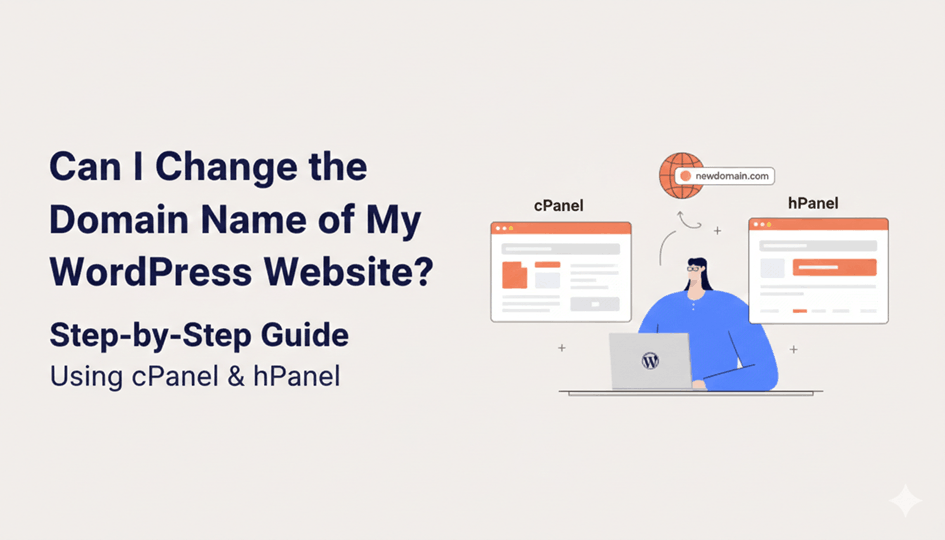
If you’re asking can i change the domain name of my wordpress website, the short answer is yes — and it’s completely doable without rebuilding your site from scratch. That said, it’s not just a cosmetic update where you swap one name for another. Changing a domain name touches your URLs, database entries, internal links, and SEO signals.
This guide is written for real website owners, not developers. It explains can i change the domain name of my wordpress website in a practical, step-by-step way using cPanel and hPanel, the two most common hosting control panels. By the end, you’ll know exactly what changes, what doesn’t, and how to avoid traffic or ranking loss while doing it.
Can I Change the Domain Name of My WordPress Website?
Yes, can i change the domain name of my wordpress website is a valid and common question — and the answer is yes, you absolutely can. WordPress itself does not lock you into a domain name. Your website’s content, theme, plugins, and functionality are all separate from the domain you use to access them.
When you change a domain, you’re not “renaming” the site. You’re telling WordPress to load the same website from a new web address, which means several technical elements change at the same time. This includes the site URL stored in the database, file paths that reference the old domain, and how search engines find and index your pages.
It’s important to understand that can i change the domain name of my wordpress website also depends on how carefully you handle redirects. If done correctly with proper 301 redirects, search engines can transfer authority from the old domain to the new one. If done poorly, rankings and traffic can drop fast.
Key facts to remember:
- Your domain name is not your hosting
- Your hosting is not WordPress
- WordPress can work on any domain if configured correctly
- SEO impact depends almost entirely on execution
Why Businesses Change the Domain Name of a WordPress Website
Many site owners asking can i change the domain name of my wordpress website reach this point because the original domain no longer fits the business. This is normal, especially as brands evolve.
One of the most common reasons is rebranding. A business name changes, expands into new markets, or shifts its positioning, and the old domain simply doesn’t align anymore. Another reason is switching domain extensions — for example, moving from a country-specific extension to a global .com.
Some businesses change domains to simplify long, hard-to-remember URLs, while others consolidate multiple domains into one to build stronger SEO authority. In all these cases, can i change the domain name of my wordpress website becomes a strategic decision, not just a technical one.
Important SEO note:
Domain changes often cause temporary traffic drops. Search engines need time to re-crawl, process redirects, and re-index pages under the new domain. With proper execution and SEO handling, most sites recover — and many improve.
Things to Do Before You Change Your Domain Name
Before acting on can i change the domain name of my wordpress website, preparation is critical. Skipping these steps is where most people break their sites.
Backup Your WordPress Website Completely
Before changing anything, create a full backup of your WordPress website — both files and database. This gives you a recovery point if something goes wrong.
WordPress websites are made of:
- Core files, themes, and plugins
- A MySQL database storing posts, pages, and settings
You can use hosting backups, one-click backup tools, or plugins like UpdraftPlus, VaultPress, or BackWPup. If you’re managing client sites or revenue-generating websites, this step is non-negotiable.
Make Sure You Have Hosting & File Access
When people ask can i change the domain name of my wordpress website, they often forget access matters more than tools. You should have:
- Access to hPanel or cPanel
- FTP credentials
- File Manager access
If something breaks and you lose access to wp-admin, FTP is often the only way to fix URL or configuration issues. This is especially important during domain changes.
Research and Purchase the New Domain Name
Choosing the right new domain is just as important as knowing can i change the domain name of my wordpress website. Make sure the new domain:
- Matches your brand name clearly
- Is easy to spell and remember
- Ideally stays under ~12 characters
- Uses the right extension for your audience
Most domains are registered for 1–10 years, and many hosting providers bundle a free domain with hosting plans. Once purchased, you’re ready to connect it to your WordPress site.
How to Change the Domain Name of a WordPress Website (Overview)
If you’re still asking can i change the domain name of my wordpress website, here’s the high-level process before we go technical.
This overview is for clarity — the actual steps are covered in detail later.
The process includes:
- Buying the new domain
- Adding the domain to your hosting account
- Copying or linking WordPress files
- Updating WordPress URLs
- Resetting permalinks
- Adding a 301 redirect from the old domain
Understanding this flow helps you see that can i change the domain name of my wordpress website is not one action — it’s a controlled sequence. Follow it correctly, and your site stays stable, searchable, and SEO-safe.
Step-by-Step: Change Domain Name Using hPanel or cPanel
This is the execution phase. Follow the steps in the exact order. Skipping, rushing, or rearranging steps is how WordPress sites lose traffic, break URLs, and damage search visibility.
Step 1 – Purchase a New Domain Name

Start by securing the new domain you want to use for your WordPress website.
What to do:
- Use a domain checker from a reliable registrar
- Search for your preferred domain name
- Review suggested alternatives if your first choice isn’t available
If the domain is already taken:
- Perform a WHOIS lookup to identify the domain owner
- Check available contact details such as email or phone number
- Negotiate a purchase if the domain has strong branding or SEO value
Facts & notes:
- WHOIS tools reveal ownership, registration date, and expiry details
- Domain registration periods usually range from 1 to 10 years
- Most registrars require at least one year upfront
Step 2 – Add the New Domain to Hosting (hPanel vs cPanel)
Once the domain is purchased, it must be connected to your hosting so WordPress can run on it.
Using hPanel

- Go to Website → Add Website
- Select WordPress

- Choose the appropriate hosting plan
- Assign the newly purchased domain

- Complete the setup process
Using cPanel
- Navigate to Domains → Addon Domains
- Enter the new domain name
- The document root is created automatically
- Save and add the domain
Important DNS reminder:
- Ensure the domain points to the correct hosting nameservers
Facts & notes:
- DNS propagation can take minutes to several hours
- The site may not load immediately after adding the domain
Step 3 – Copy WordPress Core Files to the New Domain
Now you need to move your WordPress files from the old domain to the new one.
How to do it:
- Open your hosting File Manager
- Locate the old domain’s
public_htmldirectory - Select all files and folders
- Choose Copy (recommended) or Move
- Paste them into the new domain’s
public_htmldirectory
When database migration is required:
- If both domains are on the same hosting, no database move is needed
- If you’re switching hosting providers, you must:
- Export the database
- Import it into the new server
- Update database credentials in
wp-config.php
Facts & notes:
- Same hosting = faster and safer file transfer
- Different hosting = database migration is mandatory
For complex setups or cross-hosting moves, this is where WordPress Website Migrations prevent downtime, data loss, and broken configurations.
Step 4 – Update WordPress URL & Site Address
WordPress must be explicitly told that the site now lives on a new domain. There are three valid methods.
Method 1: WordPress Admin Dashboard
- Go to Settings → General
- Update:
- WordPress Address (URL)
- Site Address (URL)
- Save changes
Method 2: wp-config.php File
Use this method if the dashboard is inaccessible.
Add or update the following lines:
define('WP_HOME','https://newdomain.com');
define('WP_SITEURL','https://newdomain.com');
Method 3: Database via phpMyAdmin
- Open phpMyAdmin
- Select the WordPress database
- Open the
wp_optionstable - Edit:
siteurlhome
- Replace the old domain with the new one

Facts & notes:
- Dashboard fields may be locked if URLs are hard-coded in
wp-config.php - Database edits apply instantly and cannot be undone
Step 5 – Reset URL Structure (Permalinks)
Without resetting permalinks, posts and pages commonly return 404 errors after a domain change.
What to do:

- Go to Settings → Permalinks
- Select Post name
- Click Save Changes (even if it’s already selected)
Alternative method:
- Use a Search & Replace tool or plugin to update URLs directly in the database
Facts & notes:
- Broken permalinks damage user experience and crawlability
- Database search & replace actions are permanent
This step plays a direct role in SEO & Growth Optimization, as clean URLs help search engines re-crawl and re-rank the site faster.
Step 6 – Create a 301 Redirect From Old Domain to New Domain
This step is non-negotiable if you care about rankings, backlinks, and long-term traffic.
How to do it:
- Open the
.htaccessfile on the old domain - Add the following rule (replace with your new domain):
RewriteEngine On
RewriteRule ^(.*)$ https://newdomain.com/$1 [R=301,L]
Why this matters:
- Automatically redirects users to the new domain
- Signals search engines that the move is permanent
Facts & notes:
- 301 redirects pass most link equity
- Keep the old domain active for several months to preserve authority
This is the most critical step for SEO & Growth Optimization, ensuring your rankings, backlinks, and historical trust are carried over to the new domain.
Common Mistakes When Changing a WordPress Domain Name
Changing a domain isn’t risky by default — poor execution is. Most ranking drops and broken sites come from skipping fundamentals, not from the domain change itself.
Skipping Backups
This is the fastest way to turn a routine domain change into a full-blown disaster.
Without a complete backup:
- A failed migration can wipe files or databases
- Recovery becomes guesswork instead of a rollback
- Small errors can escalate into full site downtime
If you manage client sites or revenue-generating websites, consistent backups and monitoring are why Monthly Website Management Plans exist in the first place.
Forgetting 301 Redirects
No redirects = search engines treat your new domain as a brand-new website.
What happens when 301s are skipped:
- Old backlinks stop passing authority
- Indexed URLs return 404 errors
- Rankings drop across the board
A proper 301 redirect strategy is what preserves SEO equity during domain changes. Miss this step, and recovery can take months.
Not Updating Internal URLs
Even if external redirects are in place, internal links still matter.
Common issues:
- Hardcoded URLs pointing to the old domain
- Media files loading from outdated paths
- Mixed-content warnings if HTTPS isn’t aligned
Search engines and users both notice these inconsistencies, which hurts crawl efficiency and trust signals.
Allowing Search Engines to Index Broken URLs
After a domain change, search engines re-crawl aggressively. If they hit broken pages, that’s a problem.
What goes wrong:
- Old URLs remain indexed without redirects
- New URLs fail to get indexed properly
- Crawl budget is wasted on errors
Facts that matter:
- Poor execution leads directly to ranking loss
- Full recovery can take weeks or months, depending on site size and authority
FAQs About Changing a WordPress Domain Name
Can I change the domain name of my WordPress website without losing SEO?
Yes, you can retain most SEO value if you implement proper 301 redirects from the old domain to the new one, update all internal links, and submit an updated sitemap to Google Search Console. Skipping redirects or leaving broken URLs will cause ranking drops.
How long does it take Google to recognize a new domain?
Google usually re-crawls and indexes a new domain within a few days to a few weeks, but full recognition for SEO ranking purposes can take 2–8 weeks, depending on site authority, crawl frequency, and the completeness of redirects.
Do I need to keep the old domain active?
Yes, keep the old domain live at least a few months after migration. This ensures that 301 redirects remain functional, traffic from old links continues to reach your site, and search engines can safely pass link authority to the new domain.
Can beginners change a WordPress domain safely?
Yes, beginners can do it safely if they follow step-by-step instructions, take a full backup, and carefully implement redirects. Using tools like hPanel, cPanel, or plugins for search-and-replace operations can make the process more manageable.
Does changing a domain affect site speed?
No, changing a domain does not inherently affect site speed. Performance changes usually occur if the hosting changes, DNS propagation is slow, or links to resources (images, scripts) are broken. Proper migration ensures your site speed remains stable.
Final Thoughts on Changing a WordPress Domain Name Safely
Changing a WordPress domain name isn’t magic — it’s a controlled technical process. When planned properly, executed step by step, and backed by solid redirects, your site can transition without losing authority, traffic, or trust.
The key isn’t rushing. It’s discipline:
- Backups before changes
- Clean URL updates
- Proper redirects
- SEO-aware execution
If you want the move handled without downtime, errors, or ranking volatility, this is exactly where WordPress Website Migrations, Monthly Website Management Plans, and SEO & Growth Optimization protect both your site and your sanity.
Done right, a domain change isn’t a setback — it’s a reset done on your terms.
 Reach us on WhatsApp