
If you’re serious about growing your website, guessing isn’t a strategy data is. Without analytics, you have no idea where your traffic comes from, what users are doing, or why they leave. That’s exactly why learning how to add Google Analytics in WordPress website is one of the first things every site owner should do.
With Google Analytics 4 (GA4) officially replacing Universal Analytics, website tracking has evolved. GA4 focuses on event-based tracking, deeper user insights, and cross-platform data which makes it even more powerful for bloggers, businesses, and eCommerce stores.
In this beginner-friendly guide, you’ll learn:
- How to create a GA4 account
- How to add Google Analytics in WordPress website step-by-step
- 4 easy integration methods (with and without plugins)
- How to test if it’s working properly
- Common issues and simple fixes
We’ll also briefly touch on why reliable hosting plays a role in accurate data tracking because slow or unstable hosting can distort analytics results.
By the end of this guide, you’ll clearly understand how to add Google Analytics in WordPress website the right way, without breaking your site.
Why You Should Add Google Analytics to Your WordPress Website
Adding Google Analytics isn’t optional anymore it’s essential.
Here’s what you unlock when you connect GA4 to WordPress:
1. Visitor Tracking
See how many people visit your site, where they’re located, and which devices they use.
2. Traffic Sources
Understand whether your visitors come from:
- Google search
- Social media
- Paid ads
- Direct visits
- Referral websites
This helps you double down on what’s working.
3. Behavior Analysis
Track:
- Pages users visit
- Time spent on site
- Scroll depth
- Click activity
- Exit pages
You’ll quickly identify what’s engaging and what’s failing.
4. Conversion Tracking
Measure form submissions, purchases, downloads, or any goal you set. GA4’s event-based model makes this easier and more flexible.
5. SEO Improvement Insights
Google Analytics shows:
- Which pages attract organic traffic
- Bounce rates
- User engagement
- Landing page performance
This data helps you improve rankings and optimize content strategically.
When you understand how to add Google Analytics in WordPress website, you gain the ability to:
- Identify performance issues
- Optimize underperforming pages
- Improve user experience
- Make smarter marketing decisions
Data removes guesswork. It shows you exactly what’s happening on your site.
Image to Use:
Screenshot of GA4 Reports overview (engagement or traffic acquisition report)
Prerequisite – Create a Google Analytics 4 (GA4) Account
Before you can connect analytics to WordPress, you need a GA4 property.
Follow these steps:
Step 1: Go to analytics.google.com
Log in using your Google account.
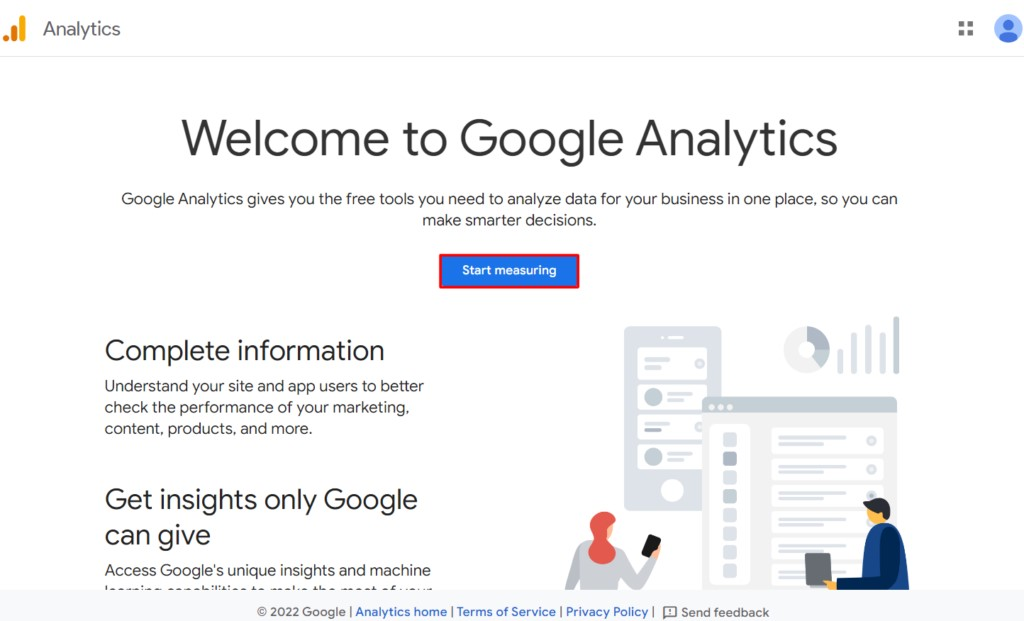
Step 2: Create an Account
Click Admin → Create Account.
Enter your account name and data-sharing preferences.
Step 3: Create a Property
Add:
- Property name (e.g., Your Website Name)
- Time zone
- Currency
Make sure it’s set to Google Analytics 4 (GA4).
Step 4: Select Business Details
Choose your industry category and business size.
Step 5: Accept Terms & Conditions
Review and accept Google’s terms.
Step 6: Create a Web Data Stream
Select Web as your platform.
Enter:
- Your website URL
- Stream name
Click Create Stream.
Step 7: Get Your Measurement ID
After creating the stream, you’ll see something like:
G-XXXXXXXXXX
This is your Measurement ID.
The Measurement ID connects your WordPress site to your GA4 property. When you learn how to add Google Analytics in WordPress website, this is the code you’ll use in plugins, theme files, or tag managers.
Keep it safe you’ll need it in the next steps.
How to Add Google Analytics in WordPress Website – 4 Easy Methods
There isn’t just one way to connect GA4 to your site. The right method depends on your technical comfort level and how much control you want.
If you’re wondering how to add Google Analytics in WordPress website, you can choose between manual code insertion, beginner-friendly plugins, or more advanced tag management tools. Below are the two easiest and most common methods.
Method 1 – Add GA4 Tracking Code to Header.php (Manual Method)
This method gives you direct control and doesn’t require installing extra plugins. However, it does involve editing your theme files.
Step 1: Copy Your GA4 Tracking Tag
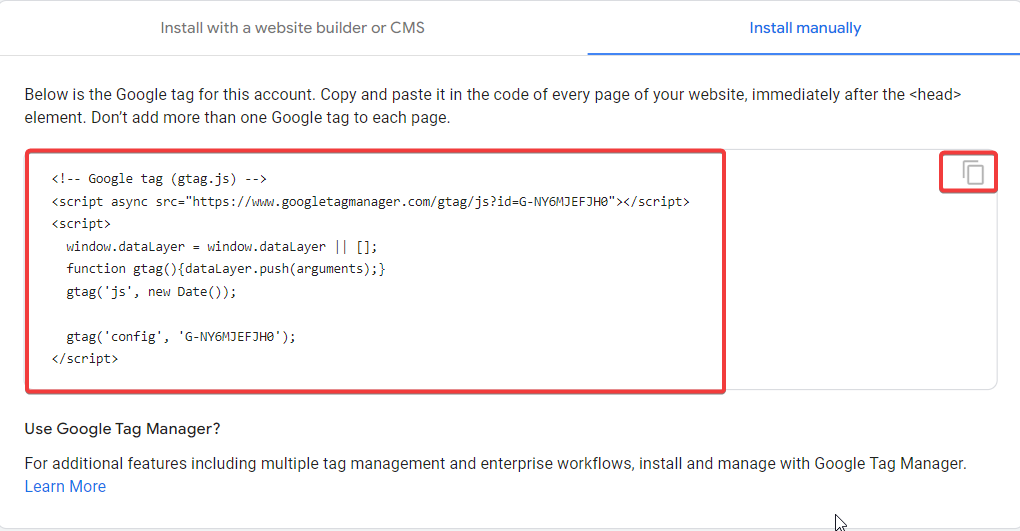
Go to your GA4 property → Data Streams → Web Stream → View Tag Instructions.
Copy the full global site tag (gtag.js) script.
Step 2: Go to Appearance → Theme File Editor
In your WordPress dashboard, navigate to:
Appearance → Theme File Editor
Step 3: Open header.php
From the theme files list on the right side, click header.php.
Step 4: Paste the Code Before </head>
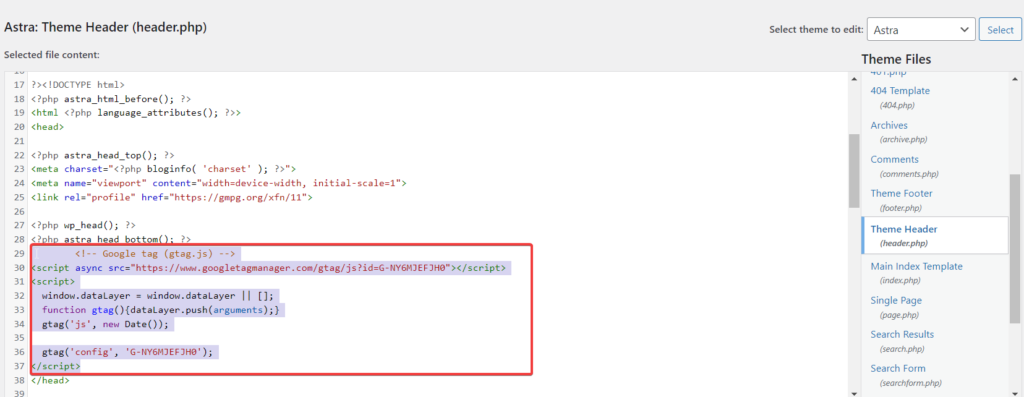
Scroll down and paste the GA4 tracking code just before the closing </head> tag.
Step 5: Save Changes
Click Update File to save.
⚠ Important Warning
If you update or change your theme, your tracking code may disappear. That’s why it’s strongly recommended to:
- Use a child theme
- Or choose a plugin-based method instead
If you’re not comfortable editing theme files, our WordPress experts at Techippo can handle it safely.
Method 2 – Add Google Analytics Using a WordPress Plugin (Beginner-Friendly)
This is the easiest and safest method no coding required.
Step 1: Install a Google Analytics Plugin
Popular options include:
- MonsterInsights
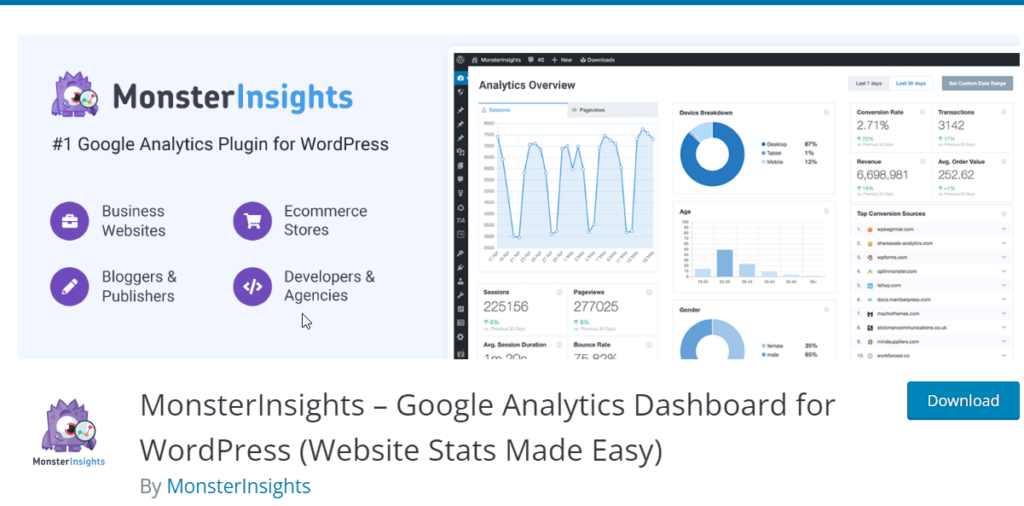
- Site Kit by Google

Go to:
Plugins → Add New → Search → Install → Activate
Step 2: Connect Your Google Account
After activation, the plugin will guide you through connecting your Google account.
Step 3: Add Your Measurement ID
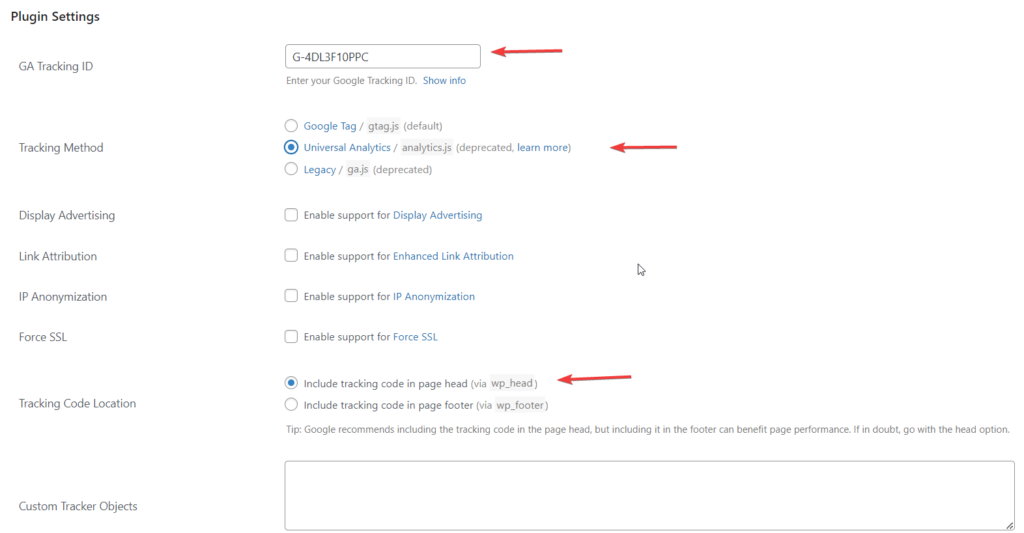
If required, enter your GA4 Measurement ID (G-XXXXXXXXXX).
Some plugins automatically detect it after authentication.
Step 4: Verify the Connection
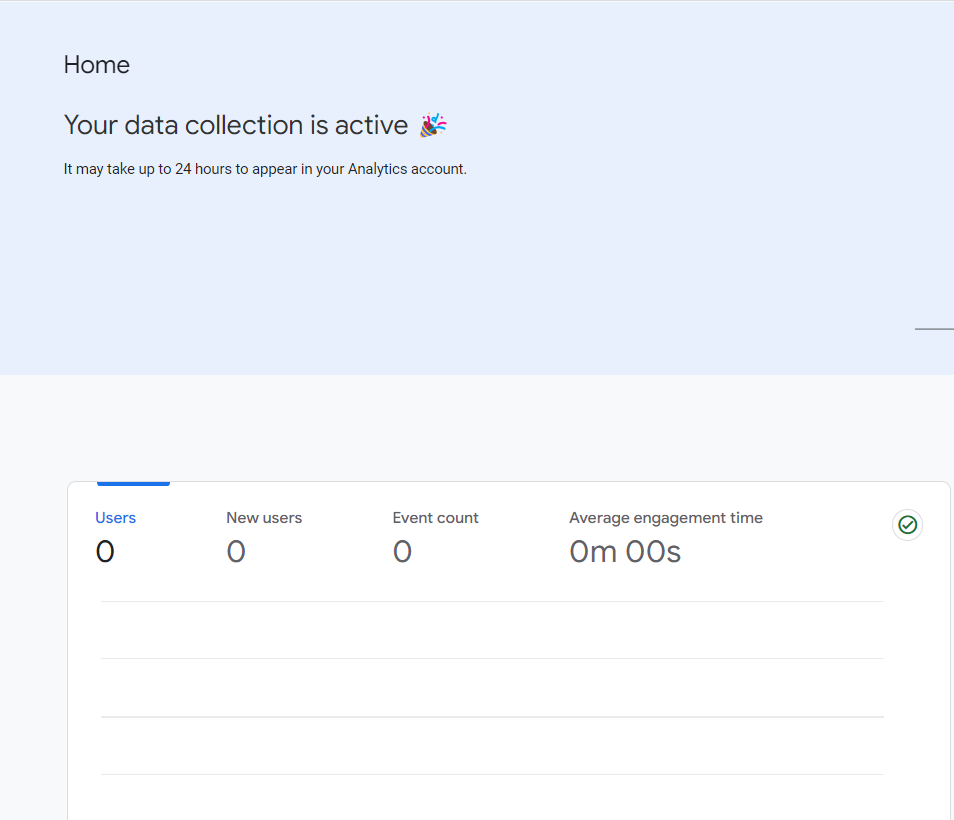
Once connected, your plugin dashboard will confirm that tracking is active.
Why This Method Is Recommended
- Easiest setup
- No code editing
- Safe during theme updates
- Built-in tracking reports
Many plugins even show a real-time dashboard inside WordPress, so you can monitor traffic without logging into GA4.
If you prefer a fully optimized setup with event tracking and conversion configuration, we also offer complete WordPress setup & analytics configuration if you prefer a hands-off setup.
Image to Use:
Plugin installation screen screenshot
Method 3 – Use Google Tag Manager
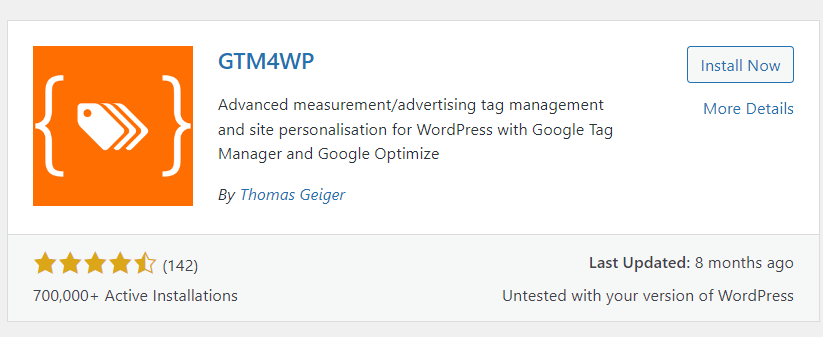
If you want more flexibility and advanced tracking control, Google Tag Manager (GTM) is the smarter option.
Instead of placing multiple scripts directly inside your WordPress theme, GTM acts as a centralized tag management system. You can control Google Analytics, Facebook Pixel, conversion tags, and more all from one dashboard.
Step 1: Create a Google Tag Manager Account
Go to tagmanager.google.com and sign in with your Google account.
Click Create Account, enter your account name, and select your country.
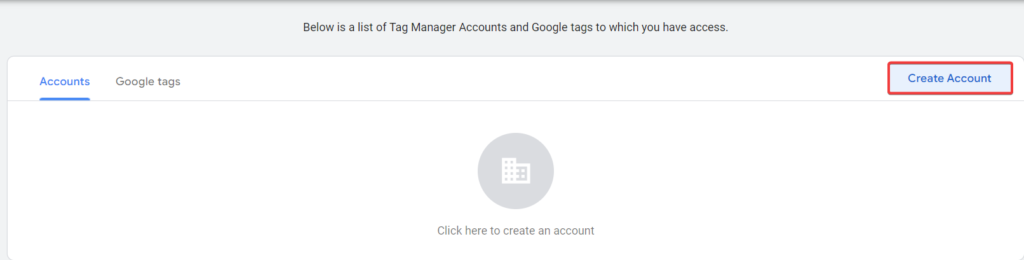
Step 2: Add a Container
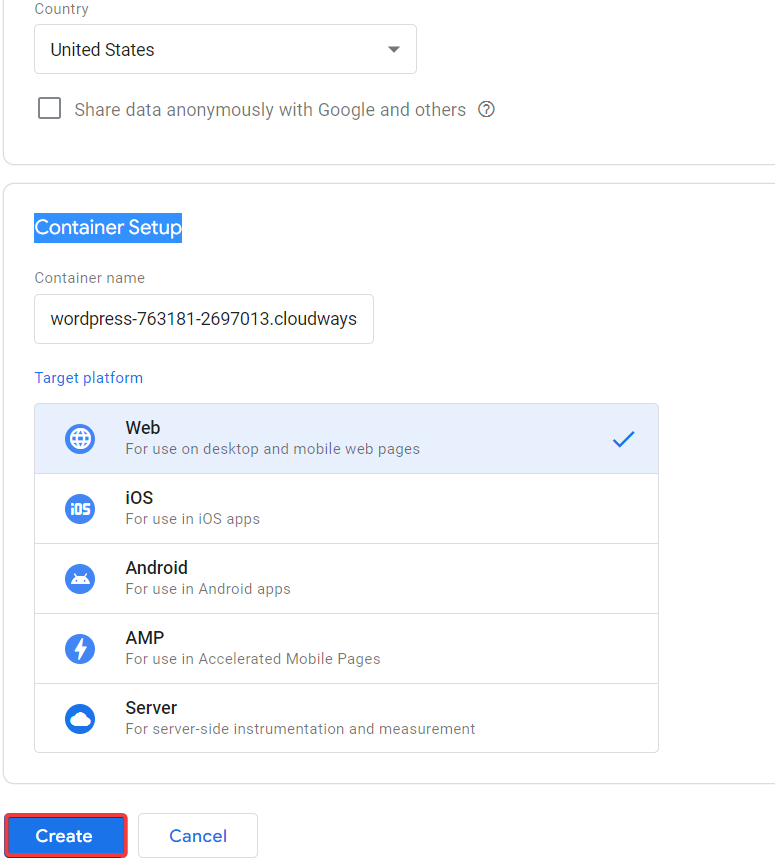
A container holds all your tracking tags.
Choose:
- Target platform: Web
- Name your container (usually your website name)
Click Create and accept the terms.
Step 3: Install a GTM Plugin in WordPress
In your WordPress dashboard:
Plugins → Add New → Search “Google Tag Manager” → Install → Activate
Choose a lightweight and reputable plugin.
Step 4: Paste Your Container ID
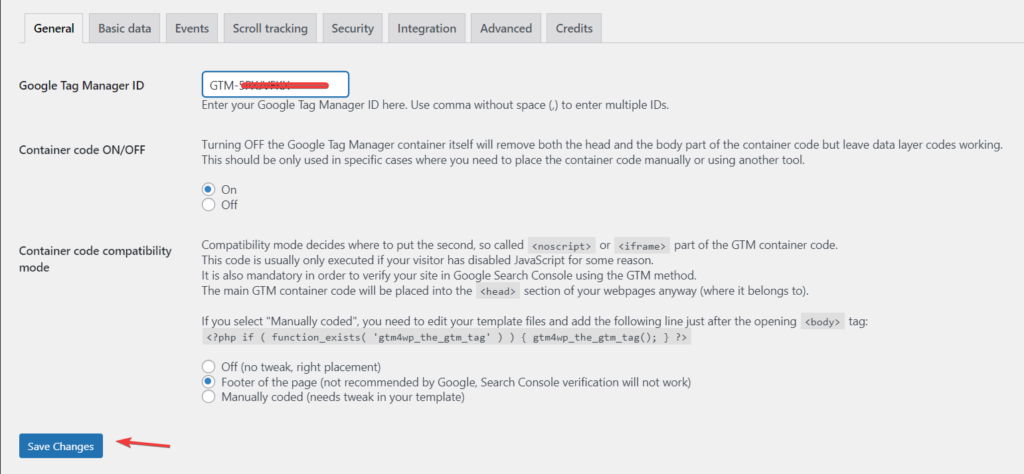
After creating your container, you’ll see a Container ID like:
GTM-XXXXXXX
Copy this ID and paste it into the plugin settings.
Step 5: Publish
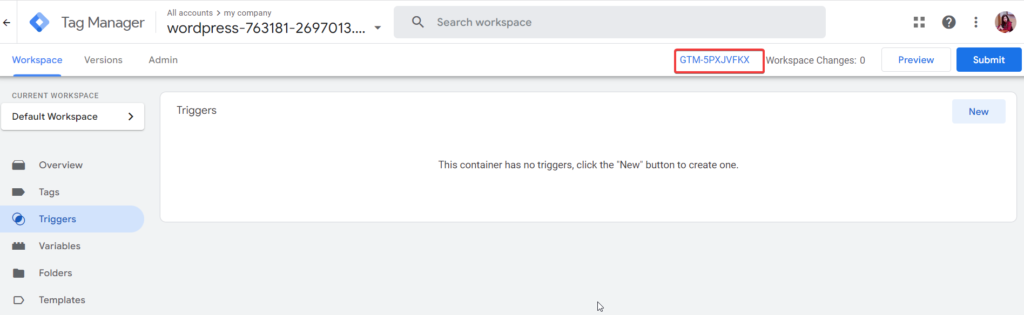
Go back to Google Tag Manager and click Submit → Publish to activate your container.
Why Use Google Tag Manager?
- Centralized tag management
- No repeated theme edits
- Easy event tracking
- Advanced marketing integrations
Best For:
- Agencies managing multiple tags
- Developers needing flexibility
- eCommerce stores tracking conversions, add-to-cart events, and purchases
If you want scalable tracking without touching theme files repeatedly, GTM is a strong long-term solution.
Method 4 – Host Google Analytics Locally (Performance Optimization)
Most websites load Google Analytics directly from Google’s servers. That means extra external requests every time someone visits your site.
Hosting analytics locally can improve performance.
Why Hosting Locally Helps
- Reduces external HTTP requests
- Improves page speed slightly
- Minimizes render-blocking scripts
- Better control over script loading
For speed-focused websites, even small performance improvements matter.
How to Host GA4 Locally
- Install a lightweight performance plugin that supports local analytics hosting.
- Enter your GA4 Measurement ID (G-XXXXXXXXXX).
- Configure script placement (Header or Footer).
- Save settings.
The plugin will download and serve the analytics script from your own server.
Who Should Use This Method?
- Speed-optimized blogs
- Performance-focused businesses
- Sites chasing Core Web Vitals improvements
It’s especially recommended if performance is a priority.
Our managed WordPress hosting ensures GA4 tracking remains accurate even during traffic spikes.
Advanced Google Analytics Features You Should Use
Once you’ve completed how to add Google Analytics in WordPress website, don’t stop at basic tracking. GA4 offers powerful features that most beginners ignore.
Enhanced Measurement
Automatically tracks:
- Scroll tracking
- Outbound clicks
- File downloads
- Site search
- Video engagement
You can enable this directly inside your GA4 data stream settings.
Custom Events
Track specific actions like:
- Button clicks
- Form submissions
- Newsletter signups
- Add-to-cart events
Custom events give you deeper insight into user behavior.
Conversion Tracking
Mark important events as conversions:
- Purchases
- Lead form submissions
- Booking confirmations
This helps measure ROI from SEO, ads, and email marketing.
Cross-Domain Tracking
If you run:
- A main website
- A subdomain
- A separate checkout domain
Cross-domain tracking keeps user sessions connected across all platforms.
These features transform analytics from simple visitor counting into full business intelligence.
How to Test If Google Analytics Is Working
After completing how to add Google Analytics in WordPress website, you need to confirm it’s actually collecting data.
Follow these simple steps:
Step 1: Open GA4
Go to analytics.google.com and log into your account.
Step 2: Go to Reports → Realtime
In the left sidebar, click Reports, then select Realtime.
Step 3: Visit Your Website
Open your website in a new browser tab (or incognito mode for cleaner testing).
Step 4: Check for Live Activity
If everything is installed correctly, you should see:
- 1 active user (you)
- Page view activity
- User location
- Device information
⚠ Keep in mind: Sometimes there may be a small delay (30–60 seconds) before data appears.
If you see activity, congratulations you’ve successfully completed how to add Google Analytics in WordPress website.
Troubleshooting Common Issues
Even when setup seems correct, tracking can fail. Here are common problems and quick fixes:
1. Not Tracking Data
Possible causes:
- Code not placed correctly
- Plugin not connected properly
- Tag not published (if using GTM)
Fix:
Double-check Measurement ID and confirm the tag is active.
2. Real-Time Not Updating
Possible causes:
- Cache plugins delaying script
- Browser caching
- Script placed incorrectly
Fix:
Clear website cache and browser cache. Re-test in incognito mode.
3. Wrong Measurement ID
If you entered the wrong G-XXXXXXXXXX ID, data won’t connect to your property.
Fix:
Go to GA4 → Admin → Data Streams → Copy correct Measurement ID → Update in WordPress.
4. High Bounce Rate
GA4 calculates engagement differently than older versions.
Fix:
Enable Enhanced Measurement and ensure events are tracking properly.
5. Ad Blocker Interference
Some visitors use ad blockers that prevent analytics scripts from loading.
Reality:
This is normal and unavoidable to some extent.
Do You Need Professional Help Setting Up GA4?
Setting up basic tracking is simple. But configuring advanced tracking properly is where most websites fail.
If you want accurate, business-level data, professional setup makes a difference.
We provide:
- Complete GA4 setup
- Event tracking configuration
- Conversion tracking setup
- eCommerce tracking integration
- SEO + analytics alignment
Proper tracking ensures you measure what actually matters leads, sales, and revenue.
Techippo positions itself as:
If you want clean, reliable data without trial and error:
👉 Get Professional Google Analytics Setup
👉 Managed WordPress Hosting for Accurate Tracking
Final Thoughts on How to Add Google Analytics in WordPress Website
Now you know how to add Google Analytics in WordPress website using:
- Manual header method
- WordPress plugins
- Google Tag Manager
- Local hosting optimization
It’s not complicated. There are multiple methods available depending on your skill level.
From beginners installing plugins to developers using GTM, anyone can implement tracking correctly.
In 2026, GA4 isn’t optional it’s essential. Without analytics, you’re running your website blindly.
If you’d rather skip the technical setup, we can handle how to add Google Analytics in WordPress website professionally and optimize it for long-term growth.
FAQ Section (SEO Boost)
How to add Google Analytics in WordPress website without plugin?
You can manually add the GA4 tracking code:
1- Copy the global site tag from GA4
2- Go to WordPress → Appearance → Theme File Editor
3- Open header.php
4- Paste the code before the </head> tag
5- Save changes
Using a child theme is recommended to avoid losing code during theme updates.
What is the best Google Analytics plugin for WordPress?
Popular and reliable options include:
– MonsterInsights
– Site Kit by Google
Both allow easy connection to your Google account and automatic integration of GA4 without coding.
How do I add GA4 measurement ID to WordPress?
You add the G-XXXXXXXXXX Measurement ID:
– Inside a Google Analytics plugin settings page
– Or inside a performance plugin (if hosting locally)
– Or within Google Tag Manager container configuration
The Measurement ID connects your site to your GA4 property.
Is Google Analytics free for WordPress?
Yes. Standard Google Analytics (GA4) is completely free.
There is a premium version called Google Analytics 360, which is designed for large enterprises and comes with advanced reporting and higher data limits.
Most WordPress websites only need the free GA4 version.
How do I check if Google Analytics is working?
Go to:
GA4 → Reports → Realtime
Then visit your website in another tab.
If you see 1 active user and page activity, tracking is working correctly.
You may also want to explore some of our in-depth guides to strengthen your website’s performance, tracking accuracy, and overall growth strategy. These resources will help you go beyond just installing analytics and start optimizing your WordPress site the right way:
Each guide is designed to help you build a faster, smarter, and more conversion-focused website



 Reach us on WhatsApp