
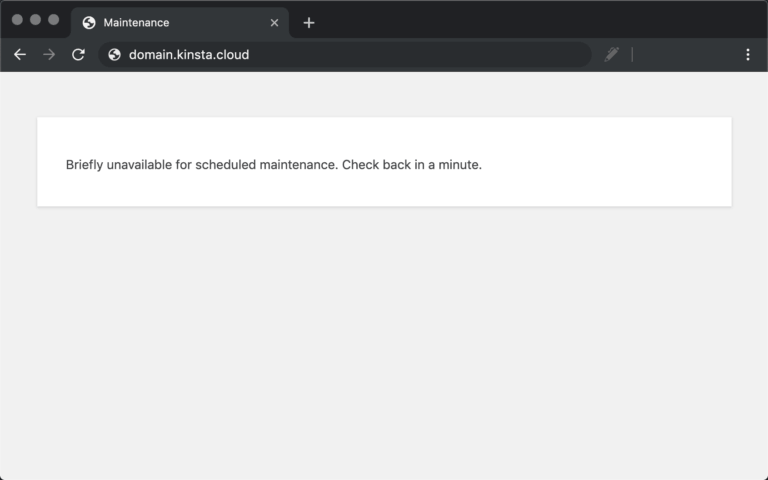
If you’re seeing the message “Briefly unavailable for scheduled maintenance. Check back in a minute.”, your wordpress stuck in maintenance mode issue is almost always the result of a failed update—not a security breach or server crash.
This guide explains why wordpress stuck in maintenance mode happens, how to recognize it correctly, and what actually goes wrong behind the scenes. The good news: in most cases, fixing wordpress stuck in maintenance mode is straightforward once you understand the cause.
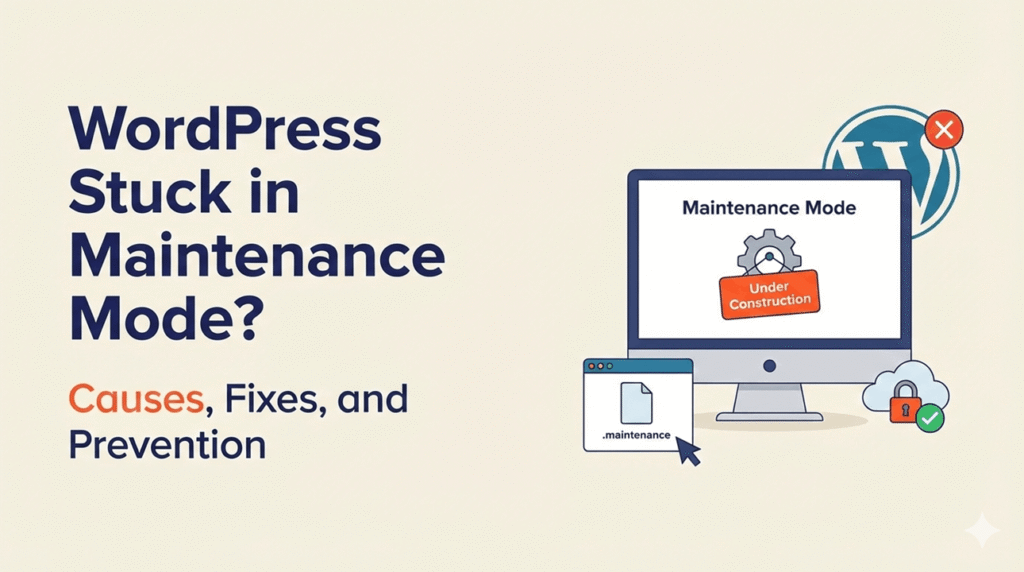
What Does “WordPress Stuck in Maintenance Mode” Mean?
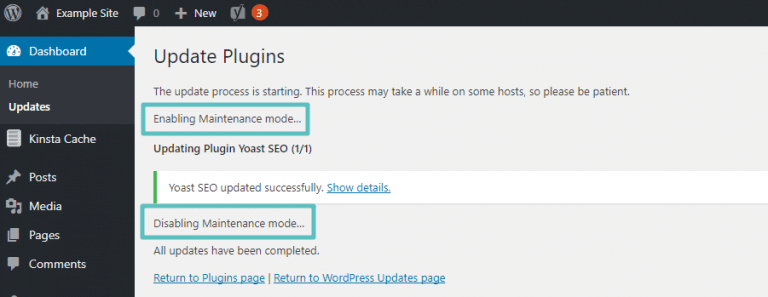
When WordPress runs updates for plugins, themes, or core files, it temporarily enables maintenance mode. This is done automatically to prevent users from seeing broken pages during updates. Normally, this process takes only a few seconds and resolves itself without any action.
However, when something interrupts that update process, the site can remain locked in that state. That’s when wordpress stuck in maintenance mode occurs.
Here’s what’s important to understand:
- WordPress automatically enables maintenance mode during updates
- Maintenance mode is controlled by a temporary system file
- The issue happens when WordPress fails to exit maintenance mode properly
- This is not a hacked site, malware issue, or permanent failure
In simple terms, wordpress stuck in maintenance mode means WordPress started an update, but never finished cleaning up after itself. Once the system is stuck, visitors see the maintenance message indefinitely until the issue is resolved.
Why WordPress Gets Stuck in Maintenance Mode
Understanding the causes helps prevent the issue from happening again. Most cases of wordpress stuck in maintenance mode trace back to update interruptions or server limitations.
Interrupted Plugin, Theme, or Core Updates
The most common cause of wordpress stuck in maintenance mode is an interrupted update.
This can happen when:
- The browser tab is closed mid-update
- The internet connection drops
- The server times out during file execution
When this happens, WordPress never completes the update process, leaving the maintenance lock active.
Updating Too Many Plugins or Themes at Once
Bulk updates increase the chance of failure. Running many updates simultaneously can overload the server or exceed script execution limits, especially on shared hosting.
If WordPress can’t finish all update processes cleanly, the result is often wordpress stuck in maintenance mode.
Plugin or Theme Compatibility Issues
Compatibility conflicts are another frequent trigger.
Common examples include:
- Plugins not compatible with the current WordPress version
- Themes incompatible with the active PHP version
- Conflicts between plugins during updates
Any of these can cause WordPress to halt the update sequence, leaving maintenance mode active.
Low Server Resources
Limited server resources make updates fragile.
This includes:
- Low PHP memory limits
- Shared hosting resource caps
- Slow disk I/O
When resources run out mid-update, WordPress cannot remove the maintenance lock—leading directly to wordpress stuck in maintenance mode.
Technical fact to know:
WordPress enters maintenance mode by creating a temporary file named .maintenance.
When an update fails, that file is not removed, which is why the site remains inaccessible.
How to Fix WordPress Stuck in Maintenance Mode (Quick Solution)
If your site is showing the maintenance message and won’t recover on its own, the fix for wordpress stuck in maintenance mode is usually immediate. You don’t need to reinstall WordPress, restore a backup, or contact support first.
The solution comes down to removing one temporary file that WordPress failed to delete after an update.
The Root Cause — The .maintenance File
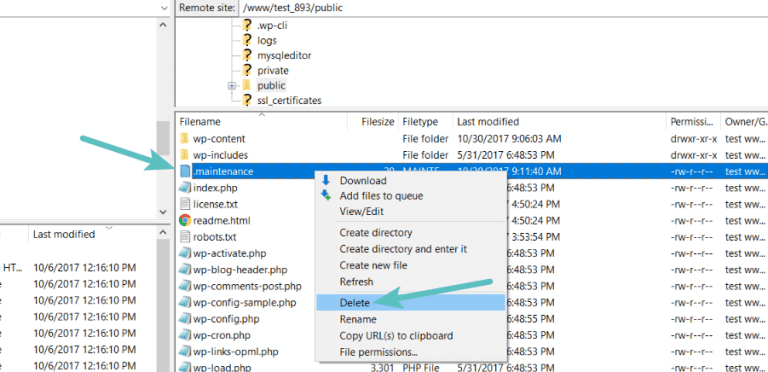
When WordPress enters maintenance mode, it creates a file called .maintenance in the root directory of your site. This file tells WordPress to display the maintenance message while updates are running.
Normally:
- The file is created at the start of an update
- The file is deleted automatically when the update finishes
When an update fails or gets interrupted, the file stays behind. As long as the .maintenance file exists, WordPress assumes the site is still updating—causing wordpress stuck in maintenance mode.
Key facts:
- The
.maintenancefile is temporary - It contains no critical site data
- It is safe to delete manually
- Deleting it does not break your site
Once the file is removed, WordPress immediately exits maintenance mode.
Step-by-Step: Fix WordPress Stuck in Maintenance Mode Manually
Follow these steps exactly. The entire process usually takes less than two minutes.
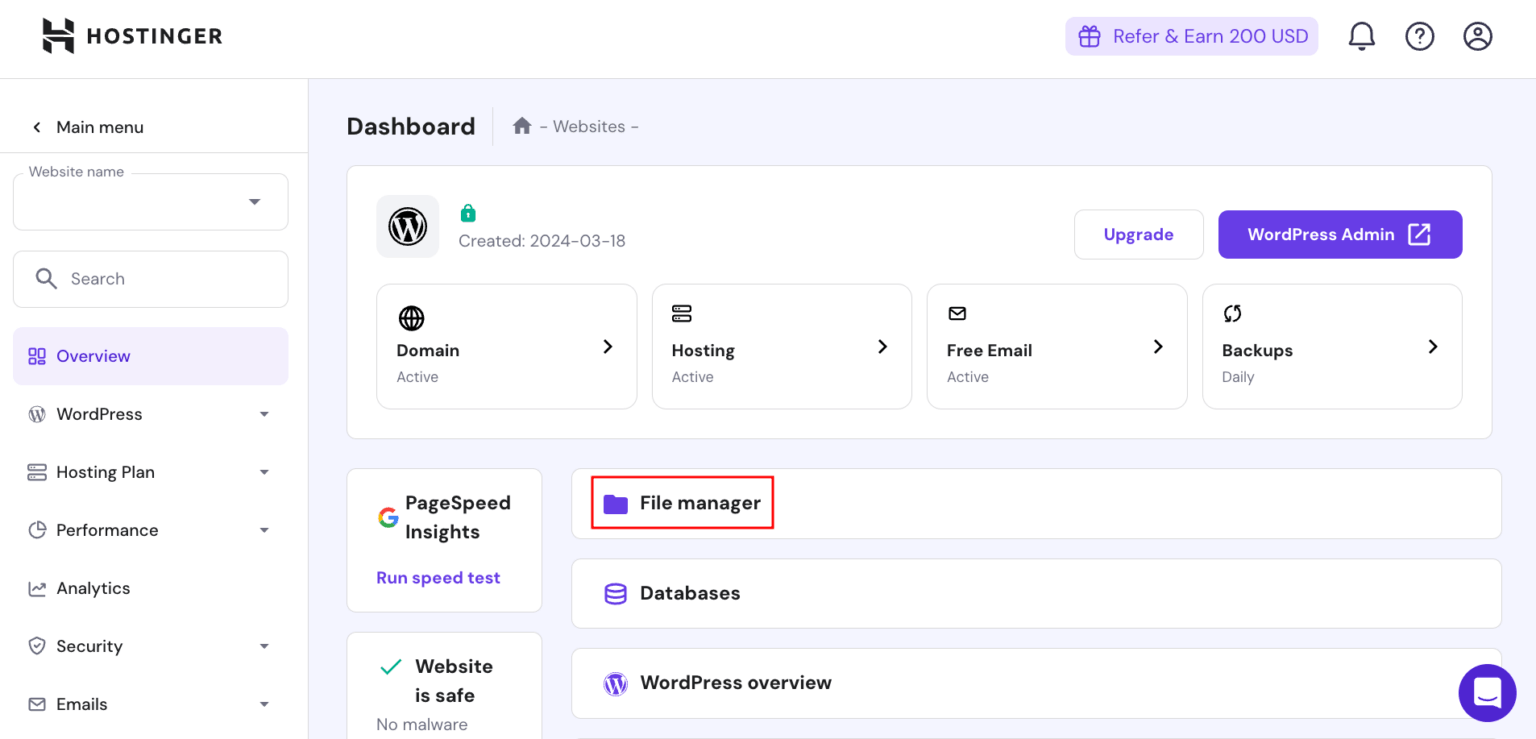
Step 1 – Access Your Website Files (FTP or File Manager)
You’ll need direct access to your WordPress files. This is required because the WordPress admin area is often inaccessible when wordpress stuck in maintenance mode occurs.
You can access your files using:
- Your hosting provider’s File Manager
- FTP or SFTP (using tools like FileZilla)
Important:
- FTP access is critical if
wp-adminwon’t load - No database access is required
Step 2 – Locate the .maintenance File
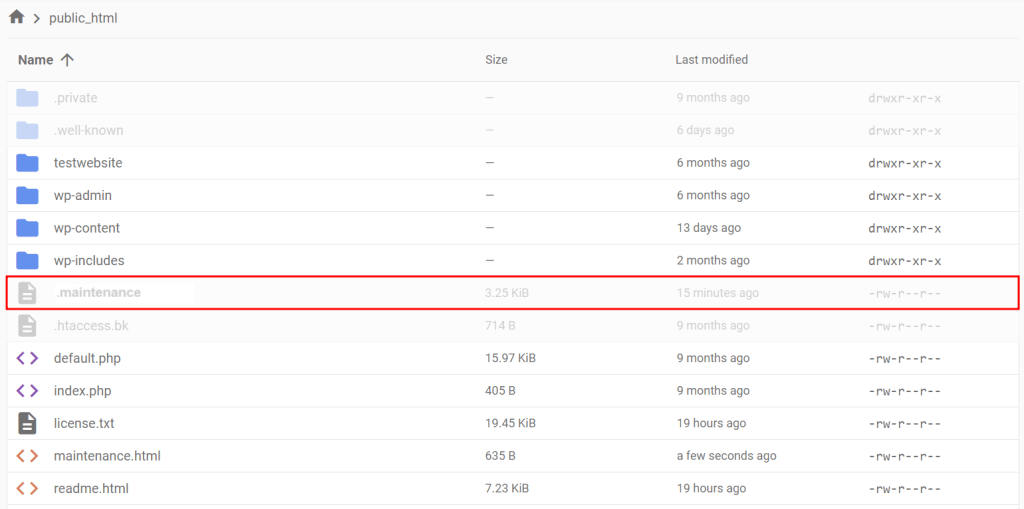
Once connected, open the root directory of your WordPress installation. This is the same folder that contains:
wp-adminwp-contentwp-config.php
The .maintenance file will be located here.
Important note:
- The file may be hidden because it starts with a dot
- Enable “Show hidden files” in your FTP or file manager if needed
Step 3 – Delete the .maintenance File
Delete only the .maintenance file.
Do not:
- Edit the file
- Rename it
- Delete any other WordPress core files
Once deleted, the fix for wordpress stuck in maintenance mode is effectively complete.
Expected result:
- Your site loads immediately
- The maintenance message disappears
- WordPress resumes normal operation
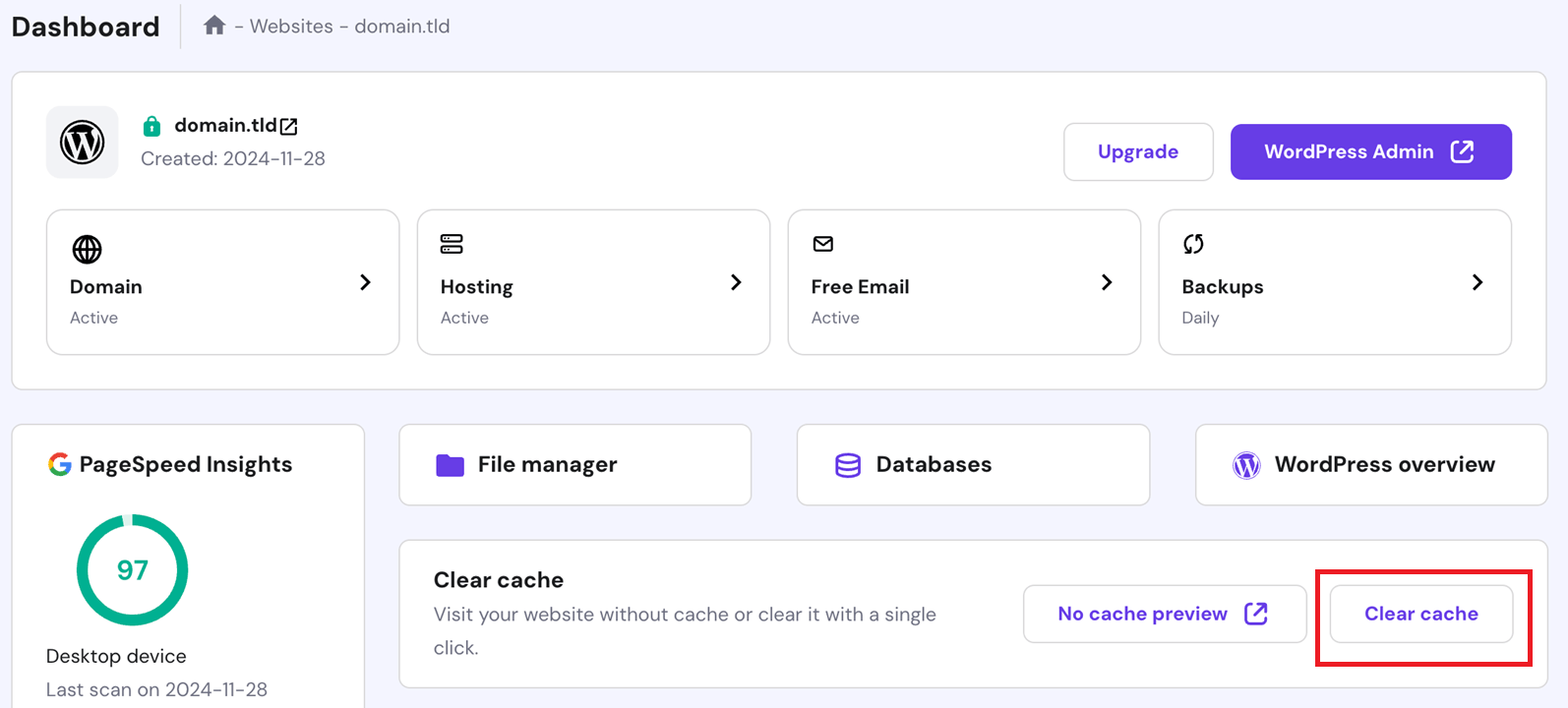
Step 4 – Clear Cache and Recheck the Site
If you still see the maintenance message, caching is likely the issue—not WordPress.
Clear:
- Browser cache
- WordPress caching plugin cache
- Hosting or server-level cache (if available)
Why this matters:
- Cached versions of the maintenance page can persist
- Clearing cache ensures you see the live site
After clearing cache, reload the site. In nearly all cases, wordpress stuck in maintenance mode is fully resolved at this point.
What to Do After Fixing Maintenance Mode
Once the site is live again, don’t just walk away. When wordpress stuck in maintenance mode happens, it’s a symptom of a failed update — and that underlying issue still needs attention.
Think of this as a quick post-fix safety checklist.
Re-Run Failed Updates Carefully
The update that caused maintenance mode likely didn’t complete.
Do this instead of bulk updating again:
- Update one plugin or theme at a time
- Start with the one that failed or was updating when the issue occurred
- Check the plugin/theme changelog before updating
Best practice:
- Confirm compatibility with your current WordPress and PHP versions
- If an update fails again, stop and investigate before continuing
This reduces the chance of WordPress getting stuck in maintenance mode again.
Check for Broken Functionality
Even if the site loads, something may have partially updated.
Manually check:
- Frontend: pages, posts, menus, images
- Admin dashboard: editor, settings pages, plugin screens
- Forms and checkout: contact forms, login forms, carts, payments (if applicable)
Why this matters:
- Failed updates can silently break features
- Issues caught early are easier to fix
Monitor Error Logs
If maintenance mode was triggered by a deeper issue, errors may still be occurring.
Look for:
- PHP errors
- Plugin or theme conflicts
- Deprecated function warnings after updates
Where to check:
- Hosting control panel error logs
- WordPress debug log (if enabled)
Catching these early prevents repeat failures and performance issues.
How to Prevent WordPress From Getting Stuck in Maintenance Mode Again
Prevention isn’t complicated — it’s about slowing down and being deliberate. Most cases of wordpress stuck in maintenance mode are completely avoidable.
Update Plugins and Themes One at a Time
Bulk updates are convenient, but risky.
Why single updates are safer:
- Reduces server load
- Makes it obvious which update causes problems
- Easier to roll back if something breaks
Rule of thumb:
If the site matters, don’t rush updates.
Always Check Compatibility Before Updating
Never assume an update is safe.
Before clicking “Update,” check:
- WordPress version compatibility
- PHP version support
- Plugin update notes and recent reviews
This is especially important on:
- Older sites
- Custom themes
- Shared hosting environments
Use Staging Sites for Major Updates
For important sites, testing on live production is a bad idea.
Staging sites let you:
- Test updates safely
- Catch conflicts before users do
- Avoid live-site downtime
Best use cases:
- Major WordPress core updates
- Multiple plugin updates
- Theme changes
If your host provides staging, use it. If not, that’s a hosting limitation worth reconsidering.
Keep Reliable Backups Enabled
This is non-negotiable.
Facts:
- WordPress = files + database
- Backups are the fastest recovery path
- No backup = unnecessary risk
Best practice:
- Daily automated backups
- Off-site storage
- One-click restore option
Backups turn disasters into minor inconveniences.
Common Mistakes When Fixing WordPress Maintenance Mode
Many people fix the immediate issue and accidentally create a bigger one.
Deleting the Wrong Files
Deleting random files in the root directory can:
- Break WordPress entirely
- Cause missing admin access
- Trigger fatal errors
Only delete the .maintenance file. Nothing else.
Editing Core Files Instead of Removing .maintenance
Some users try to:
- Edit
wp-config.php - Modify core WordPress files
- Add random code snippets from forums
This is unnecessary and risky. The issue is almost never in core files.
Ignoring the Failed Update That Caused the Issue
If you don’t address the update that failed:
- The issue will likely repeat
- Future updates may also fail
- Site stability degrades over time
Always identify what caused maintenance mode in the first place.
Repeating Bulk Updates Immediately
Running the same bulk update again without investigation often leads to:
- White screen of death
- Fatal PHP errors
- Complete site downtime
Facts:
Poor handling can quickly escalate a simple maintenance mode issue into a full site crash.
FAQs About WordPress Stuck in Maintenance Mode
Why is my WordPress site stuck in maintenance mode?
A WordPress site gets stuck in maintenance mode when an update doesn’t finish properly. During updates, WordPress creates a temporary .maintenance file. If the update is interrupted — due to a browser closing, server timeout, or plugin conflict — that file isn’t removed, and WordPress keeps showing the maintenance message.
This is a failed update state, not a security issue.
Is it safe to delete the .maintenance file?
Yes. The .maintenance file is temporary by design and safe to delete manually. Removing it does not delete content, settings, or database data. Once the file is removed, WordPress immediately exits maintenance mode and the site loads normally.
The only requirement is deleting only that file and nothing else.
Can maintenance mode break my SEO?
Short-term maintenance mode does not harm SEO. Search engines understand temporary downtime.
However, if a WordPress site remains stuck in maintenance mode for an extended period, it can:
– Prevent pages from being crawled
– Trigger crawl errors
– Reduce search visibility temporarily
Fixing the issue quickly avoids any real SEO impact.
Do I need FTP access to fix this issue?
Not always, but it’s the most reliable method.
If you can access your hosting file manager, that works too. However, when wp-admin is inaccessible, FTP or SFTP access is often the only way to remove the .maintenance file. That’s why having basic file access credentials is important for WordPress site ownership.
Will this happen again after future updates?
It can, but it’s preventable.
Most repeat cases happen when:
– Bulk updates are run repeatedly
– Compatibility checks are skipped
– Server resources are limited
– Updates are interrupted
Updating one item at a time, checking compatibility, and using backups drastically reduce the chances of seeing maintenance mode again.
Final Thoughts on Fixing WordPress Stuck in Maintenance Mode
Seeing a WordPress site stuck in maintenance mode feels alarming, but the reality is far less dramatic. This is one of the most common WordPress update issues, and the fix is straightforward once you know what’s happening behind the scenes.
The key takeaway is simple: WordPress didn’t break — an update just didn’t finish cleanly. Removing the .maintenance file solves the immediate problem, but long-term stability comes from disciplined update habits, compatibility checks, and reliable backups.
For business-critical WordPress sites, ongoing support isn’t optional — it’s preventative insurance. Instead of reacting when something breaks, the right services stop these issues from happening in the first place:
- Monthly Website Management Plans
Ongoing updates, monitoring, backups, and health checks that prevent failed updates and downtime before they occur. - WordPress Website Maintenance
Safe, staged plugin and theme updates, compatibility checks, and performance monitoring to keep the site stable long-term. - Emergency WordPress Support
Immediate intervention when updates fail, the admin panel goes down, or the site gets stuck in maintenance mode unexpectedly.
This approach turns WordPress issues into minor blips instead of business-disrupting events.


 Reach us on WhatsApp